With Bricks Builder, you can add a sign-up form to any page, template or popup. The form sends contacts directly to your MailerPress lists, with your own fields, spam protection and design.
This integration requires MailerPress Pro 1.2 or later. Forms inside Bricks popups require MailerPress Pro 2.1.1 or later.
Add the element
- Edit a page, template or popup with Bricks.
- Open the elements panel, search for MailerPress Optin Block and drag it into your content.
- Click the element. All MailerPress settings are in the Content tab, grouped in the sections below.
Add fields to the form
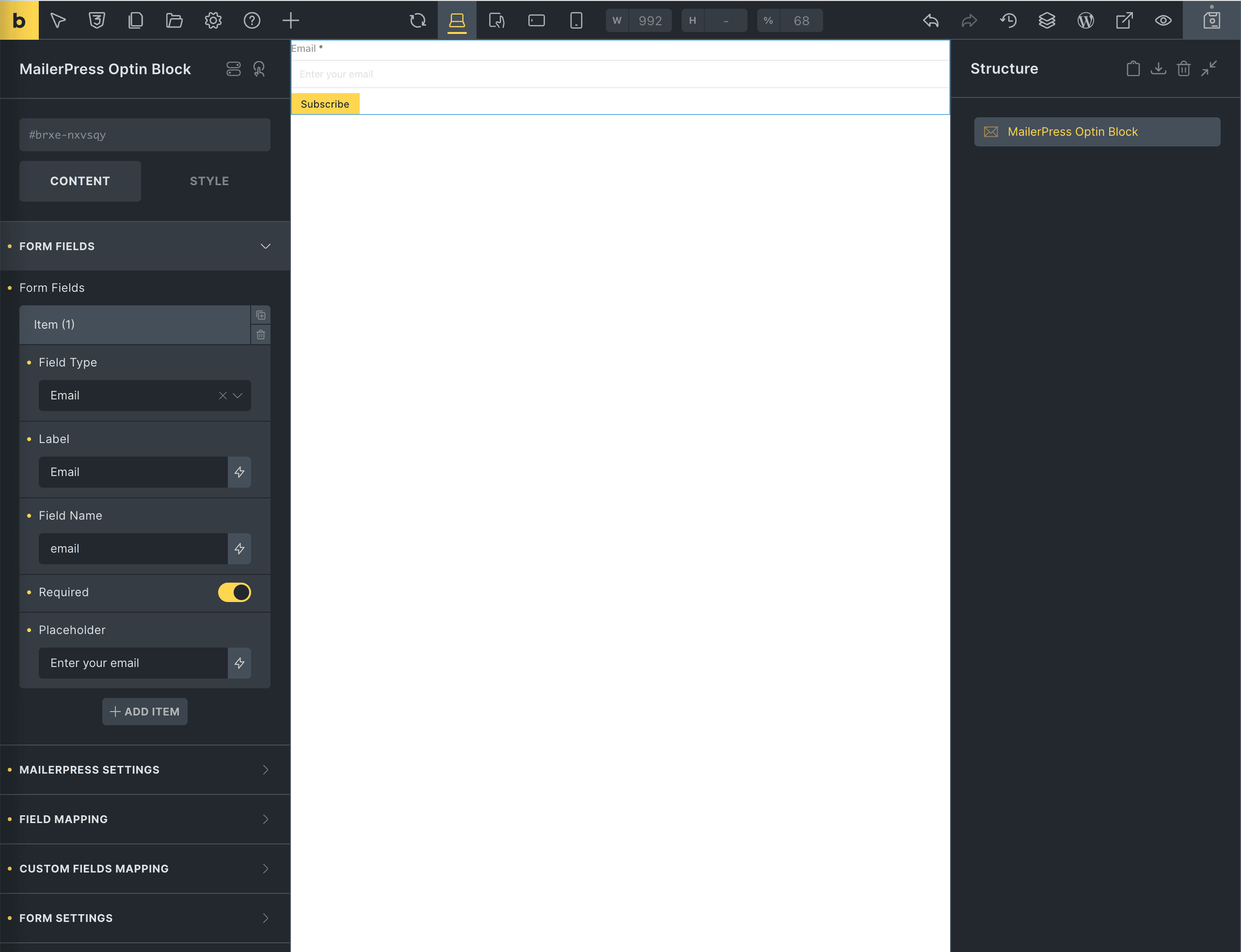
The Form Fields section contains an email field by default. Add an item for each extra field and set:
- Field Type: Email, Text, Textarea, Phone, Number, Date or Consent Checkbox.
- Label, Field Name and Placeholder. You use the field name for the mapping below.
- Required: whether the visitor must fill in the field.
- Consent Text (consent checkbox only): the text next to the checkbox. It can include links to your terms and privacy policy.
A required consent checkbox shows “You must accept the consent checkbox to continue.” until the visitor ticks it. The checkbox itself is not saved in the contact.
Map the fields to MailerPress
“Mapping” means telling MailerPress which form field fills which contact field.
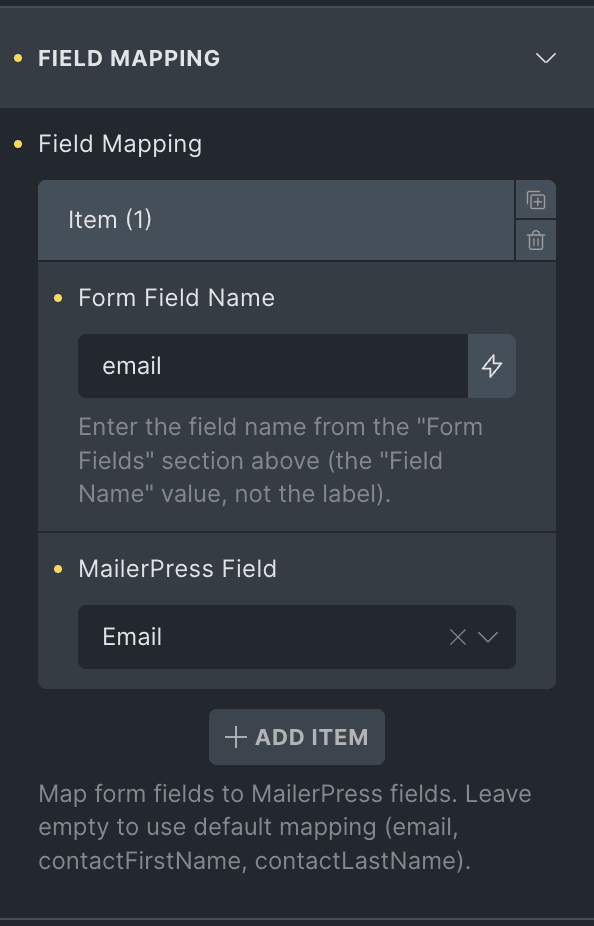
- Field Mapping: for each item, enter the Form Field Name (the Field Name value, not the label) and choose the MailerPress Field: Email, First Name or Last Name. If you leave this section empty, fields named
email,firstnameorfirst_name, andlastnameorlast_nameare mapped automatically. - Custom Fields Mapping: enter the Form Field Name and choose the MailerPress custom field in Custom Field Key. Create your custom fields in MailerPress first (see Manage Your Contact Fields).
Choose lists, tags and double opt-in
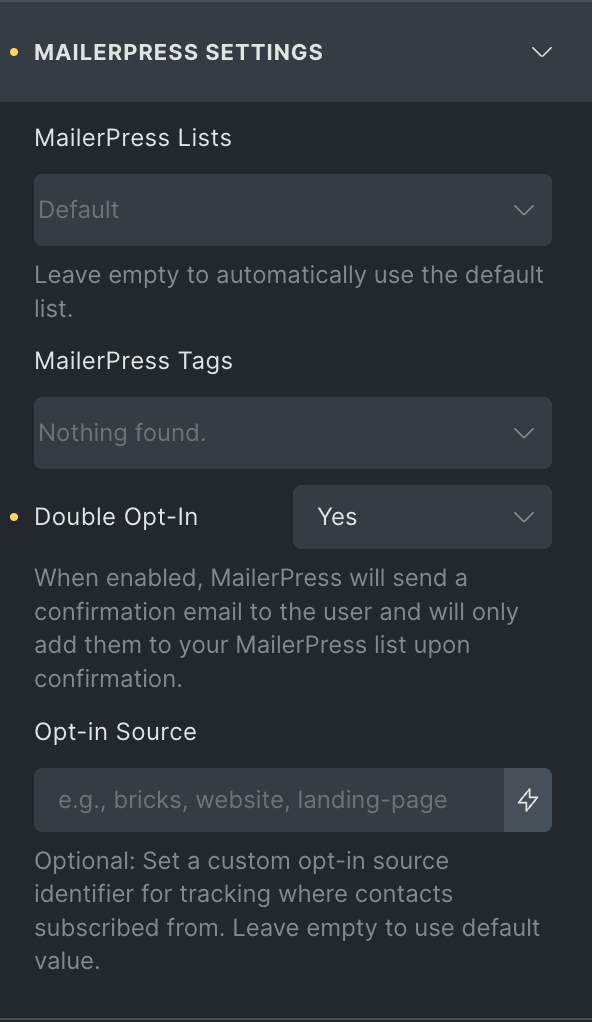
In MailerPress Settings:
- MailerPress Lists: one or more lists. Leave empty to use the default list.
- MailerPress Tags: tags (labels to sort contacts) added to the contact.
- Double Opt-In (Yes by default, recommended): new contacts get the Pending status and must click a link in a confirmation email to be subscribed. With No, they are subscribed directly. Contacts who are already subscribed keep their status; only their lists, tags and fields are updated.
- Opt-in Source: an optional label (for example
landing-page) shown as the contact’s opt-in source in MailerPress > Audience > Contacts. Leave empty to usebricks.
Set the messages and the redirect
In Form Settings:
- Form Columns: show the fields in 1, 2 or 3 columns.
- Success Message and Error Message.
- Enable Redirect After Success: then choose the page in Redirect To Page and the Redirect Delay (milliseconds) (2000 by default, 0 to redirect immediately).
Protect the form against spam
In Spam Protection, you can enable a captcha (a check that blocks bots): Google reCAPTCHA v3, Cloudflare Turnstile or hCaptcha. They use the keys saved in Bricks > Settings (API keys). If a key is missing, a red message in the element tells you and links to the right page. With reCAPTCHA v3, submissions with a score below 0.5 are rejected.
The MailerPress honeypot (a hidden field that only bots fill in) also applies when it is enabled in MailerPress > Settings > Spam Protection. See Security & Spam Protection.
Customize the design
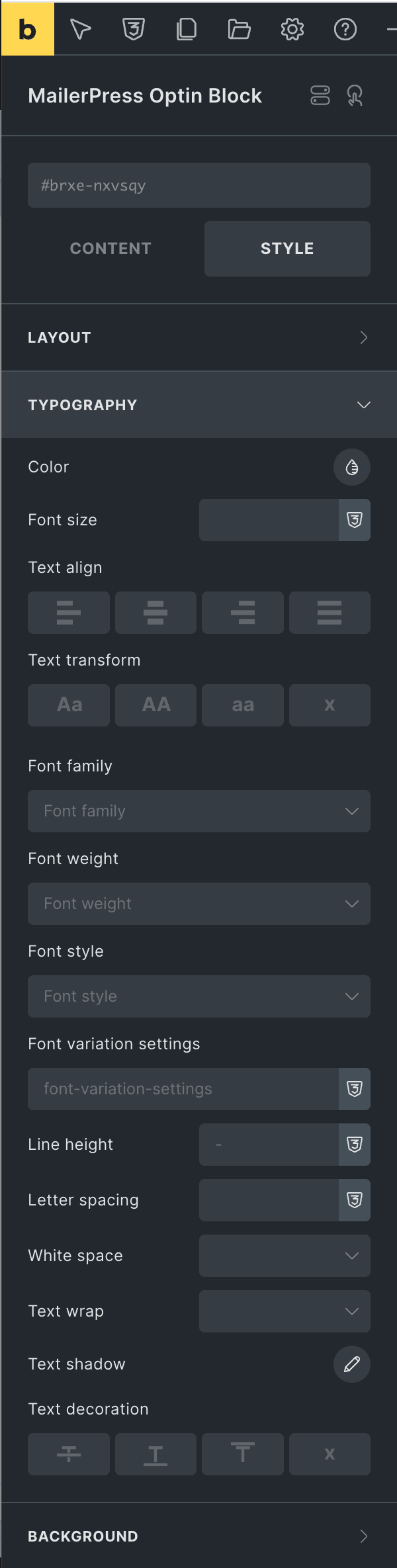
- Field Style: padding, margin, height, text alignment, background, text color, border, box shadow, typography, and focus border color and shadow.
- Label Style: margin, color, typography and the color of the required star.
- Submit Button: Text (Subscribe by default), size, style, alignment, width, margin, typography, background, border, box shadow, and an optional icon with its position.
For the rest of the layout, use the Bricks Style tab as for any element, for example the form width in Layout > Sizing.
Use the form in a popup
Place the MailerPress Optin Block in a Bricks popup template, then open the popup on any page as usual. Since MailerPress Pro 2.1.1, popup submissions are processed like page submissions. If a popup form does not subscribe visitors, update MailerPress Pro.
Prefer the shortcode? See Adding a MailerPress Form with Your Page Builder to Collect Emails.