With Elementor, you can collect subscribers in two ways: the MailerPress Form widget, which works with the free version of Elementor, or a MailerPress action added to the Form widget of Elementor Pro.
This integration requires MailerPress Pro 1.2 or later. The MailerPress action for Elementor forms also requires Elementor Pro.
Option 1: the MailerPress Form widget
Edit a page with Elementor, search for MailerPress Form in the widgets panel and drag it into your content. Click the widget to open its settings.
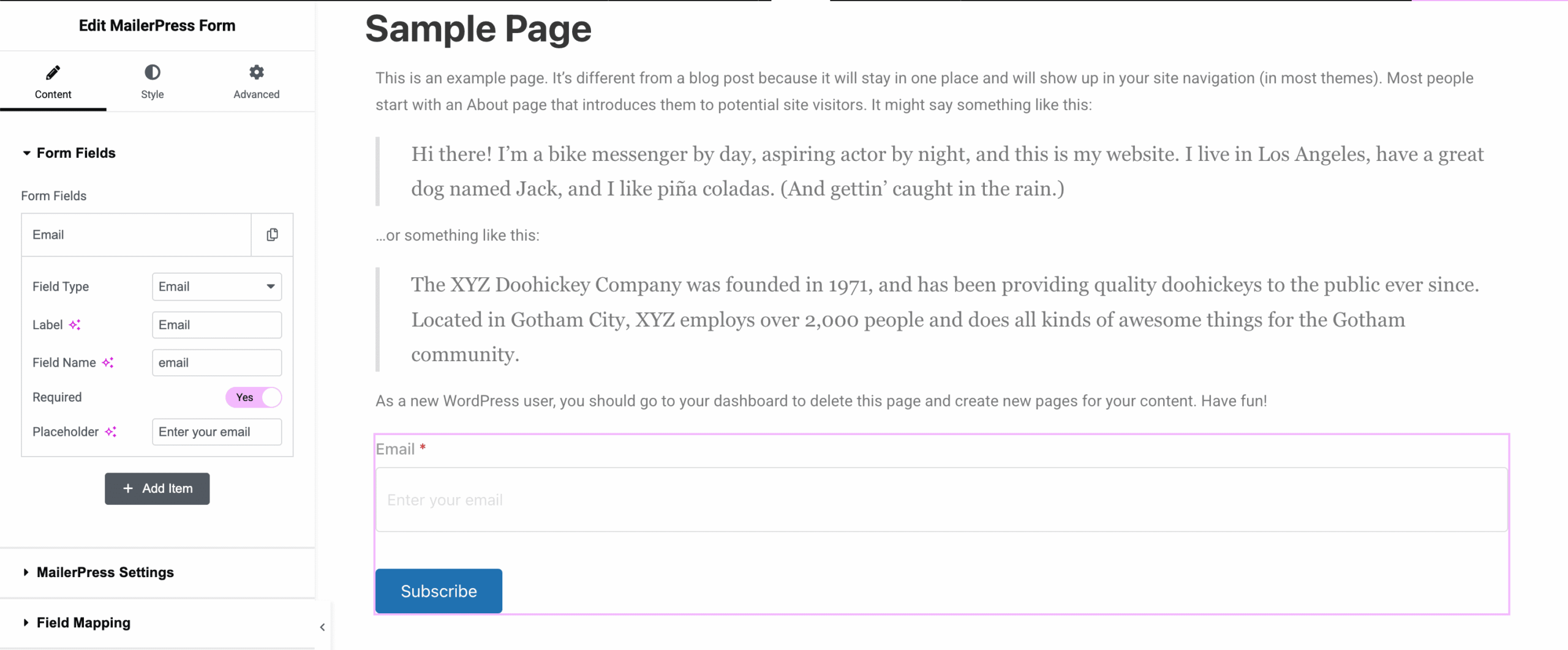
Add fields to the form
In the Content tab, the Form Fields section contains an email field by default. Add an item for each extra field and set:
- Field Type: Email, Text, Textarea, Phone, Number or Date.
- Label, Field Name and Placeholder. You use the field name for the mapping below.
- Required: whether the visitor must fill in the field.
Drag the items to reorder the fields.
Map the fields to MailerPress
“Mapping” means telling MailerPress which form field fills which contact field.
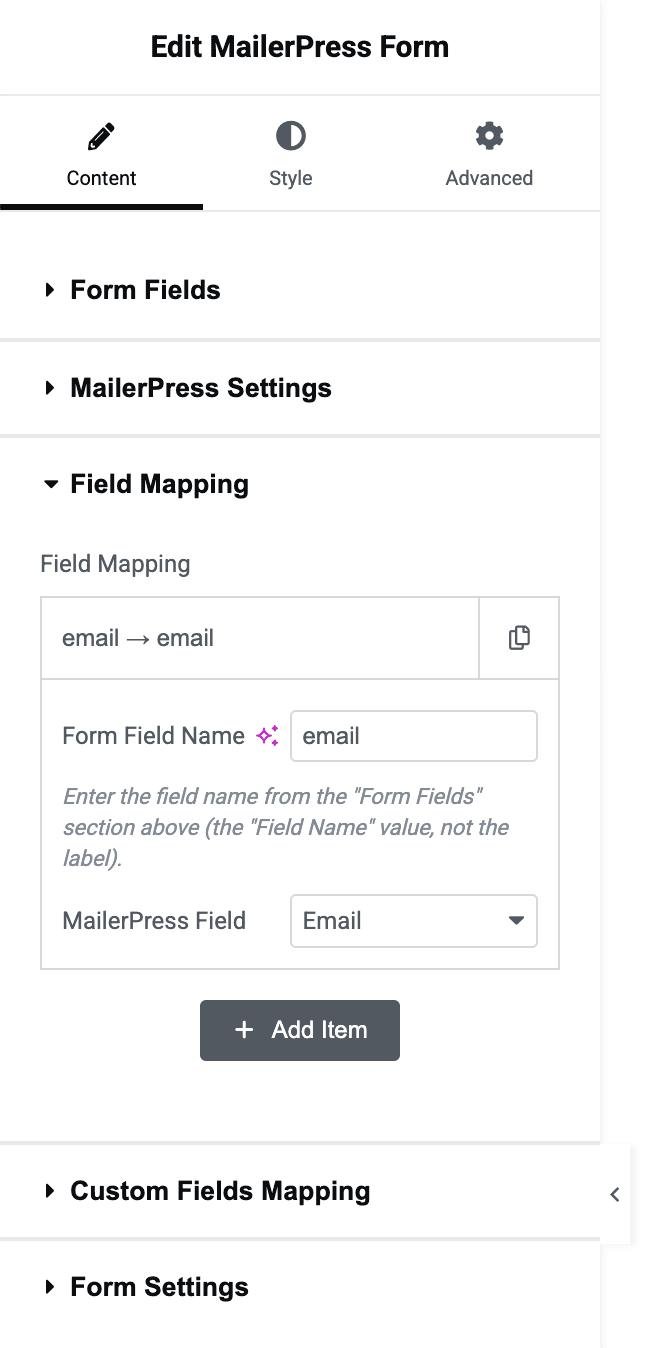
- Field Mapping: for each item, enter the Form Field Name (the Field Name value, not the label) and choose the MailerPress Field: Email, First Name or Last Name. If you leave this section empty, fields named
email,firstnameorfirst_name, andlastnameorlast_nameare mapped automatically. - Custom Fields Mapping: enter the Form Field Name and choose the MailerPress custom field in Custom Field Key. Create your custom fields in MailerPress first (see Manage Your Contact Fields).
Choose lists, tags and double opt-in
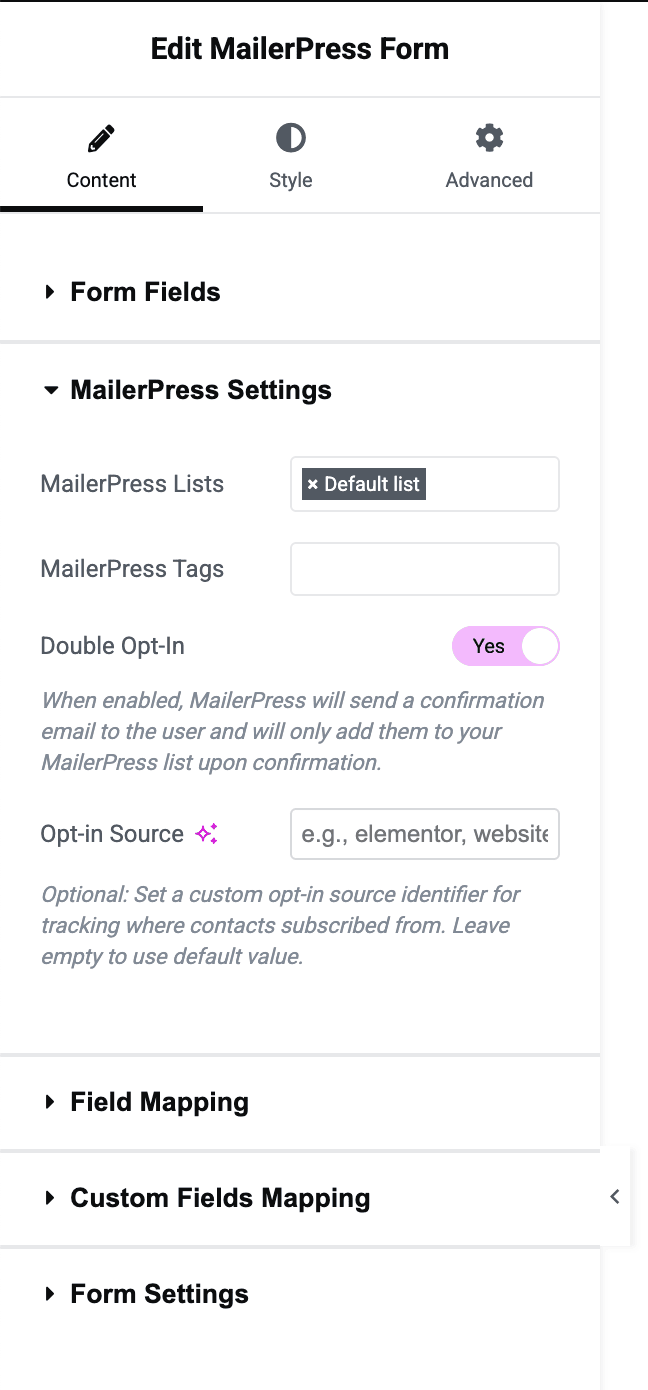
In MailerPress Settings:
- MailerPress Lists: one or more lists. Leave empty to use the default list.
- MailerPress Tags: tags (labels to sort contacts) added to the contact.
- Double Opt-In (on by default, recommended): new contacts get the Pending status and must click a link in a confirmation email to be subscribed. When off, they are subscribed directly. Contacts who are already subscribed keep their status; only their lists, tags and fields are updated.
- Opt-in Source: an optional label (for example
landing-page) shown as the contact’s opt-in source in MailerPress > Audience > Contacts. Leave empty to use the default value.
Set the messages and the redirect
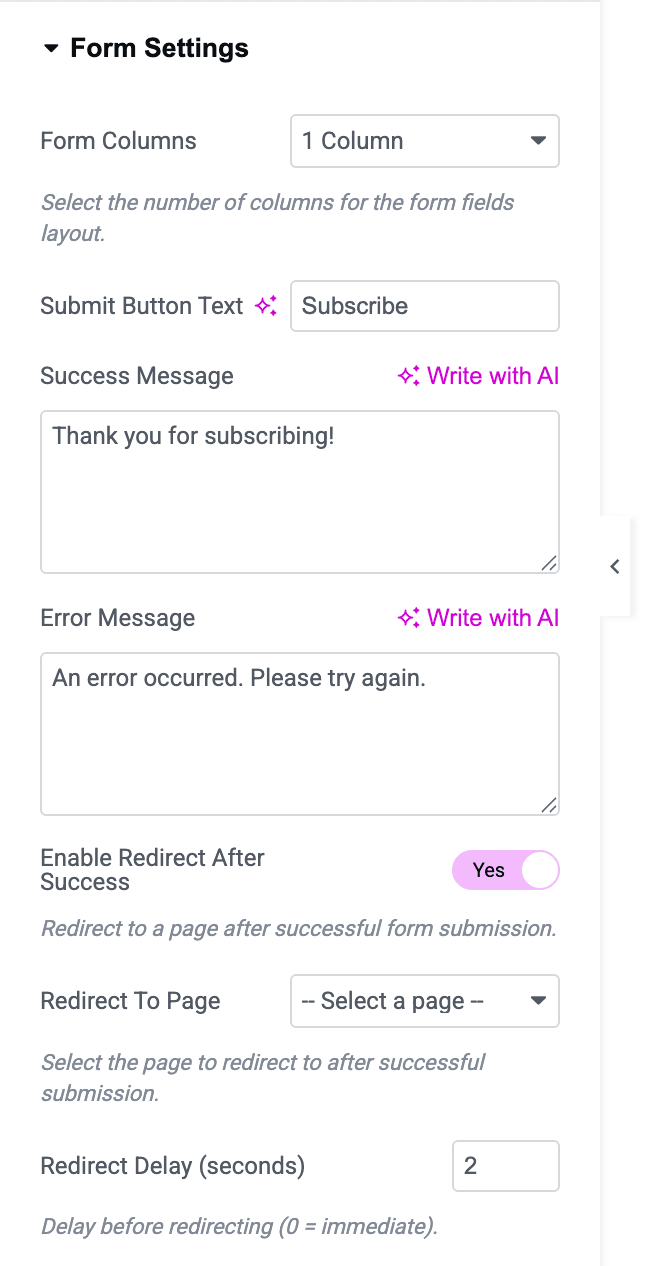
In Form Settings:
- Form Columns: show the fields in 1, 2 or 3 columns.
- Submit Button Text, Success Message and Error Message.
- Enable Redirect After Success: then choose the page in Redirect To Page and the Redirect Delay (seconds) (2 by default, 0 to redirect immediately).
Customize the design
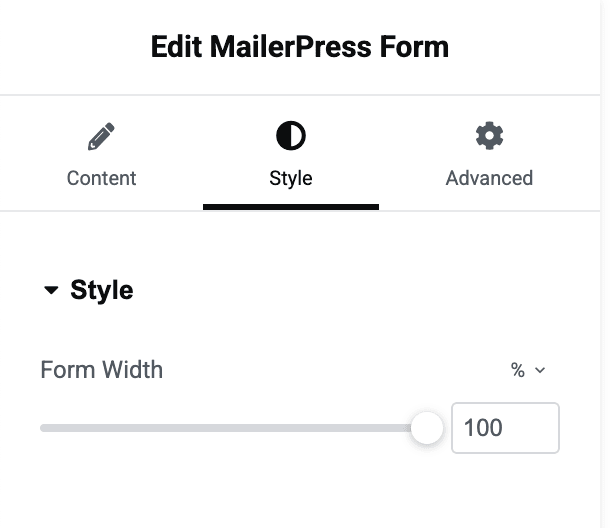
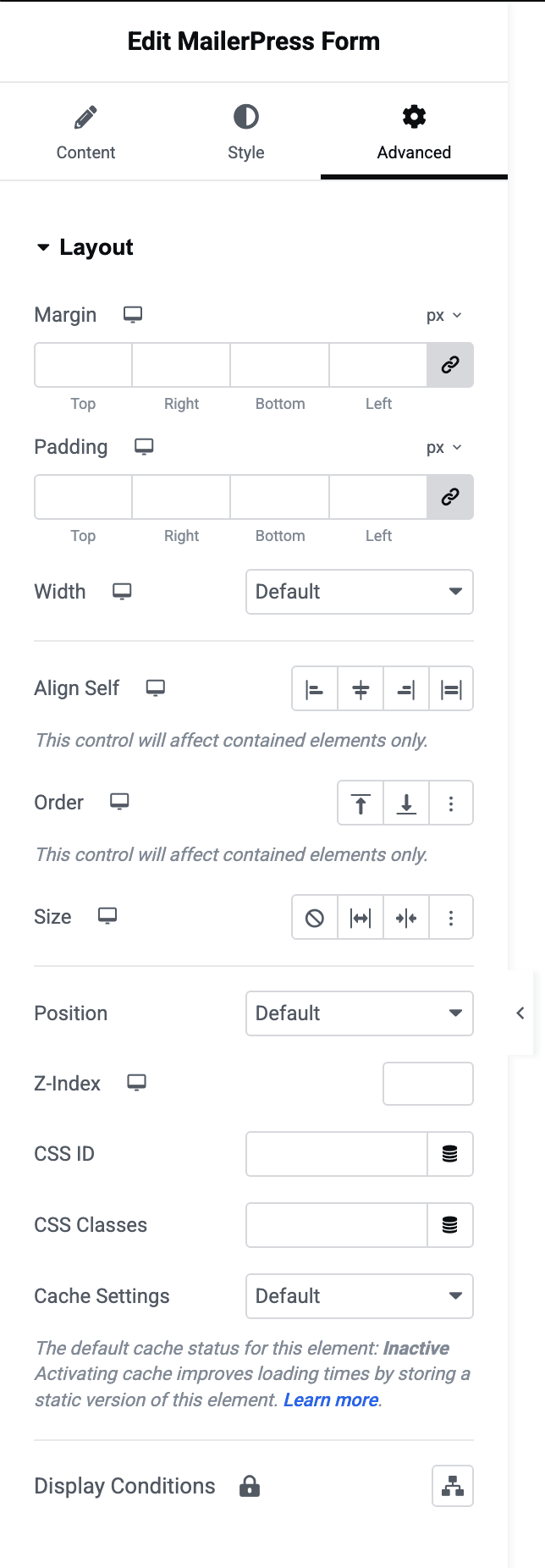
In the Style tab, set the Form Width. Use the Advanced tab for margins, padding and other settings, as for any Elementor widget.
Option 2: the MailerPress action for Elementor Pro forms
If you already use the Elementor Pro Form widget (for example, for a contact form), you can send its submissions to MailerPress without changing the form.
- Edit the Form widget.
- In Actions After Submit, add the MailerPress action. You can keep your other actions, such as the email notification.
- Open the new MailerPress Settings section and set MailerPress Lists (empty uses the default list), MailerPress Tags, Double Opt-In and, optionally, Opt-in Source. They work as in the widget.
- In Field Mapping, add an item for each field: enter the field’s ID in Form Field and choose the MailerPress Field. You find the ID in the Advanced tab of each form field (for example
emailorname). - In Custom Fields Mapping, link other form fields to MailerPress custom fields with Form Field and Custom Field Key.
- Update the page.
Without any field mapping, MailerPress uses the field IDs: email, e-mail or mail for the email; name, firstname or first_name for the first name; lastname, last_name or surname for the last name. If no email is found this way, the form’s first Email field is used. A submission without a valid email shows an error in the form.
Prefer the shortcode? See Adding a MailerPress Form with Your Page Builder to Collect Emails. For sign-up confirmation, see Enable sign-up confirmation (double opt-in).