Sign-up confirmation, also called double opt-in, asks new subscribers to confirm their email address before they receive your newsletters. After signing up through a MailerPress form, the person gets an email with a confirmation link. Until they click it, their status is Pending. This keeps fake and mistyped addresses off your list, helps your emails reach the inbox and gives you proof of consent. It is included in the free MailerPress plugin.
Enable or disable sign-up confirmation
- Go to MailerPress > Settings > Sign-up Confirmation.
- Turn Enable sign-up confirmation on or off. It is on by default. When it is off, new subscribers are confirmed automatically (not recommended).
- Click Save settings.
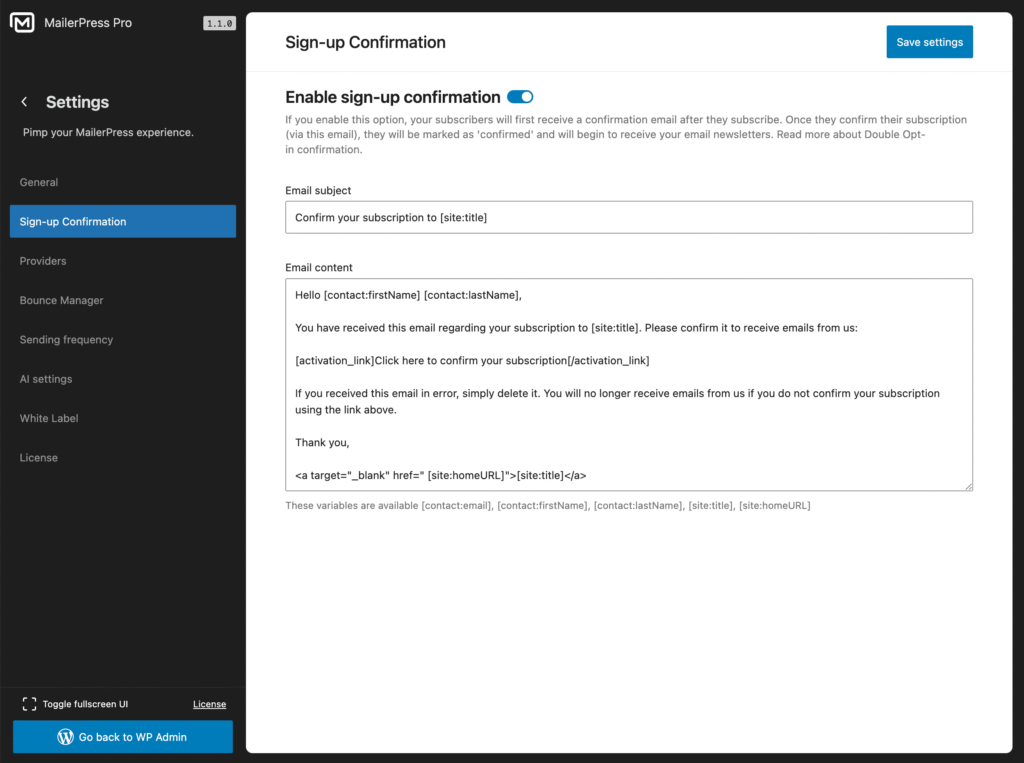
Customize the confirmation email
Edit the Email subject (default: “Confirm your subscription to [site:title]”) and the Email content. You can insert these variables, which MailerPress replaces with the contact’s or the site’s details when sending:
[contact:email],[contact:firstName],[contact:lastName][site:title],[site:homeURL][activation_link]…[/activation_link]: the confirmation link. Always keep it in the content.
[activation_link]Click here to confirm your subscription[/activation_link]Use a designed template
By default, the confirmation email is plain text. To add your header, footer, colors and images:
- Turn on Use designed email template.
- Click Design template. The email editor opens.
- Design the email and save it. Back in the settings, the button now reads Edit design.
Your text content is inserted into the template automatically, and the text inside [activation_link] becomes the label of the confirmation button.
Redirect after confirmation
In Redirect after confirmation, search for a WordPress page or enter a custom URL. Subscribers land there after clicking the confirmation link. Leave it empty to use the default confirmation page (see Manage MailerPress Subscription and Unsubscribe Pages).
Send a reminder to unconfirmed contacts
Turn on Enable automatic reminders (off by default), then set Send reminder after to a number of days (default 7, minimum 1). Contacts still Pending after that delay get one reminder, with the same subject and content. Contacts who have confirmed get no reminder.
Who receives the confirmation email
- New subscribers from your MailerPress forms (block, shortcode or page builder widgets) are created as Pending and receive the email.
- Returning subscribers: since MailerPress 2.1.0, a contact who had unsubscribed and signs up again goes back to Pending and receives a new confirmation email (or becomes Subscribed directly if sign-up confirmation is off).
- Contacts who are already Pending and fill in a form again get no duplicate email. Contacts who are already Subscribed stay Subscribed.
- Contacts you add by hand or import from a CSV file never receive the confirmation email, even with the Pending status.
When the contact clicks the link, their status changes to Subscribed. Pending contacts are listed in the Pending tab of Audience > All Contacts.
The email goes out through your active sending provider, from your default sender. On a multilingual site with WPML, it is sent in the subscriber’s language using your translated settings (see Translate MailerPress settings with WPML / Polylang).