The Subscription Form block adds a MailerPress sign-up form to any post, page or template built with the WordPress block editor. It collects your visitors’ email address (and, optionally, first and last name) and adds them to a MailerPress list. The block is included in MailerPress (free).
Insert the form
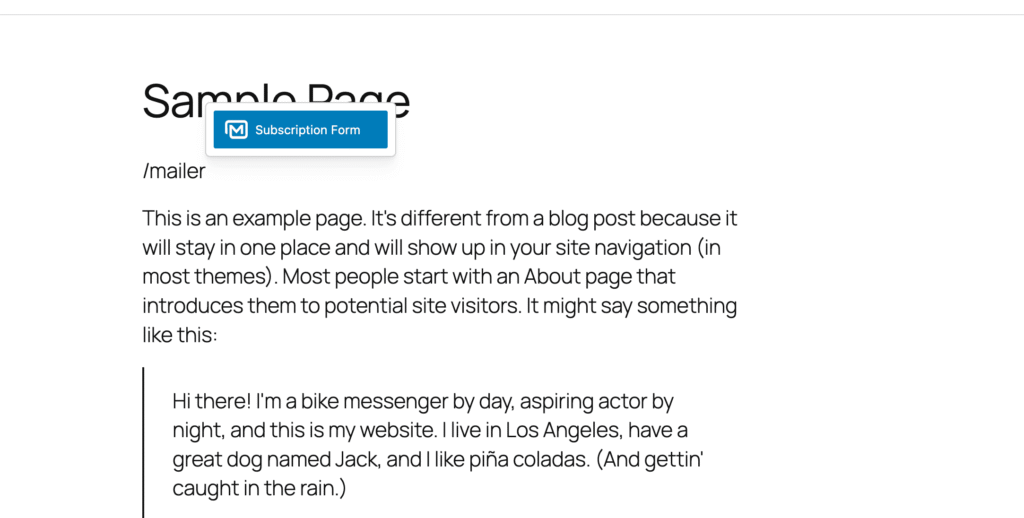
- Edit a post, a page or any post type with the block editor. You can also edit a template or a pattern in Appearance > Editor, for example to add a “Subscribe to our newsletter” section to your footer.
- Add the Subscription Form block where you want the form to appear.
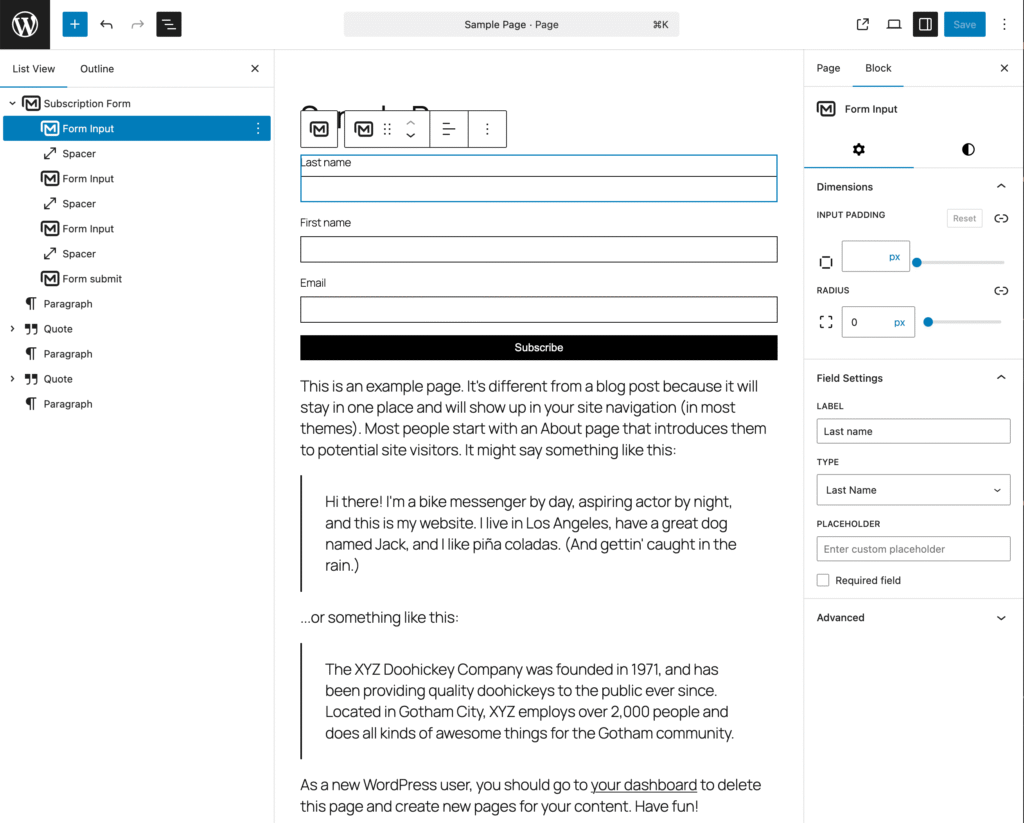
The block contains a Last name, a First name and an Email field, then a submit button. Use the List View to reorder or remove the name fields.
Set up the form
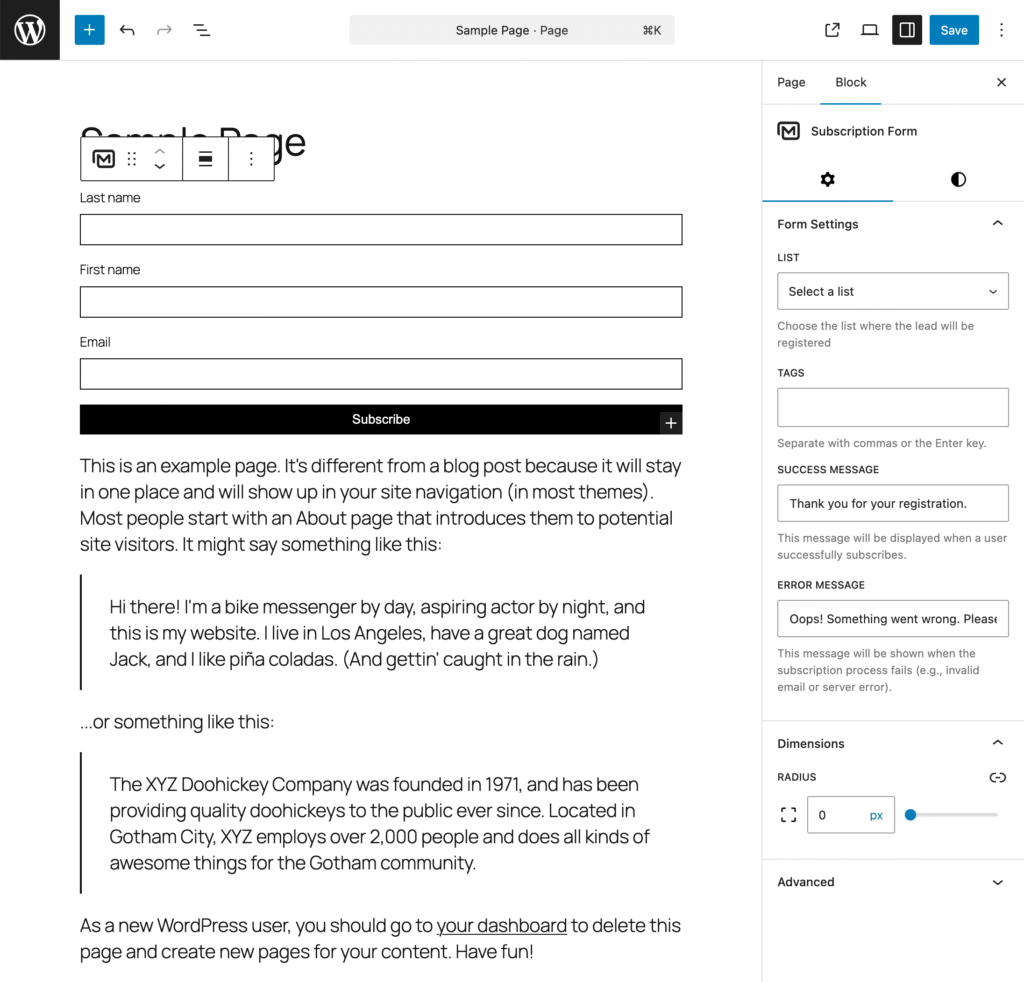
Select the Subscription Form block (the List View helps) to open the Form Settings panel in the sidebar:
| Setting | Description |
|---|---|
| List | The list new contacts join. Without a selection, contacts go to your default list. |
| Tags | Tags (labels to sort contacts) added to new contacts. Start typing to find a tag. |
| Success message | Shown when a visitor subscribes. Default: “Thank you for your registration.” |
| Error message | Shown when the subscription fails, for example with an invalid email. |
| Redirect URL | Optional page to open after a successful subscription, for example a thank-you page. The success message shows briefly before the redirect. Leave empty to only show the success message. |
Whether visitors must confirm their subscription is set in MailerPress > Settings > Sign-up Confirmation (enabled by default). When it is enabled, new subscribers stay pending until they click the link in the confirmation email (double opt-in). See Enable sign-up confirmation (double opt-in).
Edit the fields and the button
Click a field in the form (or in the List View) to open its Field Settings:
- Label: the text above the field.
- Type: First Name, Last Name or Email, the contact information the field fills.
- Placeholder: the hint shown inside the empty field.
- Required field: whether visitors must fill in the field.
To change the button text, click the button and type. In its Dimensions panel, set the border radius and the Width.
Design the form
- In the Styles tab of the Subscription Form block, change the text, background and Button and input border colors.
- Adjust typography, padding, margin, spacing between fields and shadow, as for other blocks. The form can also be wide or full width.
- Set the border radius in the Dimensions panel of the form and of each field.
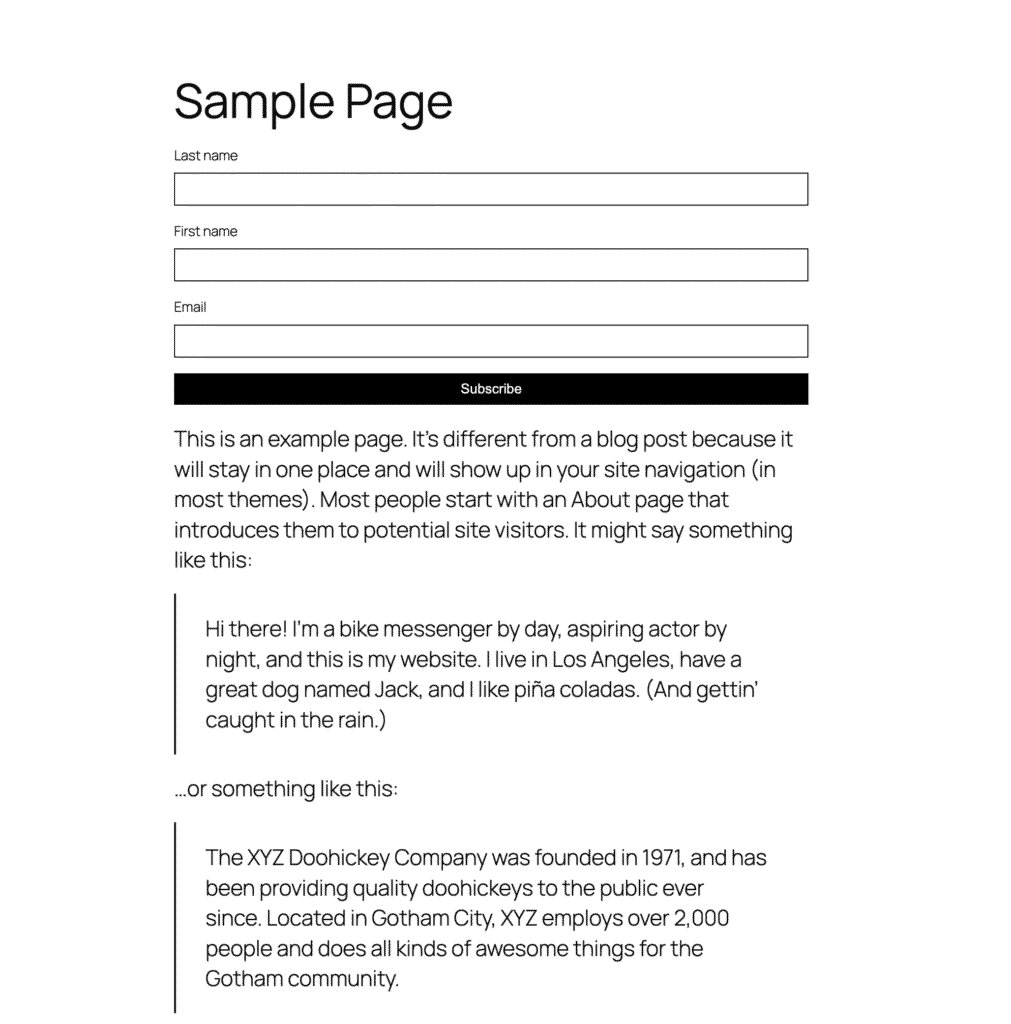
Save your changes and check the form on your site.
Spam protection
The block includes a hidden honeypot field (bots fill it in, humans don’t see it). When honeypot protection and rate limiting (a cap on sign-ups in a short time) are enabled in MailerPress > Settings > Spam Protection, bot submissions and floods of sign-ups are blocked. See Security & Spam Protection.
Using a page builder instead? See Adding a MailerPress Form with Your Page Builder to Collect Emails.