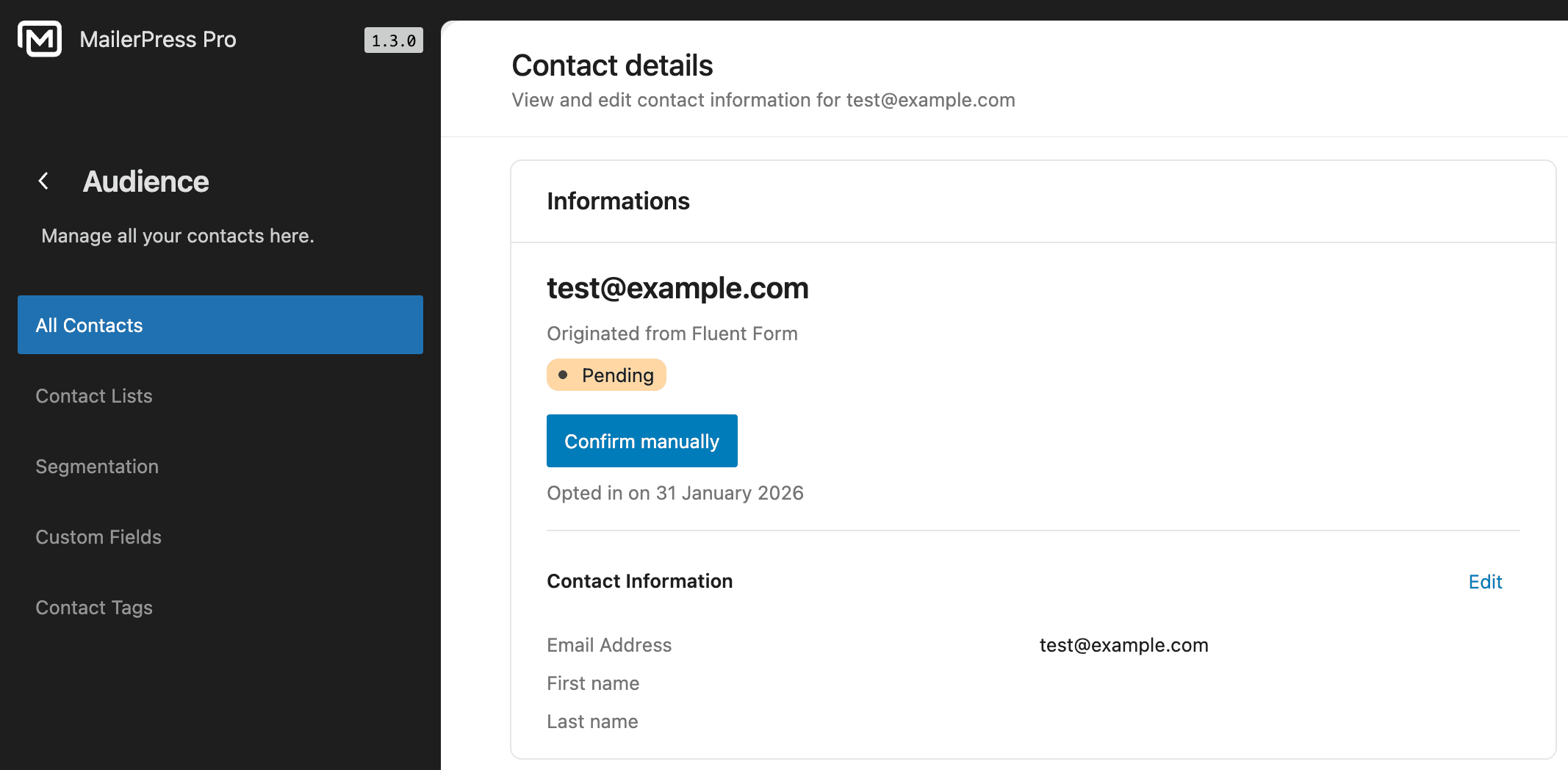
Send the people who fill in a Fluent Forms form straight to MailerPress. You connect each form with a MailerPress feed (a rule, in the form settings, that sends each submission to another service). In the feed, you choose the list, tags, fields and double opt-in behaviour.
This integration requires MailerPress Pro 1.3 or later and Fluent Forms (the free version is enough).
Enable the MailerPress integration in Fluent Forms
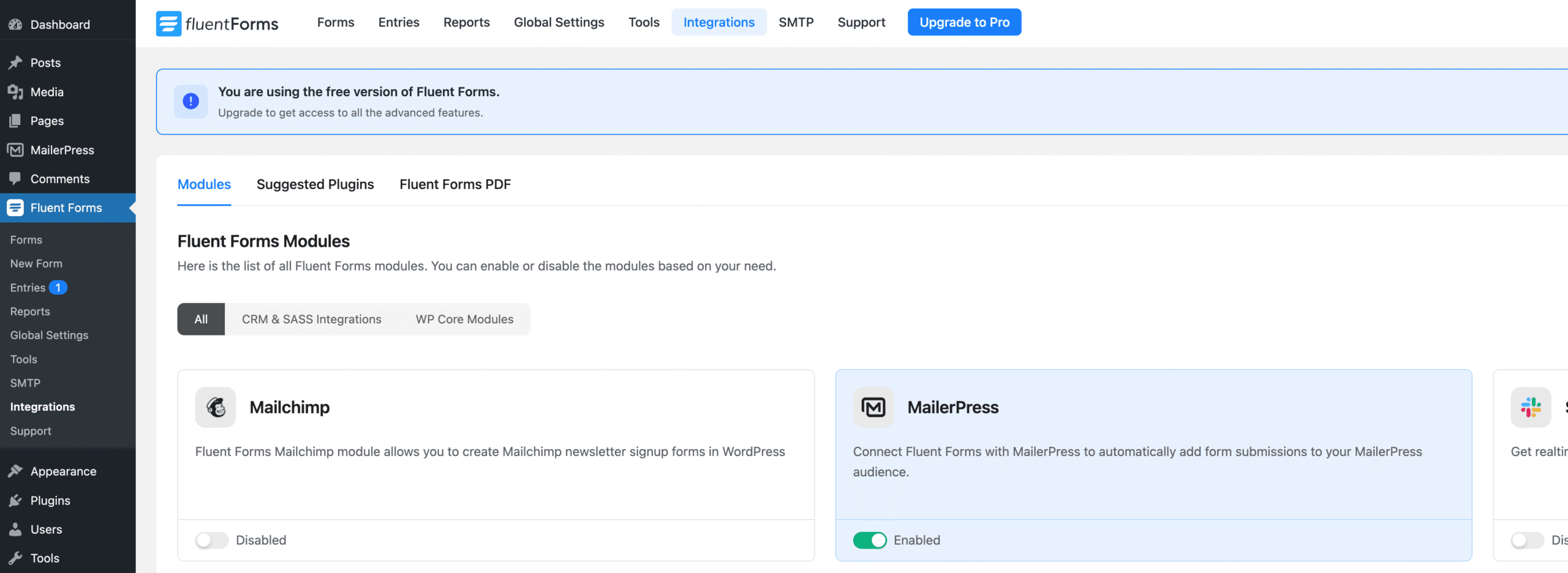
- Go to Fluent Forms > Integrations.
- Search for MailerPress and enable the integration. No API key (a secret code that lets one service connect to another) is needed, because MailerPress runs on the same site.
Add a MailerPress feed to a form
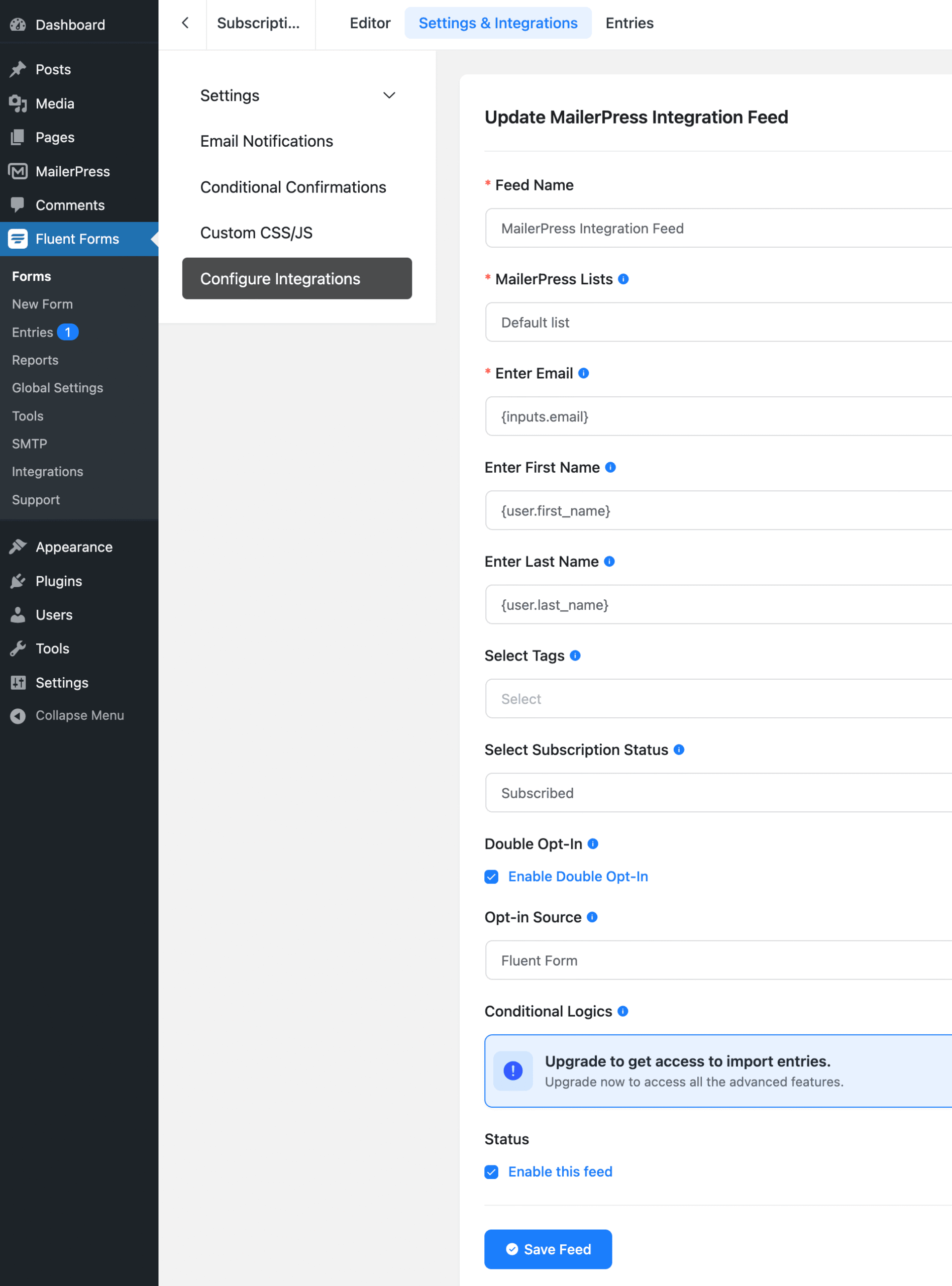
- Go to Fluent Forms > Forms, edit your form and open its settings.
- In the left panel, click Configure Integrations.
- Click the button to add a new integration and choose MailerPress Integration.
- Fill in the settings from the table below.
- Under Status, make sure Enable this feed is checked, then save the feed.
| Setting | Description |
|---|---|
| Feed Name | Required. A name to identify the feed. |
| MailerPress Lists | Required. The list where contacts are added. |
| Enter Email | Required. Insert your form’s email field with the Fluent Forms field picker. |
| Enter First Name / Enter Last Name | Optional. Insert the matching form fields. |
| Select Tags | Optional. One or more tags (labels to sort contacts) added to the contact. |
| Double Opt-In | Enable Double Opt-In is checked by default. See below. |
| Opt-in Source | Text saved as the contact’s opt-in source. Defaults to Fluent Form when empty. |
| Your custom fields | Each MailerPress custom field is listed by label. Insert the form field that fills it, or leave it empty. |
| Conditional Logics | Send the submission only when your conditions are met, for example when a consent checkbox is ticked. |
Double opt-in
Double opt-in means the new contact must click a link in a confirmation email before being subscribed. With Fluent Forms, the contact’s status depends only on the feed’s Double Opt-In option:
- Enable Double Opt-In checked: the contact gets the Pending status and receives the confirmation email, even if sign-up confirmation is disabled in the MailerPress settings.
- Cleared: the contact is subscribed directly.
You can edit the confirmation email in MailerPress > Settings > Sign-up Confirmation. See Enable sign-up confirmation (double opt-in).
Check the result
- Submit the form once.
- Open MailerPress > Audience > Contacts. The contact appears in the selected list with your tags and fields.
- If the contact is missing, check the submission in Fluent Forms. The feed is marked as failed when the email is not valid or when no list is selected.