Custom fields store extra information about your contacts beyond their email address and name, such as a company, a city or a birth date. You can fill them in by hand or during a CSV import, then use them to build segments (groups of contacts that match conditions you set) or to personalize your emails.
Custom fields require MailerPress Pro. Without MailerPress Pro, the Custom Fields screen only presents the feature.
Create a custom field
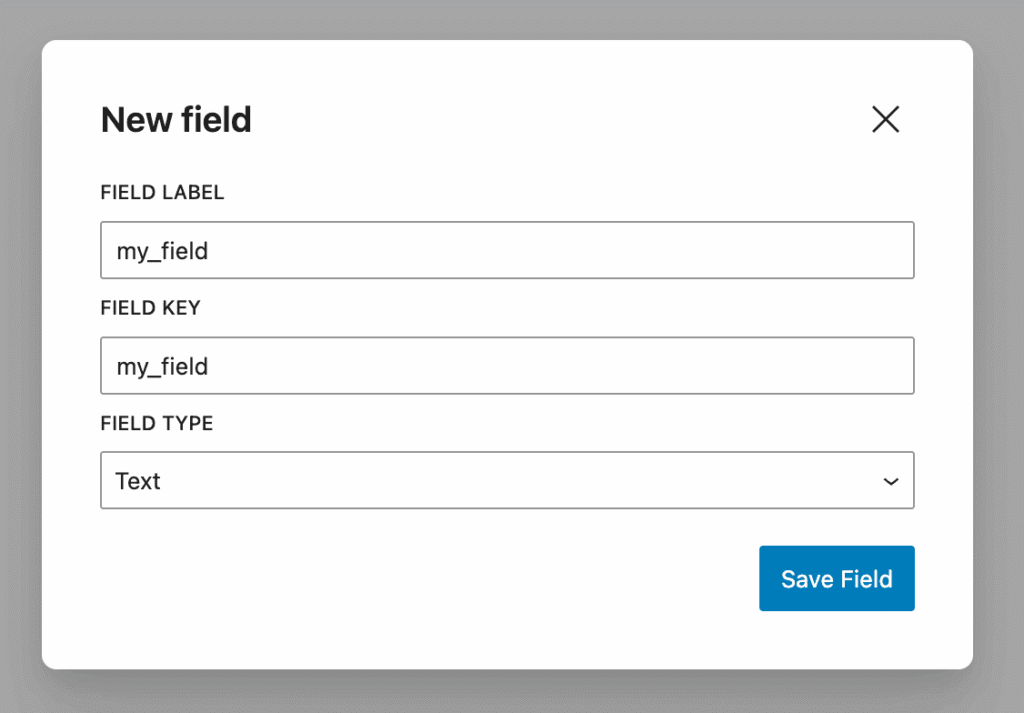
- Go to MailerPress > Audience > Custom Fields and click New field.
- Enter a Field Label: the name shown in the interface.
- Check the Field Key, the field’s internal name, used to match columns in imports and exports. MailerPress generates it from the label (lowercase with underscores, for example
company_name). You can change it. - Choose a Field Type: Text, Number or Date.
- Click Save Field.
Pick the type that fits your segments: “greater than” conditions need a Number field, “before” or “after” need a Date field. You can also create a field during the column mapping step of a CSV import, with Create new custom field.
Edit or delete a custom field
The Custom Fields screen lists each field’s ID, Label, Type and Created at date.
- Edit field (in the actions menu) reopens the form. Make your changes and click Update Field. If you change the key, contacts keep their saved values. Each key must be unique.
- Delete this field deletes the field after you confirm. To delete several, select them and use Delete selected fields.
Deleting a custom field also deletes its values for all your contacts, permanently. Check the segments that use the field first.
Fill in custom field values
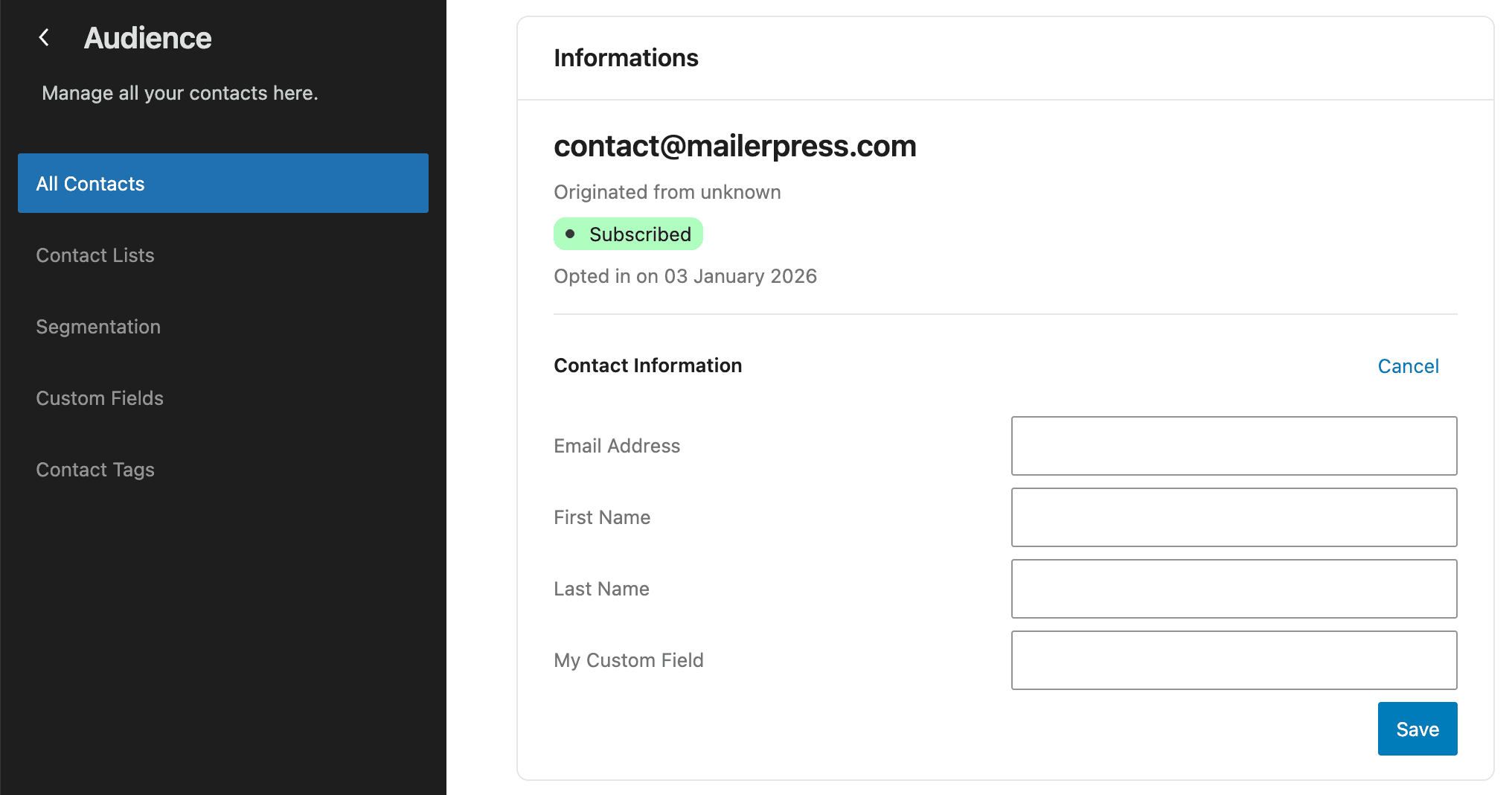
- For one contact: in Audience > All Contacts, click the contact, then Edit in Profile. Fill in the fields under Custom fields and click Save. Dates use the
YYYY-MM-DDformat. - When adding a contact: the Add a contact form includes your custom fields.
- For many contacts: map CSV columns to your fields during an import.
- From WordPress users: map user fields to custom fields in the WordPress user synchronization.
Migrations from MailPoet, Newsletter or email platforms also create custom fields for you (see the Migration Center).
Use custom fields
- Filter the contact list by a custom field, or show it as a column, on All Contacts.
- Build segments with the Custom Field condition (see Manage Your Segments).
- Show or hide email blocks depending on a field value with Conditional Display.
- Find contacts by field value with the contact search.