A segment is a group of contacts selected by rules (conditions) on their lists, tags, status, dates, custom fields, engagement and, with WooCommerce, purchases. Segments update themselves: contacts enter or leave as their data changes. Use them to send targeted campaigns instead of emailing everyone.
Segments require MailerPress Pro. Without MailerPress Pro, the Segmentation screen only presents the feature.
Create a segment
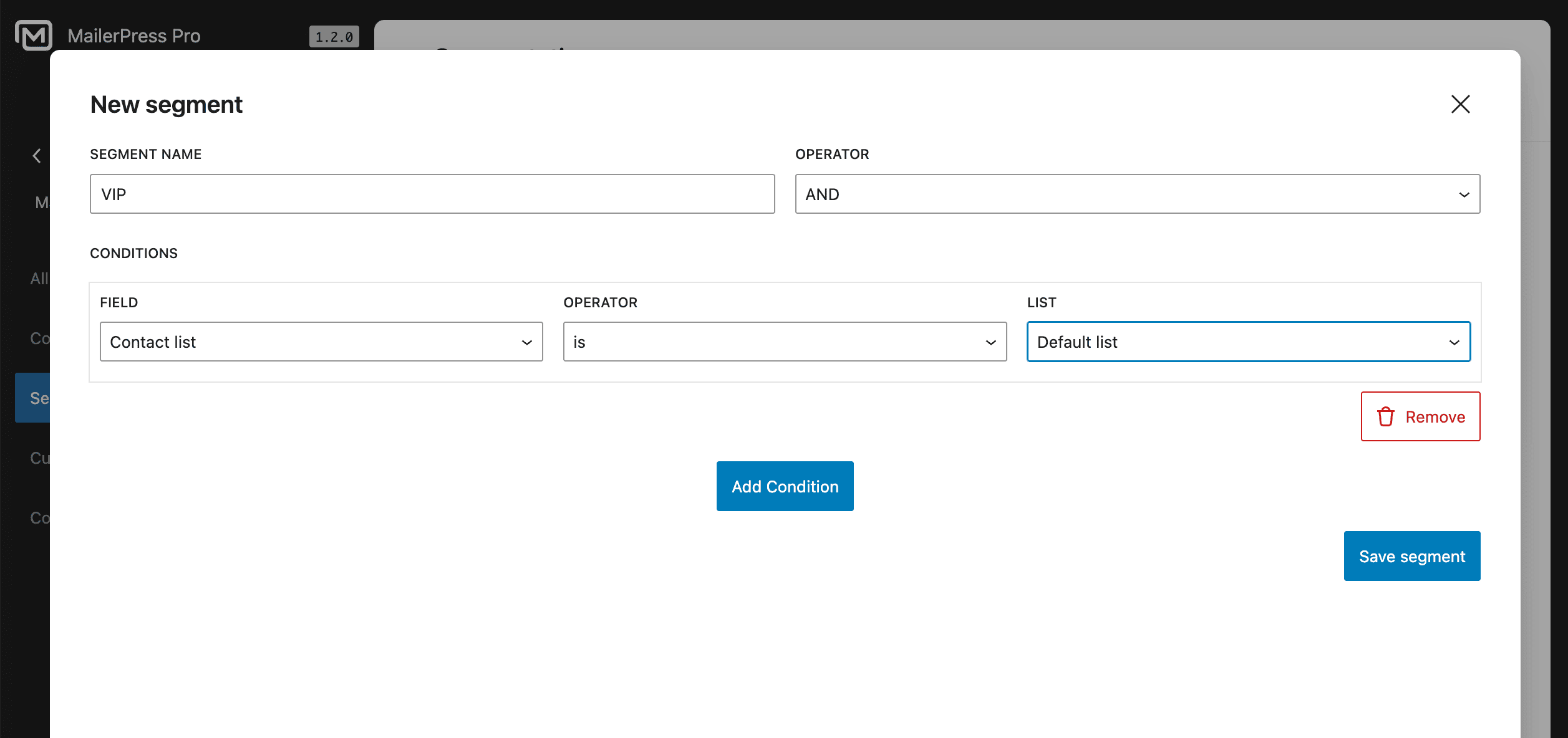
- Go to MailerPress > Audience > Segmentation and click New segment.
- Enter a Segment name (it must be unique).
- Under Conditions, build your rules in Group 1: choose a Field, an Operator and a value (all three are required). Click Add condition to add more rules to the group.
- Check Matching contacts: it shows, live, how many contacts match your conditions.
- Click Save segment.
Combine conditions with groups
- Match sets how the conditions inside a group combine: AND (all conditions must be true) or OR (at least one must be true).
- Add group creates another group of conditions. From the second group on, Join sets how the group combines with the groups before it (AND or OR).
- Remove condition and Remove group delete a rule or a whole group.
Example: to target customers who are subscribed and either tagged “VIP” or highly engaged, put Subscription status equals Subscribed in Group 1, then add Group 2 with Join set to AND, Match set to OR, and the conditions Contact Tag is VIP and Engagement Status is Highly engaged.
Available conditions
| Field | Operators | Value |
|---|---|---|
| Contact list | is, is not (one list); contains, does not contain (any of several lists) | List(s) |
| Contact Tag | is, is not (one tag); contains, does not contain (any of several tags) | Tag(s) |
| Subscription status | equals, not equals | Subscribed, Unsubscribed or Pending |
| Created Date | after, before, on | Date the contact was created |
| Updated Date | after, before, on | Date the contact was last updated |
| Email Open Activity | has opened, has not opened, opened after date, opened before date | Tracked opens of any campaign; a date for the date operators |
| Engagement Status | is, is not | Not engaged, Moderately engaged or Highly engaged |
| Custom Field | Depends on the field type (see below) | A custom field, then the value to compare |
| Total Purchases (WooCommerce) | is greater than, is less than, is greater than or equals, is less than or equals | Amount |
| WooCommerce Purchase History (WooCommerce) | has purchased, has not purchased, has purchased product, has not purchased product, purchased product at least this long ago | None, one or more Products, or a Time ago and Unit |
Custom field conditions
Select the custom field first (its type appears next to its name). The operators depend on the type:
- Text: equals, does not equal, contains.
- Number: equals, does not equal, greater than, less than, greater than or equal, less than or equal.
- Date: equals, does not equal, before, after, on.
To create custom fields, see Manage Your Contact Fields.
Engagement Status
Each contact has an engagement score from 0 to 100, based on opens and clicks compared with the number of emails sent. At least one open gives a score of at least 45, at least one click a score of at least 65. Unsubscribed and bounced contacts score 0, inactive contacts 20.
- Not engaged: below 45.
- Moderately engaged: 45 to 74.
- Highly engaged: 75 and above.
WooCommerce conditions
Total Purchases and WooCommerce Purchase History appear only when WooCommerce is active. Orders are matched to contacts by billing email address.
- Total Purchases adds up the contact’s completed and processing orders.
- has purchased and has not purchased check for any order. There is no value to set.
- has purchased product and has not purchased product let you search and select one or more Products.
- purchased product at least this long ago matches purchases made on or before a relative time: set Time ago and a Unit (Days, Weeks, Months or Years). Useful to remind customers to reorder, or to win back past customers.
See also How to integrate MailerPress with WooCommerce.
View, edit and delete segments
The segment list shows each segment’s Name, a summary of its rules (Details), and its creation and update dates.
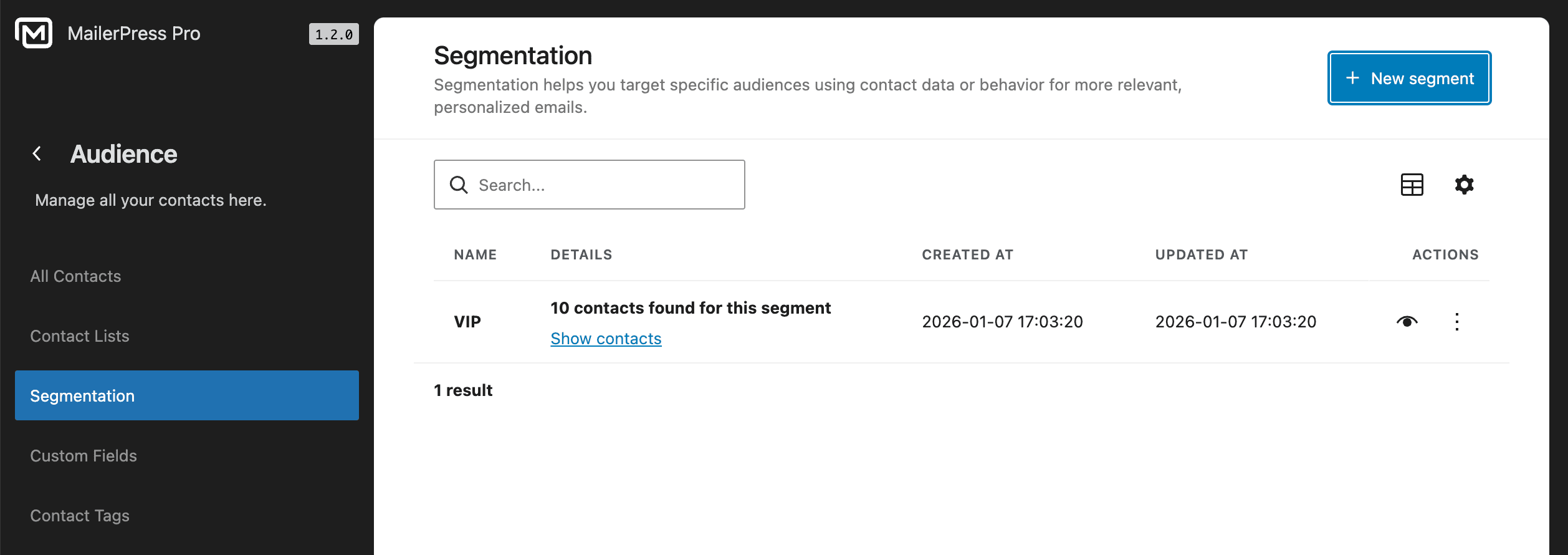
- Show contacts lists the contacts currently in the segment, with their engagement rate. You can search them and filter by list, tag or engagement.
- Edit segment opens the conditions. Change them, then click Save segment.
- Delete segment removes the segment after you confirm. The contacts are kept.
Use a segment
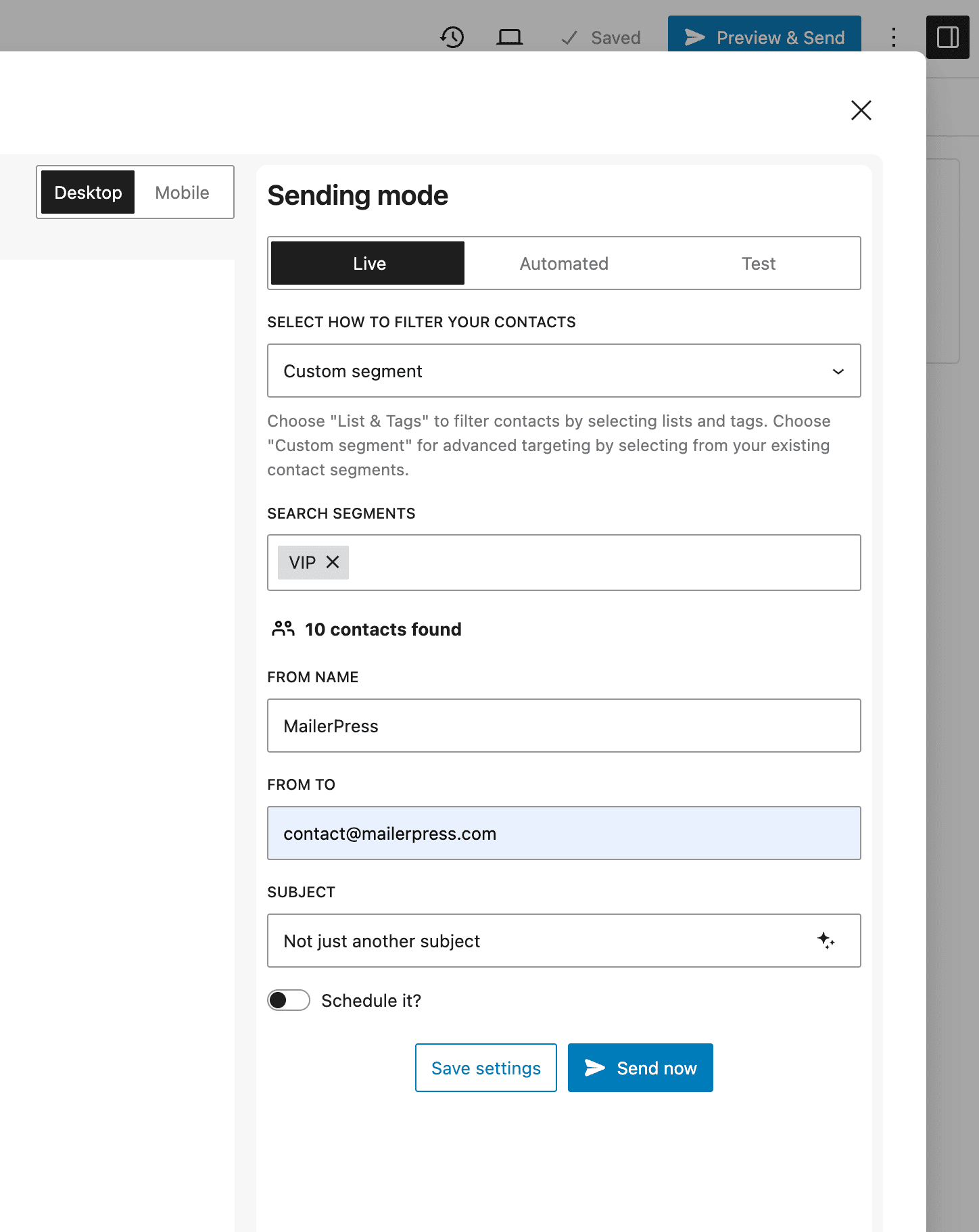
- In a campaign: when you choose the recipients, set Filter by to Segment, then pick your segment in Select a segment. See Create an Email Campaign.
- In the contact list: on Audience > All Contacts, use the Segments filter to show only the contacts of a segment, then export them or change them in bulk.
Users need the segmentation permission to manage segments (see MailerPress capabilities).