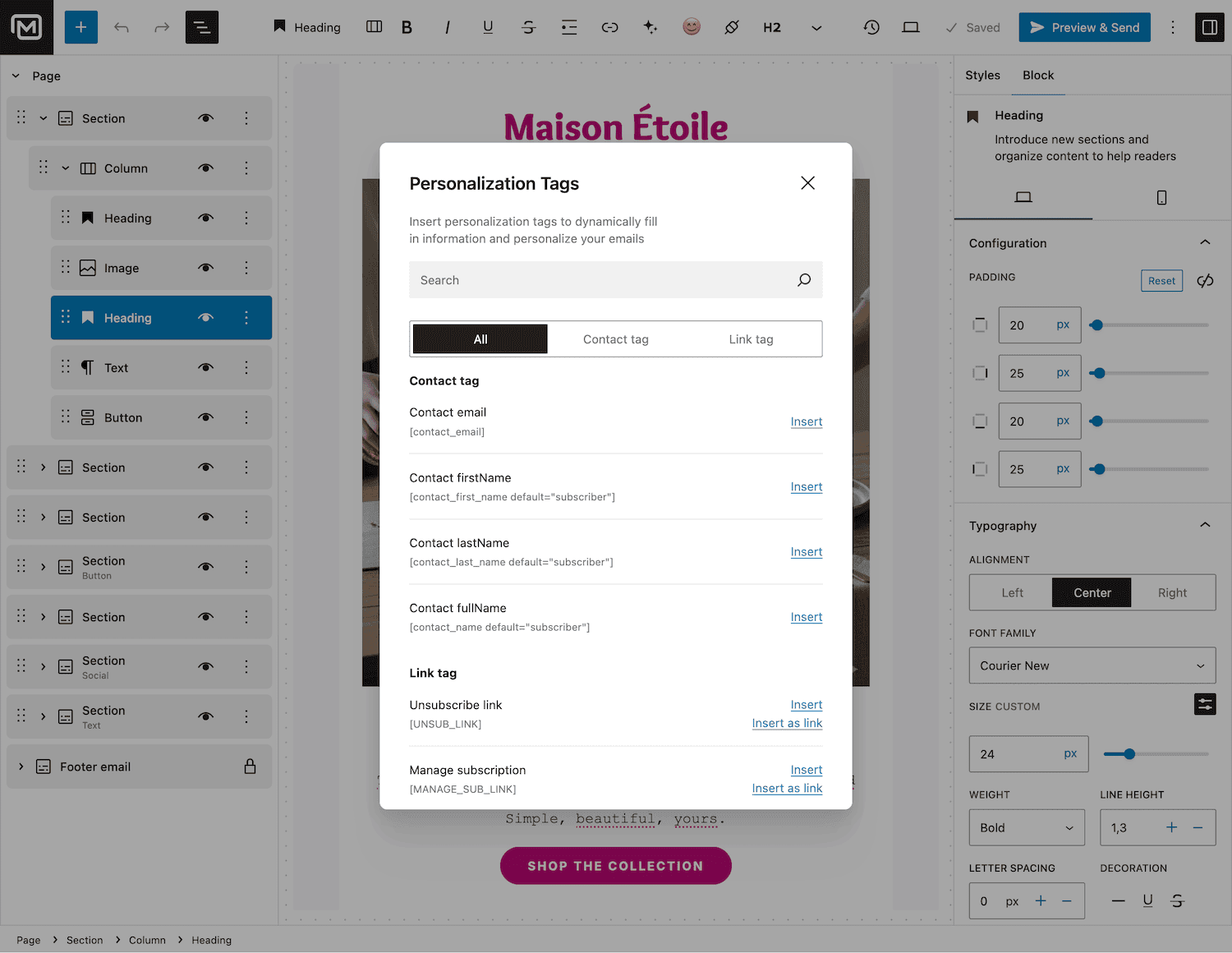





Personalisation is not a first name in a subject line. It is writing one email that reads as if you wrote it for the person opening it. Merge tags are the mechanism: you write the sentence once, and MailerPress fills in the rest, recipient by recipient.
Insert, preview, send

Everything you can do with merge tags
01
Insert a tag without typing it
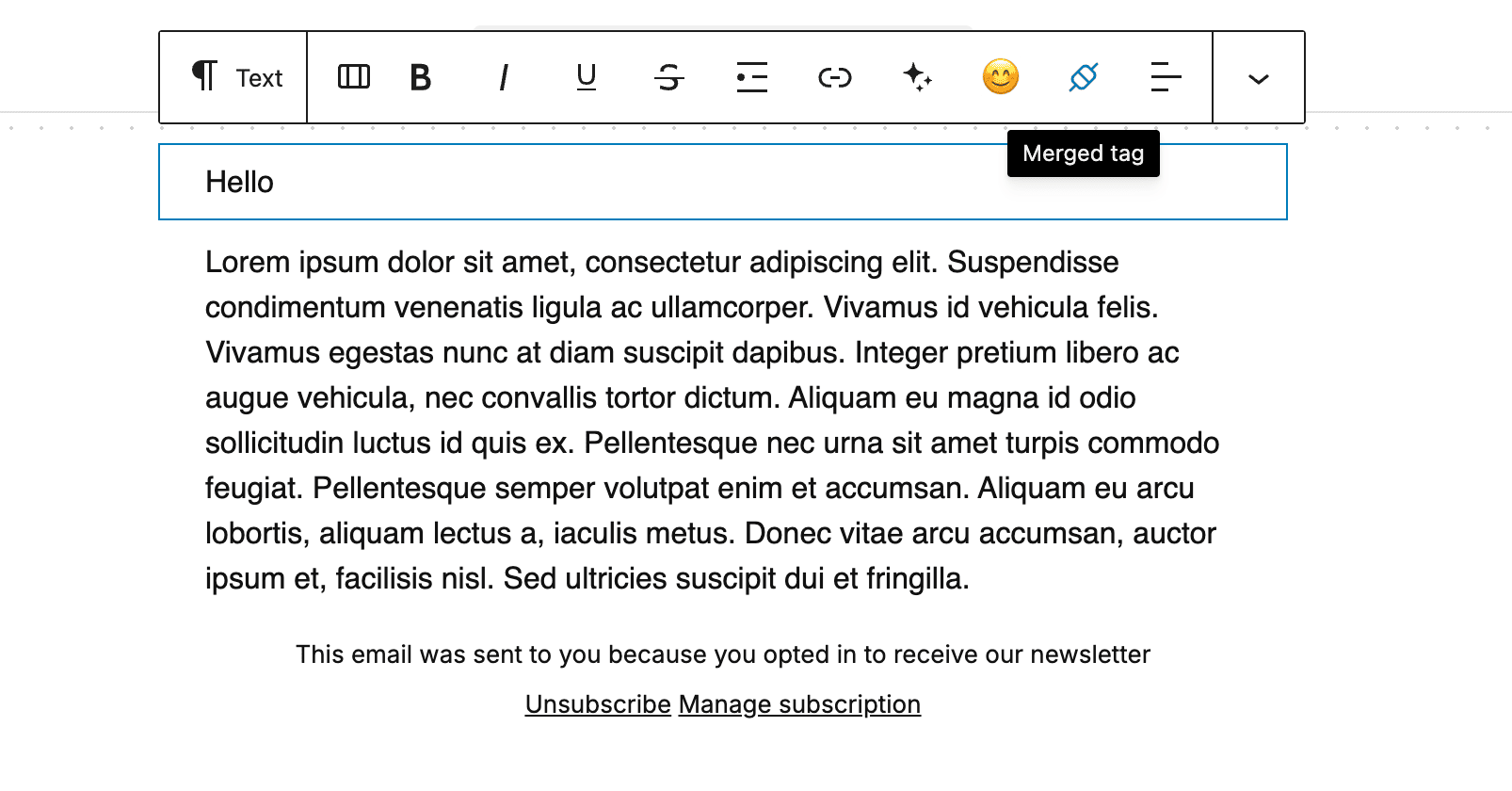
The email editor has a merge tag picker grouped by source. Place your cursor, pick a tag, and it is inserted in the right format. Every tag also works if you type it directly as {{tag}}.
Contact: email, first name, last name, full name.
Links: unsubscribe, manage subscription, first product review link.
WooCommerce: order, customer, addresses, products, subscription.
02
A fallback for every tag
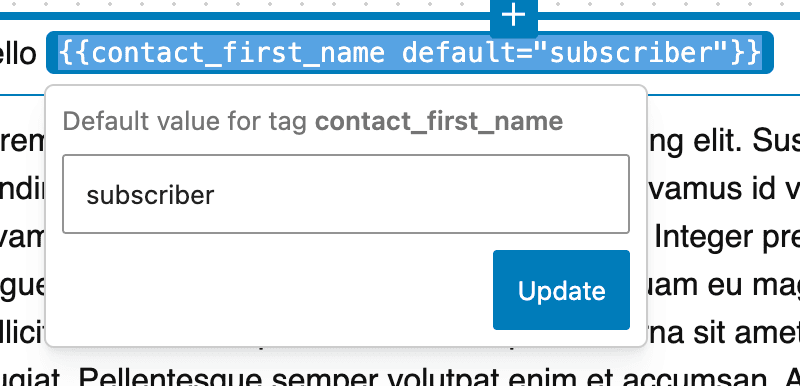
{{contact_first_name default="there"}} prints the first name when you have it and “there” when you do not. The contact name tags ship with a fallback already set.
A tag with no value and no fallback resolves to an empty string, so a subscriber never receives a raw {{...}} in their inbox.
03
Your custom fields, automatically
Every custom field you create is available as a merge tag under its own key, with nothing to declare. Create a field called Plan and write {{plan}} in your email. The value is read from the contact when the campaign is sent.
04
WooCommerce order and product data
Order ID, number, total, currency, date, status and customer note.
Customer first name, last name and email.
Billing and shipping addresses, formatted and ready to place.{{order_items}} renders a full products table with quantity, unit price and line total.
Product review links for every item in the order, plus the first product name and its review link.
Subscription ID, next payment date, billing period and billing interval.
05
Automation context becomes tags too
Inside an automation, the data carried by the trigger is available as merge tags in the email step.
Customer email, order details, cart values, webhook payload fields: whatever the trigger produces, you can drop into the message.
06
Merged per recipient, tracked correctly
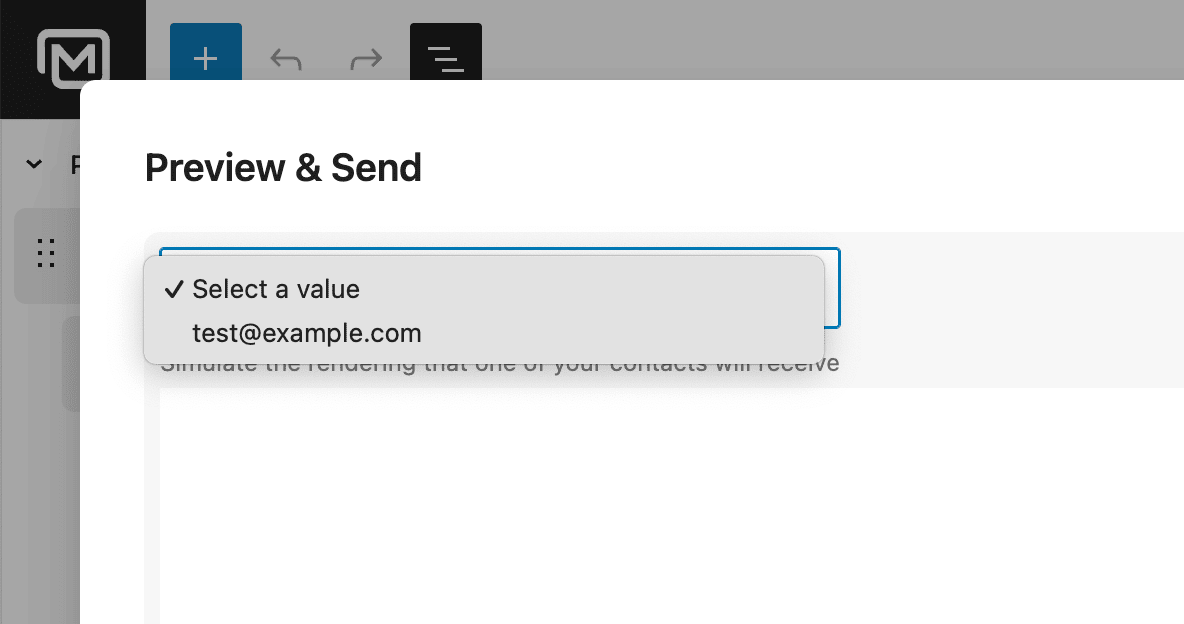
Substitution happens when the batch is sent, so every recipient gets their own values rather than a shared render. Tags placed inside a link are resolved before click tracking is applied, so a dynamic URL such as a product review link stays trackable. Merge tag styling from the editor is stripped from the final HTML, so nothing leaks into the email.
Take the full tour
Top 3 reasons you’ll love MailerPress
Powerful
Contact fields, every custom field you create, subscription links, and the full WooCommerce set: order, customer, addresses, products and subscriptions. Automation triggers add their own data on top, so an email inside a workflow can talk about the exact order that started it.
Easy
Pick a tag from the editor instead of memorising a syntax, and add a fallback in the same step. Custom fields appear on their own, with nothing to register. If you prefer typing, {{tag}} works anywhere in the design.
Fast
Values for a whole sending batch are fetched in one query, then merged per contact as the batch goes out. Nothing is requested from an external service, because the data is already in your WordPress database.
Choose the right plan for you
All packages come with a 14-day money-back guarantee.
Pro
For bloggers, startups and non-governmental organizations.
$49
billed annually
1 website
Unlimited contacts
Unlimited campaigns
Business
For e-commerce, media companies and small businesses.
$99
billed annually
3 websites
Unlimited contacts
Unlimited campaigns
Enterprise
Best value
For web agencies and freelance developers with many clients.
$199
billed annually
Unlimited websites
Unlimited contacts
Unlimited campaigns
You have a question? We’ve got you covered.
See the list below for our most frequently asked question.
The tag resolves to your fallback value if you set one with default="...", and to an empty string otherwise. Subscribers never see a raw {{tag}}.
Yes. Every custom field is available under its own key as soon as you create it, with nothing to declare in the editor.
Yes. Tags in a link are resolved before click tracking is applied, so dynamic URLs are still tracked correctly.
They are filled when the email has an order in context, which is the case for WooCommerce transactional emails and for automations started by a WooCommerce trigger.
Didn’t find your question?
Get ready with MailerPress
Documentation
Discover products and features designed to support the growth of your business. If you are a beginner, read our guides to learn more about the basics.
Help & Support
Discover products and features designed to support the growth of your business. If you are a beginner, read our guides to learn more about the basics.
Changelog
Stay ahead with our transparent roadmap that outlines upcoming features, improvements, and next steps for MailerPress.