Merge tags are placeholders, such as {{contact_first_name}}, that MailerPress replaces with each recipient’s data when the email is sent. Use them to greet every contact by name or include their email address, without editing each email by hand.
Insert a merge tag in your email
- Open your campaign in the email editor and place the cursor where you want the tag, for example in a text block.
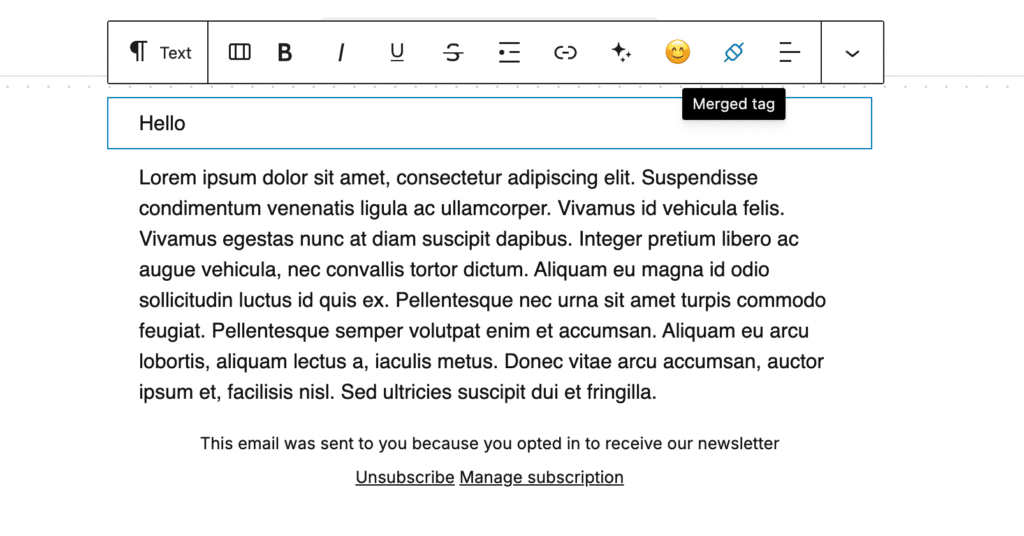
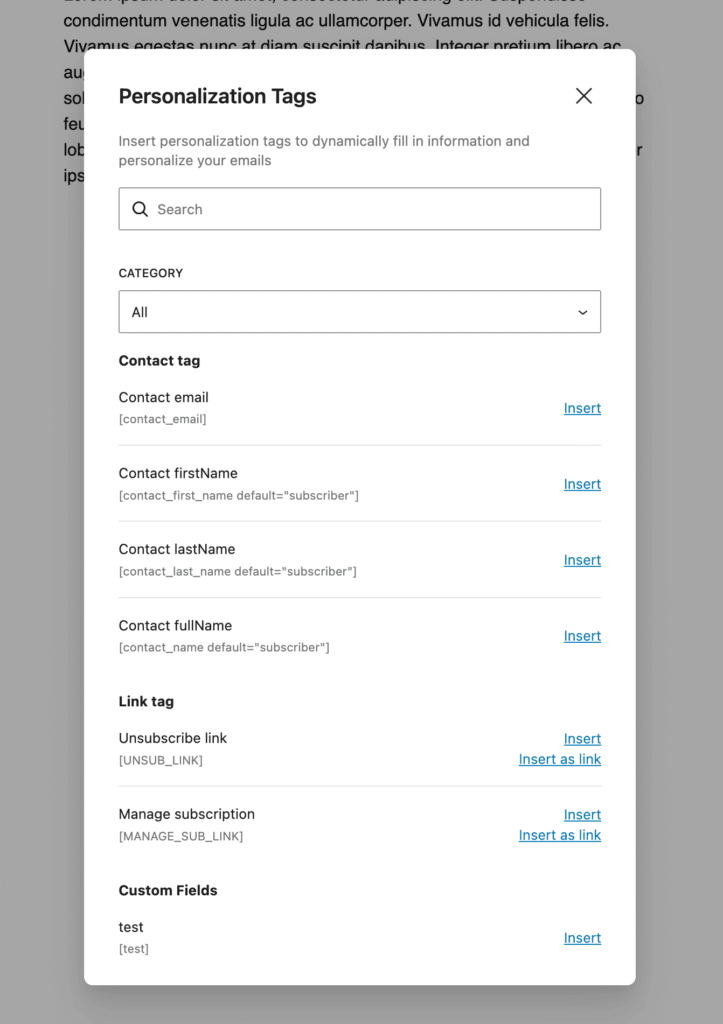
- In the text toolbar, click the merge tag icon. The Personalization Tags window opens.
- Find the tag with the search field or the Category filter. Each tag shows its label and its code.
- Click Insert. For link tags, such as the unsubscribe link, you can instead click Insert as link, enter the Link Text and click Insert: this adds a clickable link to the recipient’s personal URL.
Set a default value
If a contact has no value for a field, the tag shows nothing. To show a fallback word instead:
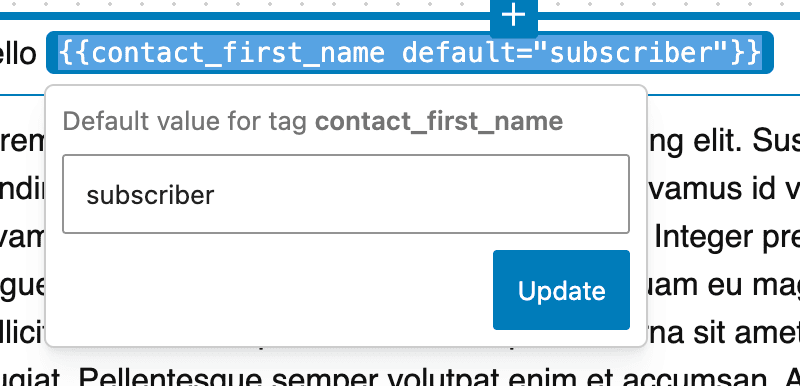
- Click the inserted tag.
- Enter a value in Default value for tag, for example “subscriber”.
- Click Update. The tag now contains
default="subscriber".
Personalize the subject line
Merge tags also work in the subject line. Type the tag code in the Subject line field of Preview & Send, for example:
{{contact_first_name default="there"}}, your weekly news is herePreview merge tags before sending
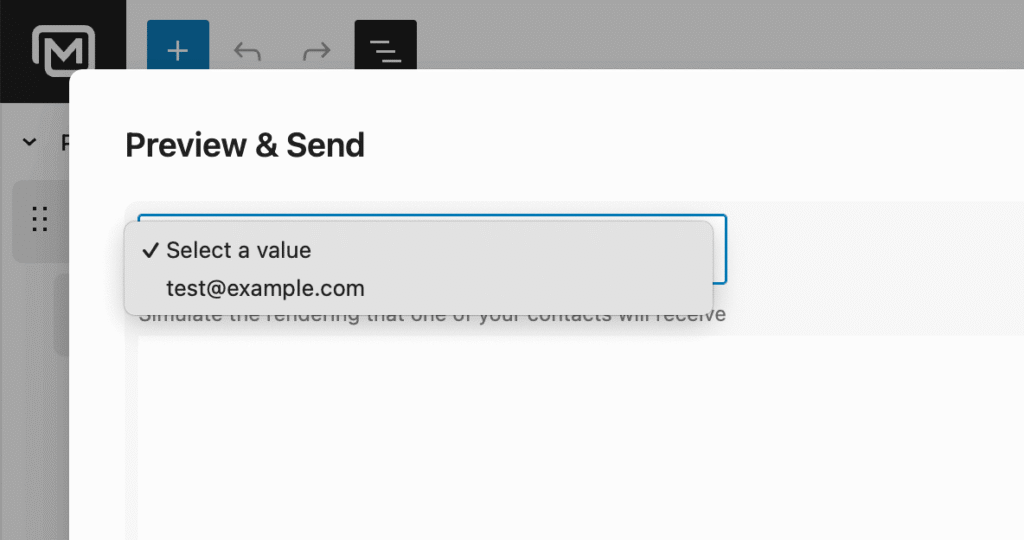
Click Preview & Send, then select a contact in the dropdown above the email preview. The preview shows the merge tags filled with this contact’s data. To check the result in a real inbox, send a test email from the same window.
Available merge tags in campaigns
| Tag | Code |
|---|---|
| Contact email | {{contact_email}} |
| Contact firstName | {{contact_first_name default="subscriber"}} |
| Contact lastName | {{contact_last_name default="subscriber"}} |
| Contact fullName | {{contact_name default="subscriber"}} |
| Unsubscribe link | {{UNSUB_LINK}} |
| Manage subscription | {{MANAGE_SUB_LINK}} |
| Custom fields | {{your_custom_field_key}} |
- Contact tags are grouped under Contact tag, and the unsubscribe and manage subscription links under Link tag. To add both links without typing tags, you can also use the Subscription links block. See One-click unsubscribe and compliant email footer.
- Your own contact fields (custom fields, such as a company or a city) appear under Custom Fields, using the field key (the field’s technical name). See Manage Your Contact Fields.
- Developers can add their own tag groups to the same window. See Create custom merge tags for the MailerPress email editor.
In automation emails, the window offers extra categories that depend on the automation, such as WooCommerce order, customer, address, product and subscription data, or post fields. These tags are not available in regular campaigns.