MailerPress Pro is required to customize native WordPress and WooCommerce emails.
Customize WordPress Emails
Replace WordPress’s plain-text system emails with designed templates built in the MailerPress editor.
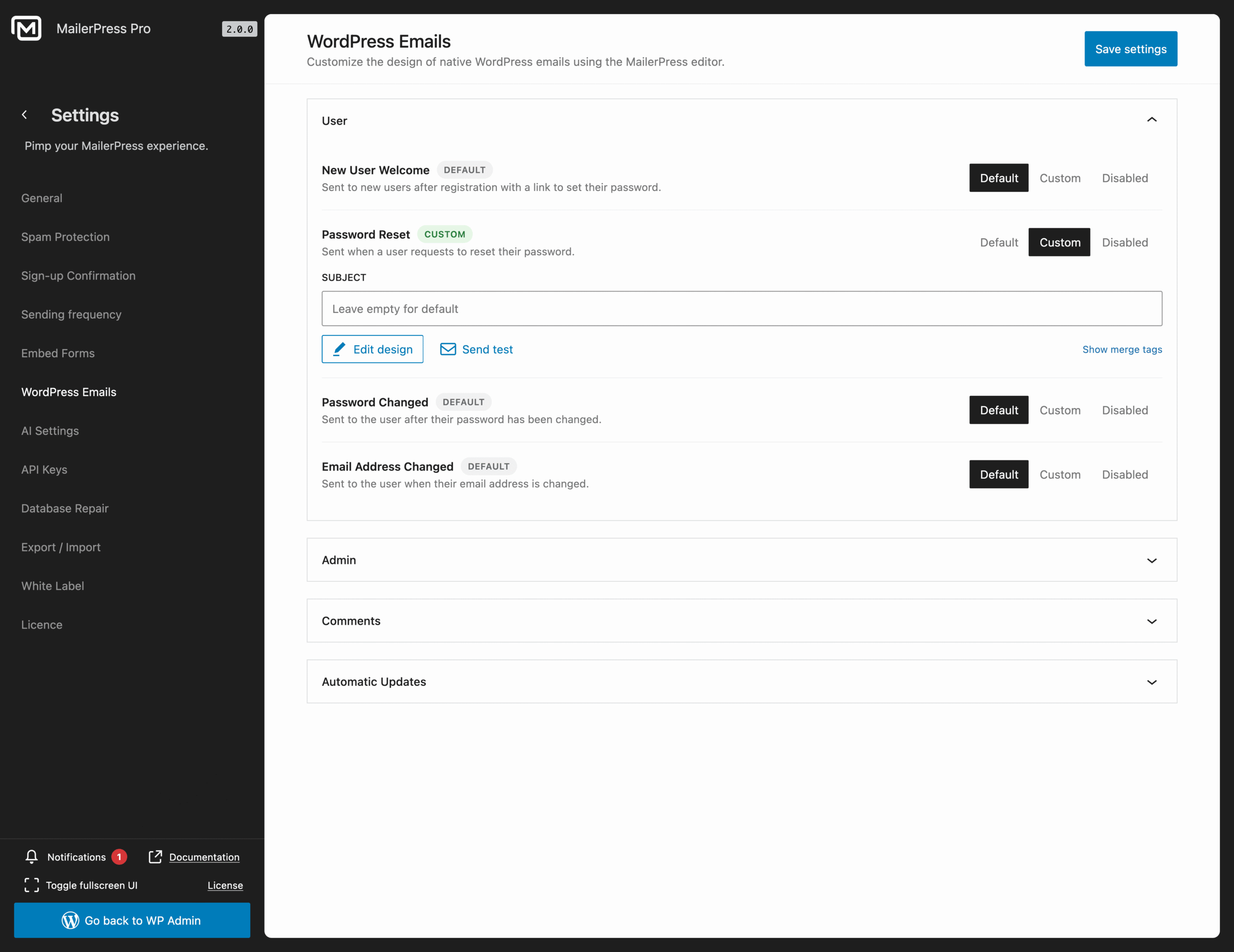
Sign in to your WordPress administration, then go to MailerPress, Settings, WordPress emails page.
Modes
Each email has three modes:
- Default: WordPress sends its original email.
- Custom: MailerPress sends your designed version.
- Disabled: the email isn’t sent.
Don’t disable Password Reset, users lose account recovery.
Emails available for customization
- User:
- New User Welcome,
- Password Reset,
- Password Changed,
- Email Address Changed.
- Admin:
- New User Admin Notification,
- Admin Email Changed.
- Comments:
- Comment Awaiting Moderation,
- Comment Published.
- Automatic Updates:
- Automatic Plugin Update,
- Automatic Theme Update,
- Automatic Core Update.
Edit a template
- Click Custom.
- Set a Subject (empty = WordPress default).
- Click Edit design to open the editor.
- Insert dynamic values via Show merge tags (e.g.
{{user_login}},{{reset_link}},{{site_title}}). The list depends on the email type. - Click Send test to preview in your inbox.
- Save settings.
Switching back to Default keeps your custom design saved, you can re-enable it later.
Customize WooCommerce Emails
The principle is exactly the same for WooCommerce.
Make sure to enable WooCommerce plugin first.
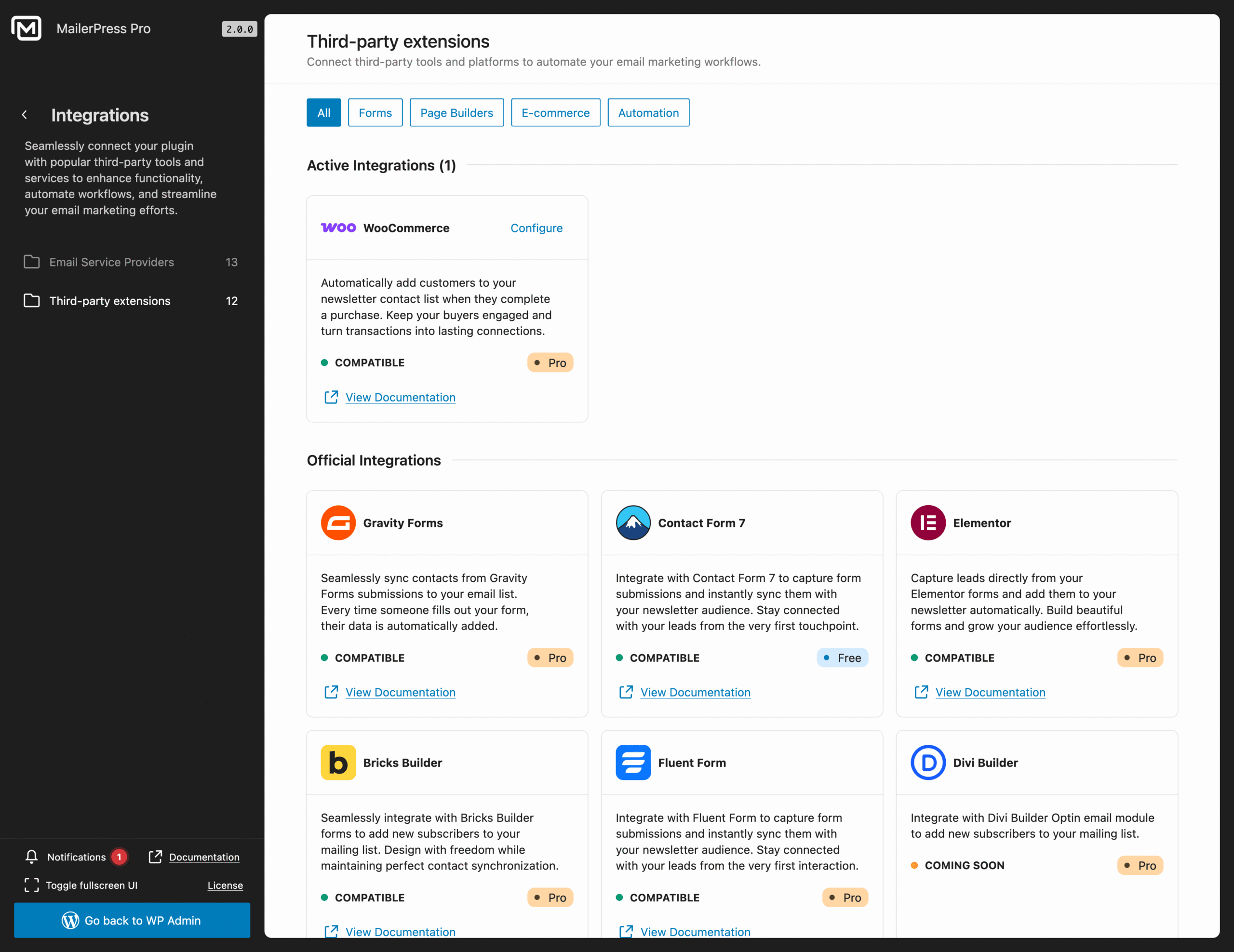
Go to MailerPress, Integrations, Third-party extensions, WooCommerce and click the Configure link from the card dedicated card.
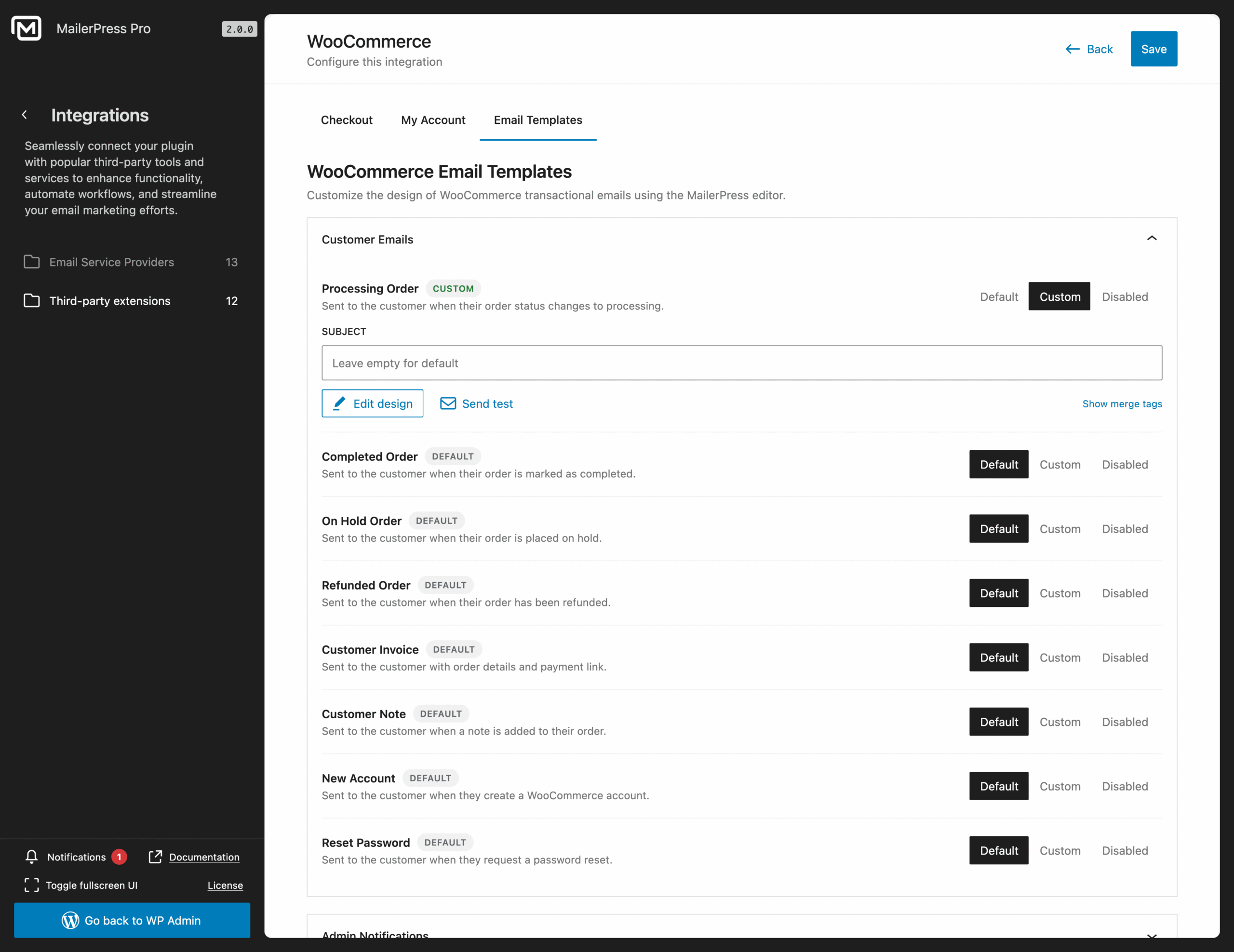
Finally go to Email Templates tab.
Emails available for customization
- Customer Emails:
- Processing Order,
- Completed Order,
- On Hold Order,
- Refunded Order,
- Customer Invoice,
- Customer Note,
- New Account,
- Reset Password.
- Admin Notifications:
- New Order (Admin),
- Cancelled Order (Admin),
- Failed Order (Admin).
Repeat the operation described in Edit template section.
Troubleshooting
- Merge tag rendered as literal text? Not supported for that email, check Show merge tags.
- Broken in Outlook? Avoid multi-column layouts and custom CSS.