Move your MailerPress configuration between sites without redoing everything by hand. Export your settings to a JSON file from one installation, then import that file on another.
Location: MailerPress > Settings > Export / Import
When to use this
- Cloning a staging site to production once everything is configured
- Setting up a new client site with the same defaults you always use
- Backing up your configuration before a major change
- Migrating to a new server or domain
Exporting your settings
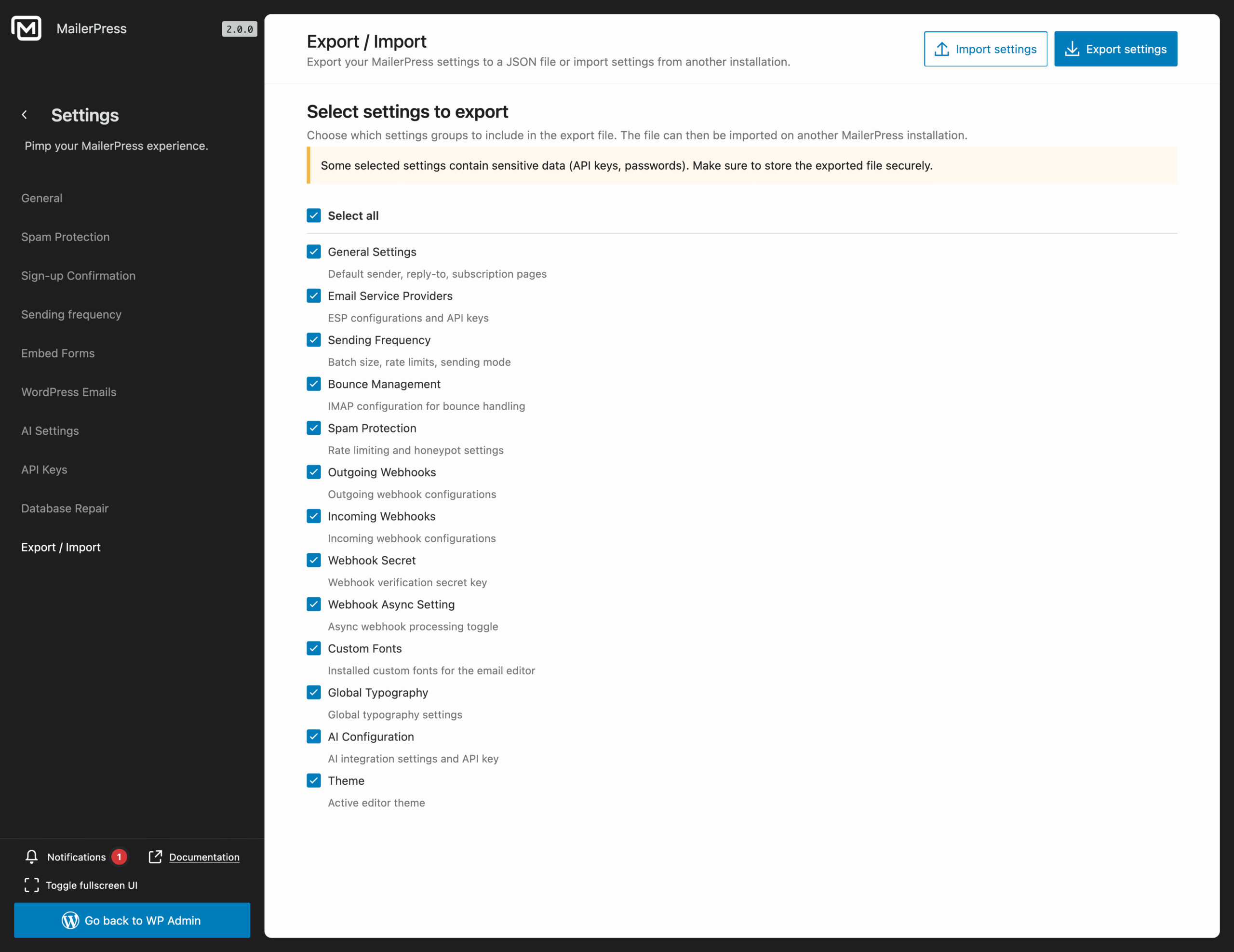
The export screen lists every settings group available. Pick the ones you want to include in the file.
Use Select all to grab everything, or tick only the groups that matter for your transfer.
Available groups
- General Settings. Default sender, reply-to, subscription pages.
- Email Service Providers. ESP configurations and API keys.
- Sending Frequency. Batch size, rate limits, sending mode.
- Bounce Management. IMAP configuration for bounce handling.
- Spam Protection. Rate limiting and honeypot settings.
- Outgoing Webhooks. Outgoing webhook configurations.
- Incoming Webhooks. Incoming webhook configurations.
- Webhook Secret. Webhook verification secret key.
- Webhook Async Setting. Async webhook processing toggle.
- Custom Fonts. Installed custom fonts for the email editor.
- Global Typography. Global typography settings.
- AI Configuration. AI integration settings and API key.
- Theme. Active editor theme.
Once your selection is ready, click Export settings in the top right. A JSON file is downloaded to your computer.
Sensitive data warning
Some groups contain credentials. Email Service Providers, Webhook Secret, and AI Configuration include API keys and tokens. Anyone with the JSON file can use those keys.
A few rules:
- Never email the file or drop it in a public folder
- Don’t commit it to a Git repository
- Store it in a password manager or encrypted vault if you need to keep it
- Delete it from your Downloads folder once the import is done
If you only need to share part of your configuration with someone else, untick the sensitive groups before exporting.
Importing settings
On the target site, go to the same screen and click Import settings in the top right. Select the JSON file you exported earlier.
The imported values overwrite the current settings for each group present in the file. Groups not included in the file are left untouched.
A few things to check before you import:
- The target site runs the same MailerPress version (or newer)
- ESP API keys are valid for the target environment (production keys won’t work on a sandbox account)
- Subscription page URLs in General Settings still match real pages on the new site
After importing
Take a quick pass through the affected settings screens to confirm everything came through, then send a test email to make sure your sender, ESP, and bounce handling all work on the new site.