This feature requires MailerPress Pro.
SendGrid (Twilio SendGrid) is an email delivery service. Connect it to MailerPress to send your campaigns, automation emails and test emails, and to track bounces (emails returned as undeliverable, for example because the address doesn’t exist).
1. Prepare your SendGrid account
- Create an account on the SendGrid website or sign in.
- Authenticate your sending domain or verify a single sender in SendGrid.
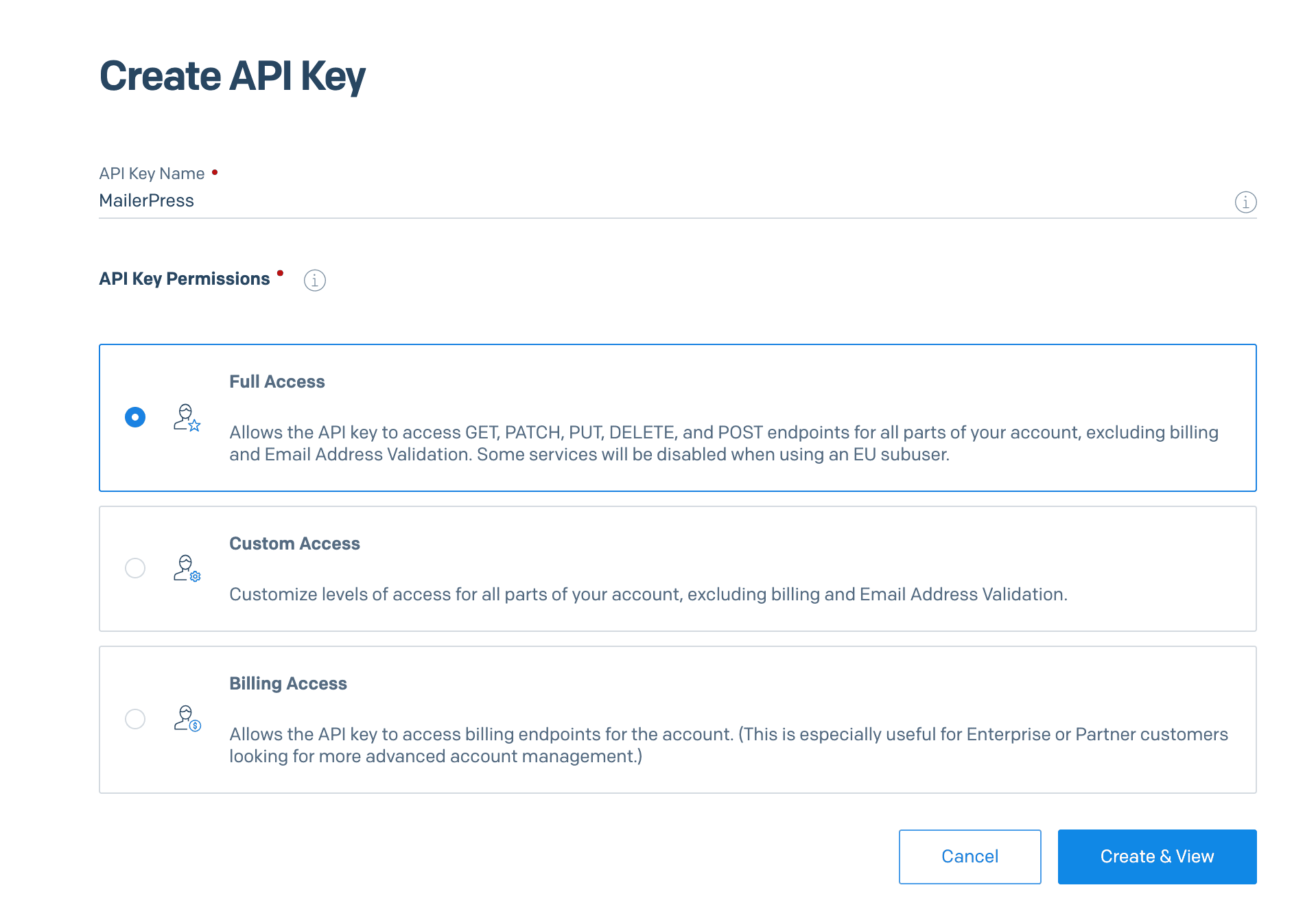
- Go to Settings > API Keys and click Create API Key. The key only needs Mail Send access.
- Copy the API key: SendGrid shows it only once. MailerPress uses this secret key to send through your SendGrid account.
2. Link your site with the SendGrid API
- Go to MailerPress > Integrations and open the Email Service Providers tab.
- In Recommended Providers, click Configure on the SendGrid card.
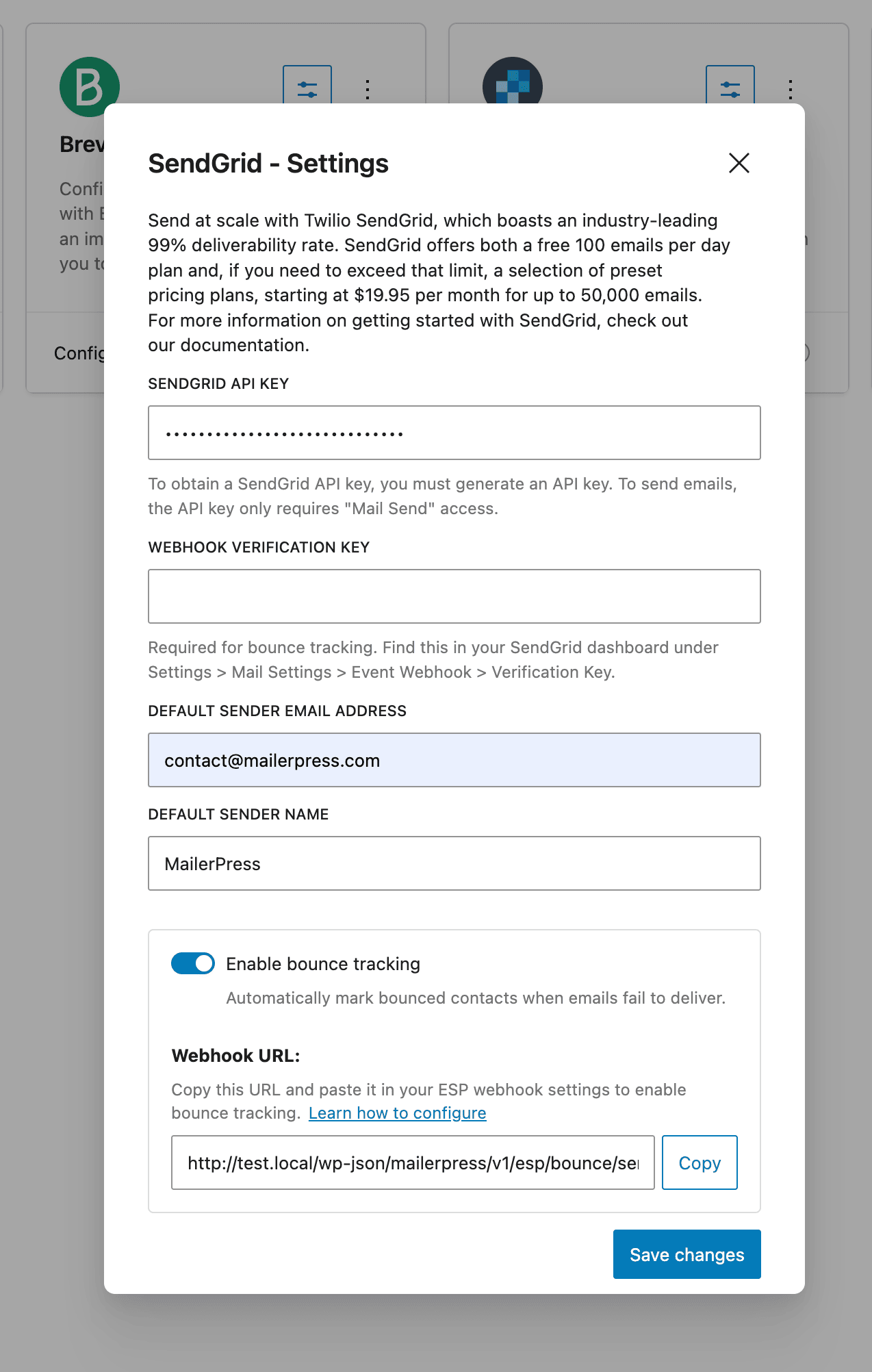
- Paste your key in SendGrid API key. Leave Webhook Verification Key empty for now: you fill it in when you set up bounce tracking.
- Fill in Default sender email address and Default sender name. The address must use a domain or sender verified in SendGrid. Empty fields show your global default sender as a placeholder.
- Click Save changes. The card moves to Configured Providers.
- Turn on the card’s Enable toggle, then click Set as primary provider. The card shows the Primary badge: only the primary provider sends your emails.
3. Send a test email
- On the SendGrid card, open the Actions menu (three dots) and click Send test email.
- Enter a recipient in Send to and click Send.
You should receive an email with the subject “This is a Sending Method Test”. If the test fails, MailerPress shows the error returned by SendGrid: check your API key and that your sender address is verified in SendGrid.
4. Configure the sending speed
- Go to MailerPress > Settings > Sending frequency, or click Adjust sending frequency on the SendGrid card.
- Under Configuration Mode, choose Profile and select one of the SendGrid profiles below. You can also choose Automatic to let MailerPress pick a profile, or Manual to set your own values.
- Click Save settings.
| Profile | Emails per batch | Interval | Emails per hour |
|---|---|---|---|
| Balanced (Recommended) | 75 | 5 minutes | 900 |
| Performance (Pro plans) | 200 | 3 minutes | 4,000 |
| High Performance (Premier plans) | 300 | 5 minutes | 3,600 |
The sending frequency is saved for the provider that is primary at that moment. Set SendGrid as primary before you click Save settings. See How to change your sending frequency in MailerPress.
5. Enable bounce tracking
MailerPress learns about bounces through a webhook: a URL that SendGrid calls automatically when an email bounces.
Copy the webhook URL
- On the SendGrid card, click Configure.
- Turn on Enable bounce tracking. The setting is saved immediately.
- Under Webhook URL, click Copy. The URL looks like
https://example.com/wp-json/mailerpress/v1/esp/bounce/sendgrid.
Create the Event Webhook in SendGrid
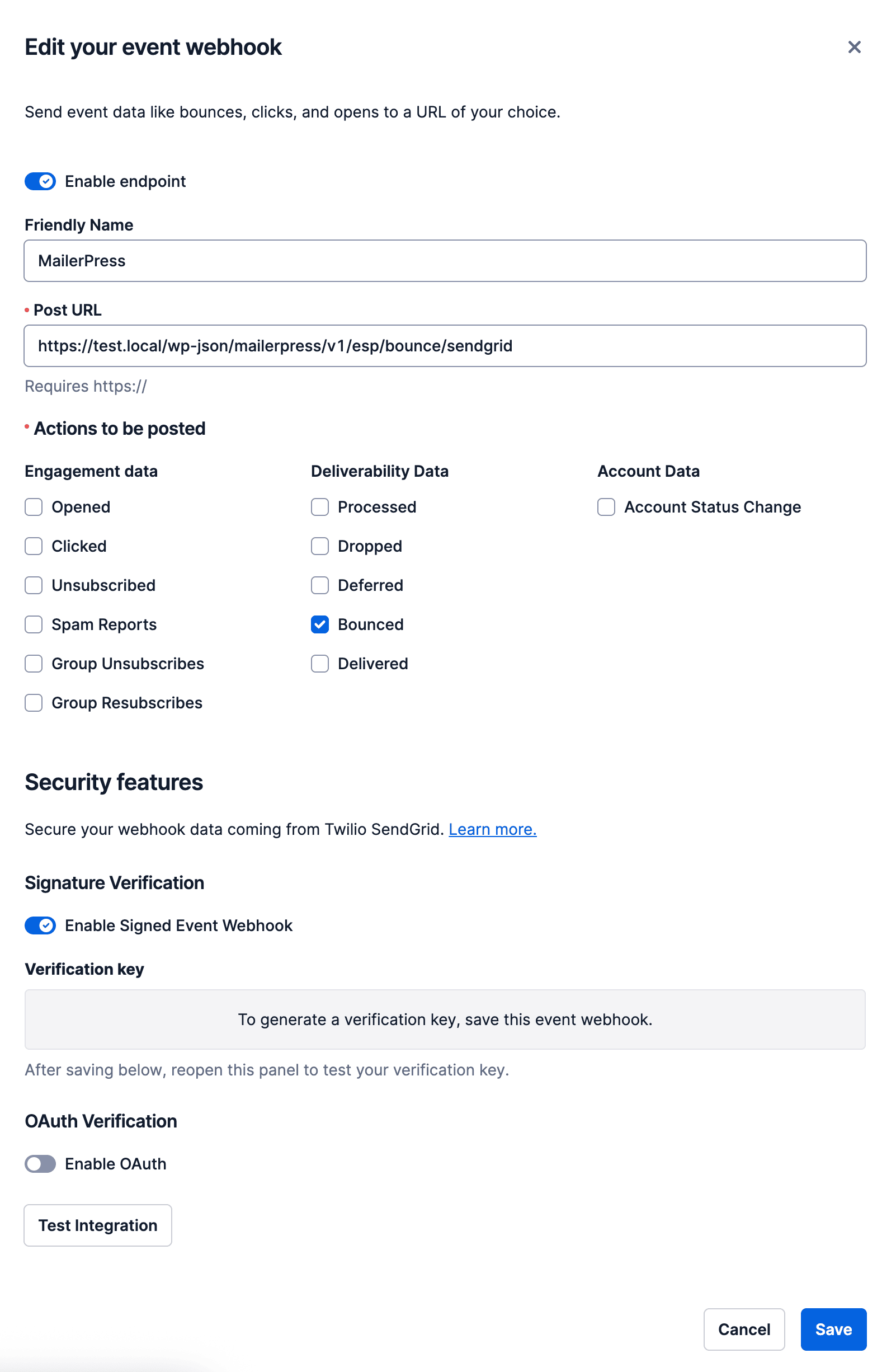
- In SendGrid, go to Settings > Mail Settings and open Event Webhook.
- Create a webhook, name it and paste the URL in Post URL.
- Select the Bounced and Dropped events.
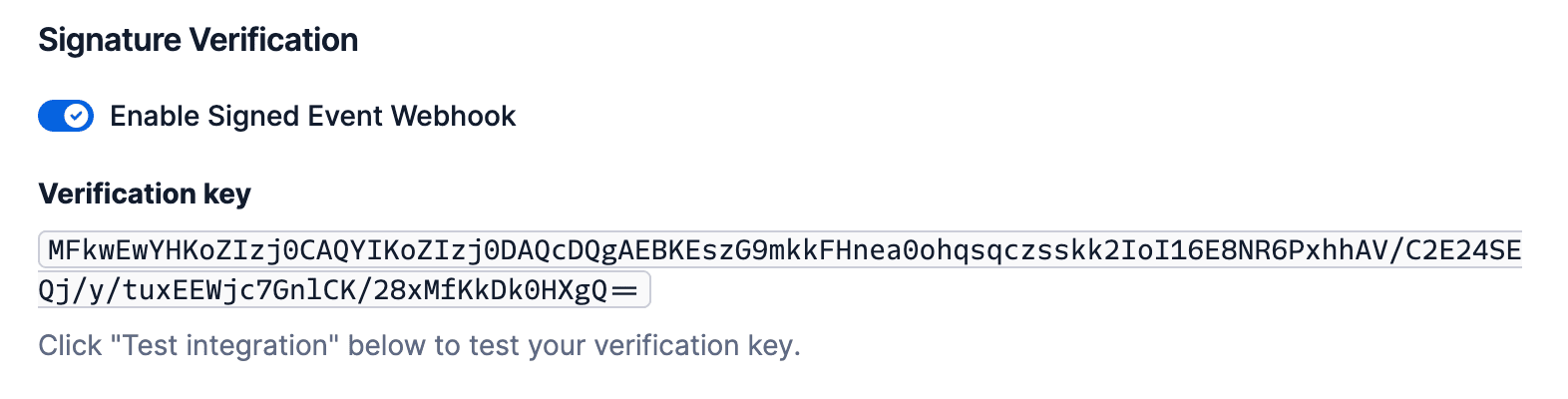
- Turn on signature verification and save the webhook.
- Open the webhook again and copy its verification key.
Add the verification key in MailerPress
- On the SendGrid card, click Configure.
- Paste the key in Webhook Verification Key and click Save changes.
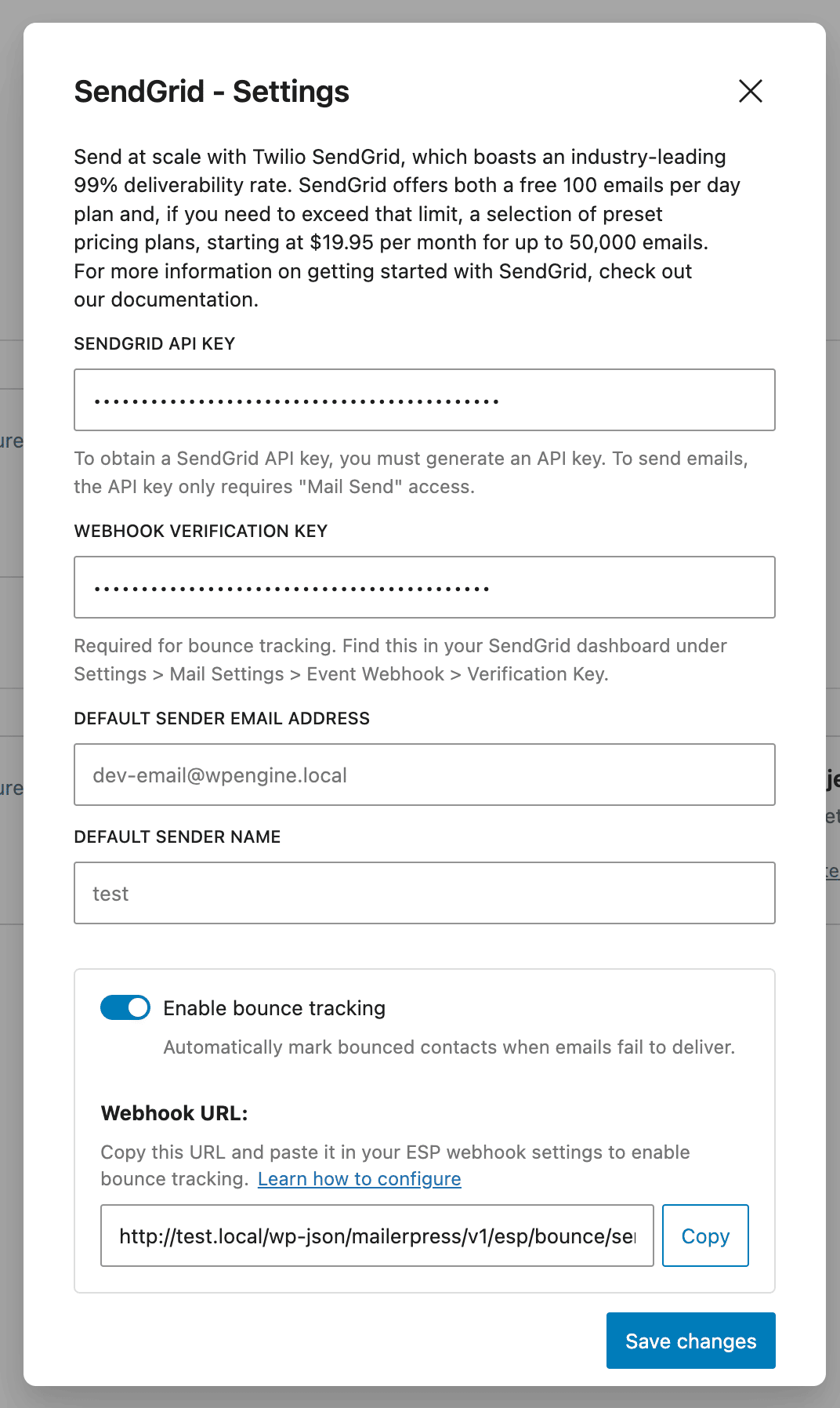
Leave Webhook signing secret empty: SendGrid uses the Webhook Verification Key field instead. Once a verification key is saved, MailerPress rejects SendGrid notifications without a valid signature.
MailerPress marks the contact as bounced for bounce, blocked and dropped events.
6. Track your bounces
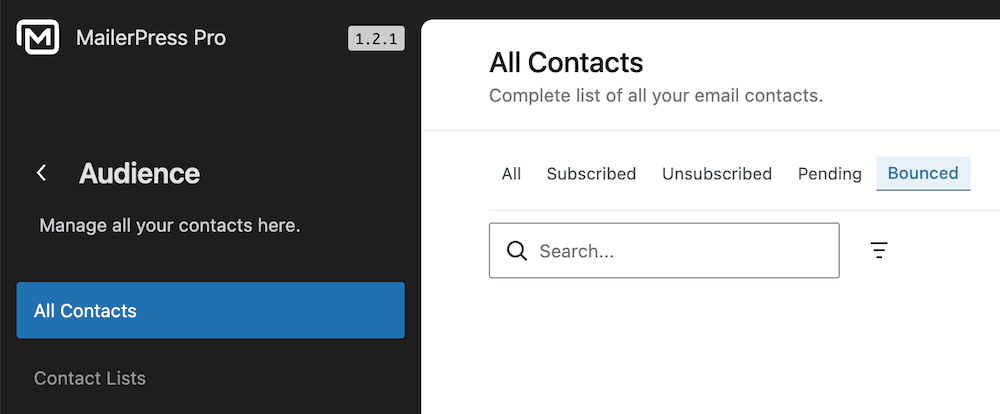
Go to MailerPress > Audience and click the Bounced tab of the contact list. Campaigns only go to subscribed contacts, so bounced contacts no longer receive them.
To compare SendGrid with the other sending services, see Choose and configure your email sending service.