This feature requires MailerPress Pro.
Brevo is an email marketing and delivery platform. Connect it to MailerPress to send your campaigns, automation emails and test emails, and to track bounces (emails returned as undeliverable, for example because the address doesn’t exist).
1. Prepare your Brevo account
- Create an account on the Brevo website or sign in.
- Make sure your sender address is a verified sender in Brevo, or belongs to a domain authenticated in Brevo.
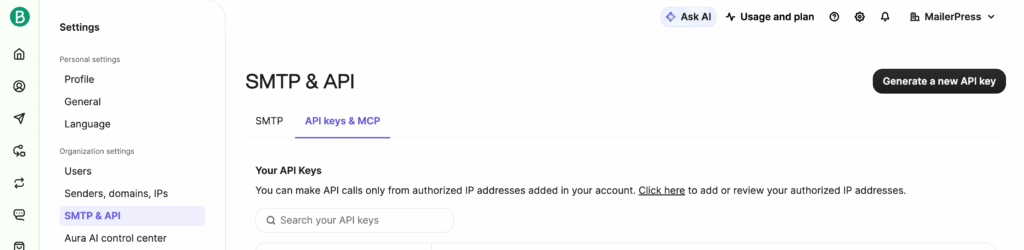
- Click your account name in the top right corner, open SMTP & API, then the API keys tab.
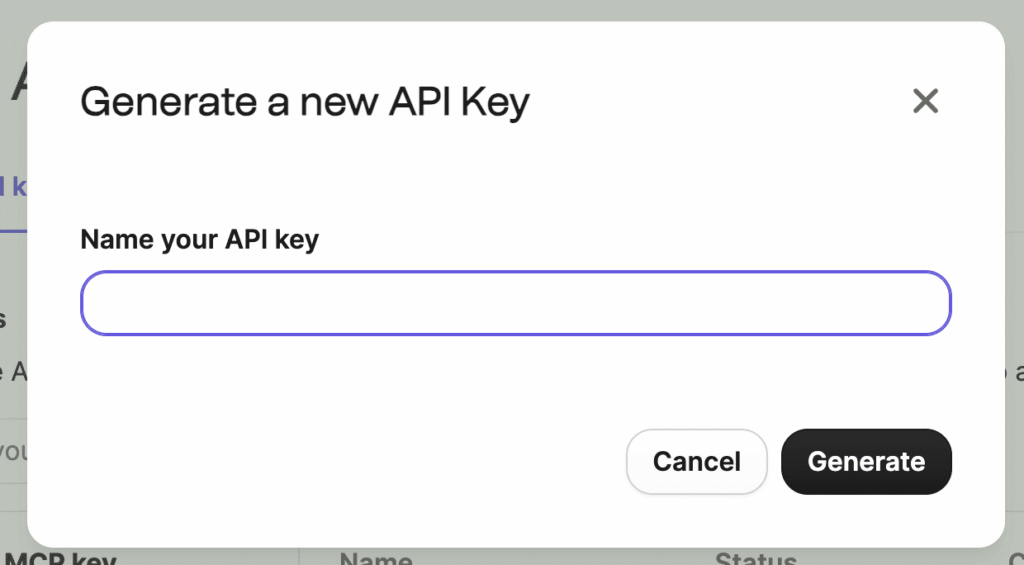
- Click Generate a new API key, name it (for example “MailerPress”) and copy the key. MailerPress uses this secret key to send through your Brevo account.
2. Link your site with the Brevo API
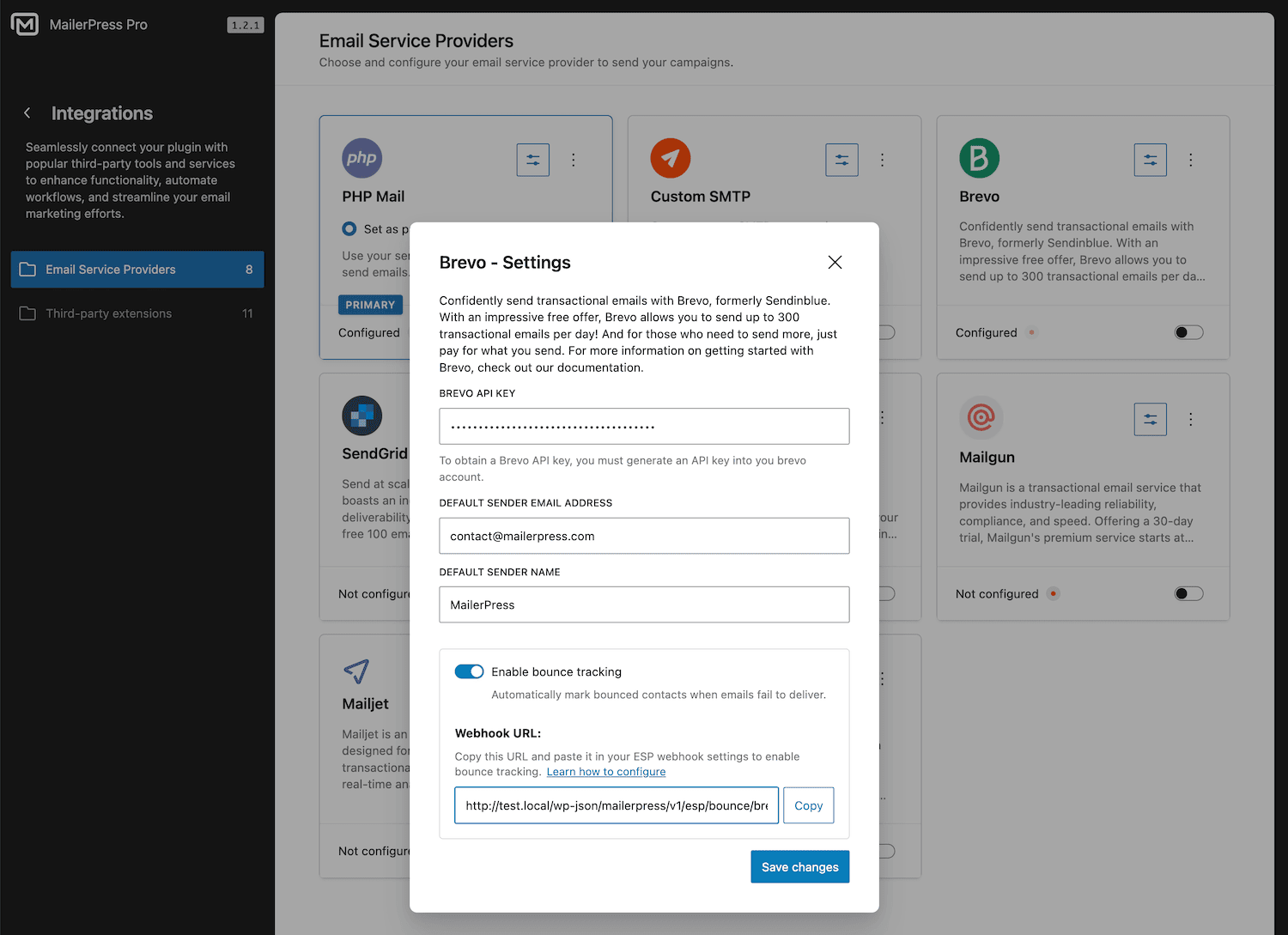
- Go to MailerPress > Integrations and open the Email Service Providers tab.
- In Recommended Providers, click Configure on the Brevo card.
- Paste your key in the Brevo API key field.
- Fill in Default sender email address and Default sender name. Empty fields show your global default sender as a placeholder.
- Click Save changes. The card moves to Configured Providers.
- Turn on the card’s Enable toggle, then click Set as primary provider. The card shows the Primary badge: only the primary provider sends your emails.
3. Send a test email
- On the Brevo card, open the Actions menu (three dots) and click Send test email.
- Enter a recipient in Send to and click Send.
You should receive an email with the subject “This is a Sending Method Test”. If the test fails, MailerPress shows the error returned by Brevo: check your API key and that your sender address is valid in Brevo.
4. Configure the sending speed
- Go to MailerPress > Settings > Sending frequency, or click Adjust sending frequency on the Brevo card.
- Under Configuration Mode, choose Profile and select one of the Brevo profiles below. You can also choose Automatic to let MailerPress pick a profile, or Manual to set your own values.
- Click Save settings.
| Profile | Emails per batch | Interval | Emails per hour |
|---|---|---|---|
| Prudent (Free plan – 300 emails/day) | 50 | 5 minutes | 600 |
| Balanced (Recommended) | 75 | 5 minutes | 900 |
| Performance (Premium plans) | 200 | 5 minutes | 2,400 |
The profiles set the sending pace, not your Brevo quota. On Brevo’s free plan, stay within the daily allowance.
The sending frequency is saved for the provider that is primary at that moment. Set Brevo as primary before you click Save settings. See How to change your sending frequency in MailerPress.
5. Enable bounce tracking
MailerPress learns about bounces through a webhook: a URL that Brevo calls automatically when an email bounces.
- On the Brevo card, click Configure.
- Turn on Enable bounce tracking. The setting is saved immediately.
- Under Webhook URL, click Copy. The URL looks like
https://example.com/wp-json/mailerpress/v1/esp/bounce/brevo. - In Brevo, click your account name, open the webhooks settings and create an outbound webhook.
- Paste the URL you copied. If Brevo asks for an authentication method, choose no authentication.
- Choose transactional emails as the event type (MailerPress sends through Brevo’s transactional API). Select the hard bounce event (a permanent failure), then activate the webhook.
If you also select soft bounces (temporary failures, such as a full mailbox) or blocked emails, MailerPress marks those contacts as bounced too.
Leave Webhook signing secret empty: once a secret is saved, MailerPress rejects any Brevo notification without a valid signature. Without a secret, MailerPress only records a bounce if it sent an email to that address through Brevo in the last 30 days.
6. Track your bounces
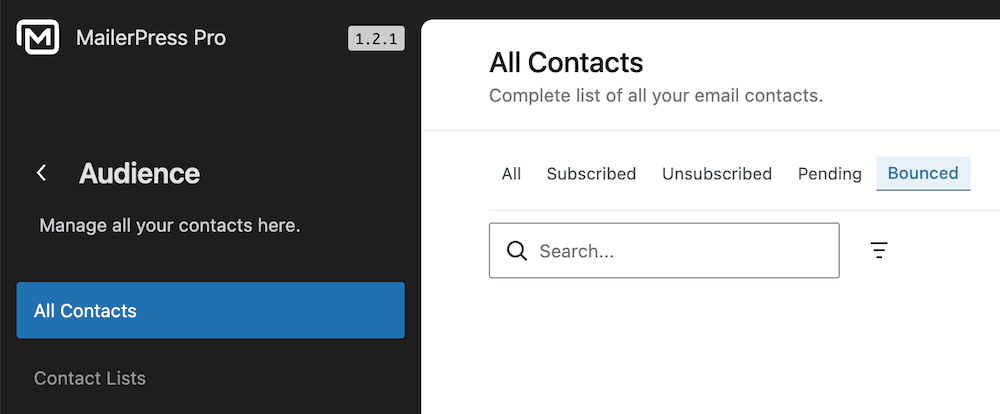
Go to MailerPress > Audience and click the Bounced tab of the contact list. Campaigns only go to subscribed contacts, so bounced contacts no longer receive them.
To compare Brevo with the other sending services, see Choose and configure your email sending service.