A webhook is an automatic message (an HTTP request) that one application sends to another when an event happens. Outgoing webhooks send MailerPress events (a new contact, a sent campaign, a click…) to services such as Zapier, Make or your own application. Incoming webhooks let external services create or update contacts and start automations on your site.
Webhooks require MailerPress Pro.
Set up outgoing webhooks
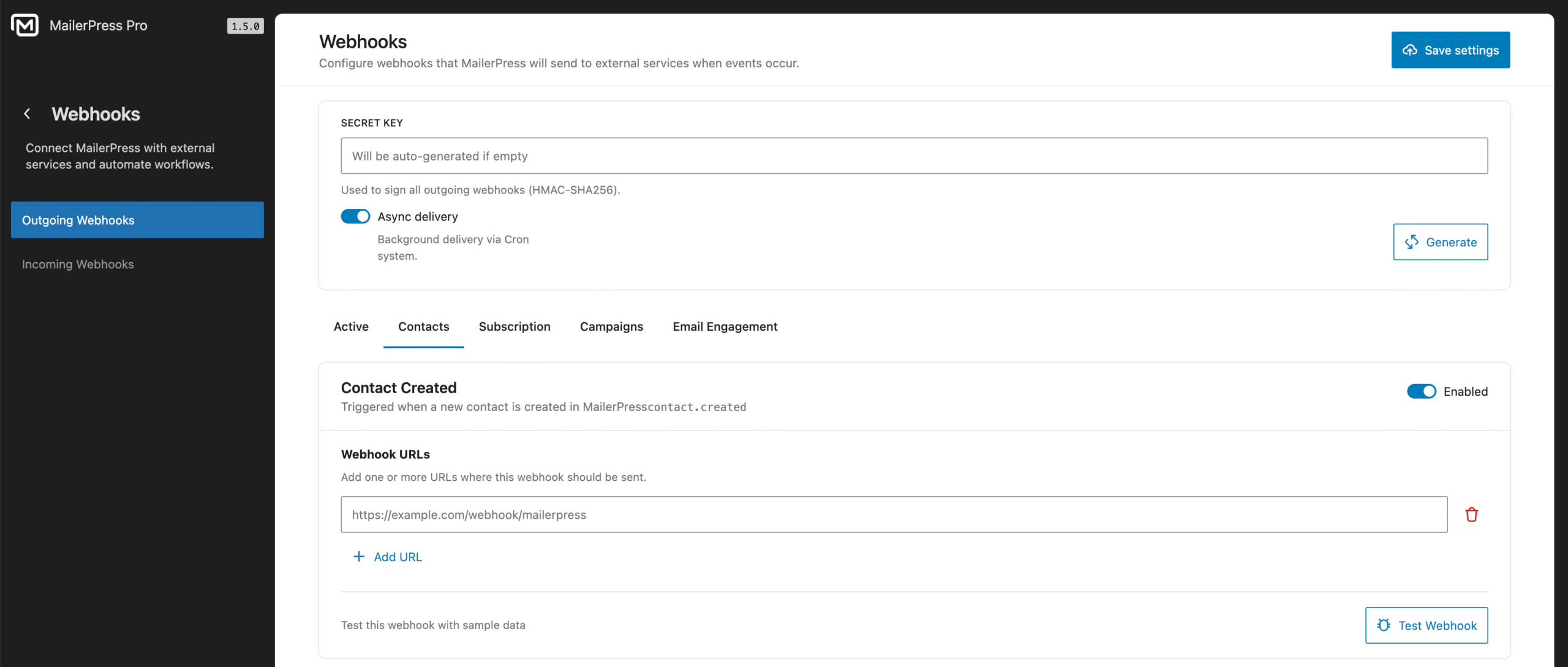
- Go to MailerPress > Webhooks > Outgoing Webhooks.
- In Secret Key, click Generate (or enter your own key of at least 32 characters), then click Copy and paste the key into the receiving service. MailerPress signs every request with this key and sends no webhook without it.
- Leave Async delivery enabled to send webhooks in the background with WordPress cron (the WordPress task scheduler). When it is disabled, MailerPress sends them while the triggering request runs, which can slow down your site.
- Open the tab of the events you need: Contacts, Subscription, Campaigns or Email Engagement. The Active tab lists the events you have enabled.
- For each event, switch on Enabled, click Add URL under Webhook URLs and paste the endpoint URL of your service. You can add several URLs to the same event.
- Click Save settings.
- Click Test Webhook on an event to send sample data to its URLs and check the result.
Available events
| Event key | Name | Data sent |
|---|---|---|
contact.created | Contact Created | contact_id, email, first_name, last_name, subscription_status, created_at, updated_at, tags, lists, custom_fields. Sent about 5 seconds after the contact is created, so that its custom fields are included. |
contact.updated | Contact Updated | Same data as contact.created. |
contact.tag.addedcontact.tag.removed | Contact Tag Added Contact Tag Removed | contact_id, contact_email, tag_id, tag_name |
contact.list.addedcontact.list.removed | Contact Added to List Contact Removed from List | contact_id, contact_email, list_id, list_name |
contact.custom_field.updated | Contact Custom Field Updated | contact_id, contact_email, field_key, field_value |
contact.deleted | Contact Deleted | contact_id, email, first_name, last_name, deleted_at |
contact.unsubscribed | Contact Unsubscribed | contact_id, email, first_name, last_name, unsubscribed_at |
subscription.confirmed | Subscription Confirmed | contact_id, email, first_name, last_name, confirmed_at |
campaign.created | Campaign Created | campaign_id, campaign_name, campaign_subject, status, campaign_type, created_at, and the author (author_id, author_name, author_email) |
campaign.scheduled | Campaign Scheduled | Same data as campaign.created, plus scheduled_at, batch_id, scheduled_time and total_emails |
campaign.sent | Campaign Sent | campaign_id, campaign_name, campaign_subject, total_emails, sent_emails, error_emails, sent_at and the author |
email.opened | Email Opened | contact_id, contact_email, campaign_id, campaign_name, campaign_subject, batch_id, opened_at |
email.clicked | Email Link Clicked | contact_id, contact_email, campaign_id, campaign_name, campaign_subject, url, clicked_at |
email.bounced | Email Bounced | contact_id, email, bounced_at, bounce_type |
Good to know:
- Every payload also contains
site_url, the address of your site. - Campaign events are sent for regular campaigns only. Automated campaigns and A/B test campaigns don’t trigger them.
- Email Opened and Email Link Clicked are sent for known contacts only, not when tracking is anonymous.
- Email Bounced is sent when the IMAP bounce mailbox check marks a contact as bounced (an email to this address could not be delivered). Bounces reported directly by an email service provider don’t trigger it.
Payload format
MailerPress sends a POST request with a JSON body (Content-Type: application/json) containing the event key, the event data and metadata:
{
  "event": "contact.tag.added",
  "data": {
    "contact_id": 42,
    "contact_email": "[email protected]",
    "tag_id": 3,
    "tag_name": "Customers",
    "site_url": "https://example.com"
  },
  "metadata": {
    "timestamp": "2026-10-11 09:30:00",
    "event_key": "contact.tag.added",
    "event_name": "Contact Tag Added"
  }
}
The event_name value follows the language of your site.
Verify the signature
Each request includes an X-Webhook-Signature header in the format sha256=<hash>, where the hash is the HMAC-SHA256 of the raw request body computed with your secret key. Compare it with your own calculation before you trust the data. In PHP:
$payload   = file_get_contents( 'php://input' );
$signature = $_SERVER['HTTP_X_WEBHOOK_SIGNATURE'] ?? '';
$expected  = 'sha256=' . hash_hmac( 'sha256', $payload, 'YOUR_SECRET_KEY' );

if ( ! hash_equals( $expected, $signature ) ) {
	http_response_code( 401 );
	exit;
}

$event = json_decode( $payload, true );
Delivery and retries
- A delivery succeeds when your endpoint answers with an HTTP 2xx status within 30 seconds.
- If it fails, MailerPress tries again after 1 minute, then after 5 minutes: 3 attempts in total per URL.
- Webhook URLs must be public. MailerPress blocks requests to local or private network addresses.
- With Async delivery, webhooks depend on WordPress cron. If they arrive late, see How to Set Up a WordPress Cron Job from Your Server.
Set up incoming webhooks
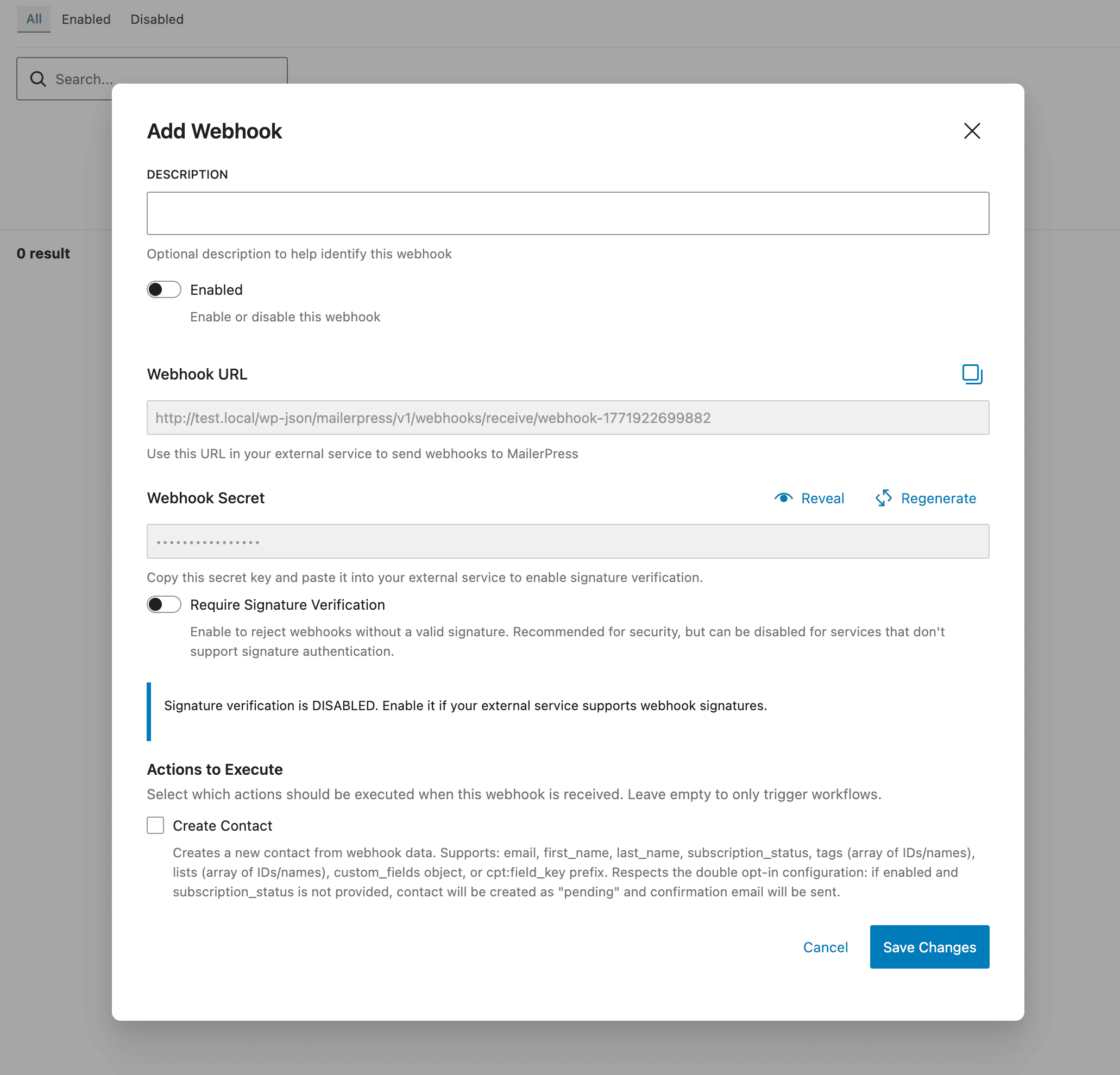
- Go to MailerPress > Webhooks > Incoming Webhooks and click Add Webhook.
- Enter a Description to recognize the webhook in the list.
- Switch on Enabled. A new webhook is disabled by default and processes requests only once enabled.
- Copy the Webhook URL and paste it into your external service. It looks like
https://example.com/wp-json/mailerpress/v1/webhooks/receive/webhook-1760000000000; the last part is the webhook ID. - Optionally, switch on Require Signature Verification (see below).
- In Actions to Execute, choose what MailerPress does with the data: Create Contact, Update Contact, Add Tag and/or Add to List. For Add Tag and Add to List, you can pick the tags or lists in Select Tags and Select Lists; otherwise MailerPress uses the tag or list named in the request. Leave the actions empty if the webhook should only start automations.
- Click Save Changes.
Data accepted by the actions
Send a POST request with a JSON body (form-encoded data is also accepted). The body cannot be empty.
| Field | Description |
|---|---|
email | Required. customer_email and user_email are also accepted. |
first_name, last_name | Contact name. |
subscription_status | For example subscribed or pending. If you omit it, Create Contact follows your sign-up confirmation setting: with double opt-in enabled (new contacts confirm by email), the contact is pending and receives the confirmation email. |
tags, lists | Arrays of IDs or names. A name that doesn’t exist yet is created. Without lists, a new contact is added to your default list. For a single value, tag / tag_name and list / list_name also work with Add Tag and Add to List. |
custom_fields | Object of custom field keys and values, for example {"company": "Acme"}. You can also send a field as "cpt:company": "Acme". Only fields that exist in MailerPress are saved. |
Create Contact only adds new email addresses, and Update Contact only updates existing contacts. Select both to cover both cases.
curl -X POST "https://example.com/wp-json/mailerpress/v1/webhooks/receive/webhook-1760000000000" \
  -H "Content-Type: application/json" \
  -d '{"email":"[email protected]","first_name":"Jane","tags":["Webinar"],"custom_fields":{"company":"Acme"}}'
Require a signature
Signature verification is for services that can sign their requests. When Require Signature Verification is on, the request must include an X-Webhook-Signature header (X-Hub-Signature-256 and X-Signature are also accepted) with the value sha256= followed by the HMAC-SHA256 of the raw body, computed with the webhook secret. To get the secret, save the webhook, edit it and click Reveal secret under Webhook Secret. Regenerate replaces the secret, and the old one stops working.
Responses
| Status | Meaning |
|---|---|
| 200 | Request processed. The response lists the result of each action in handlers_executed. If the webhook is disabled, the response is also 200 but with "success": false. |
| 400 | The body is empty. |
| 401 | The signature is missing or invalid. |
| 404 | No webhook exists with this ID. |
Start an automation from a webhook
In an automation, choose the Webhook Received trigger and enter the Webhook ID (the last part of the webhook URL). Each request received by that webhook starts the automation, and the fields of the request (email, first_name, last_name…) are available to the next steps. See Create Automated Email Workflows with MailerPress Pro.
Developers can also react to webhooks in PHP; see MailerPress hooks and filters reference.