White Label lets agencies and developers deliver MailerPress to clients under their own brand: custom plugin names, description, author and menu labels, and hidden MailerPress elements such as documentation links or built-in templates. The settings are applied with a PHP snippet, which the White Label screen builds for you.
This feature requires MailerPress Pro.
Build your white label configuration
- Go to MailerPress > Settings and open the White Label tab.
- In the General card, check Activate White Label, then the other options you need (see below). The Plugin Details and Admin & Email cards appear.
- Fill in the fields. The Generated PHP Code box at the bottom updates as you type.
- Click Copy code at the top of the screen.
- Paste the snippet in your theme’s (or child theme’s)
functions.phpfile, in a custom plugin or in a must-use plugin (a plugin WordPress always loads).
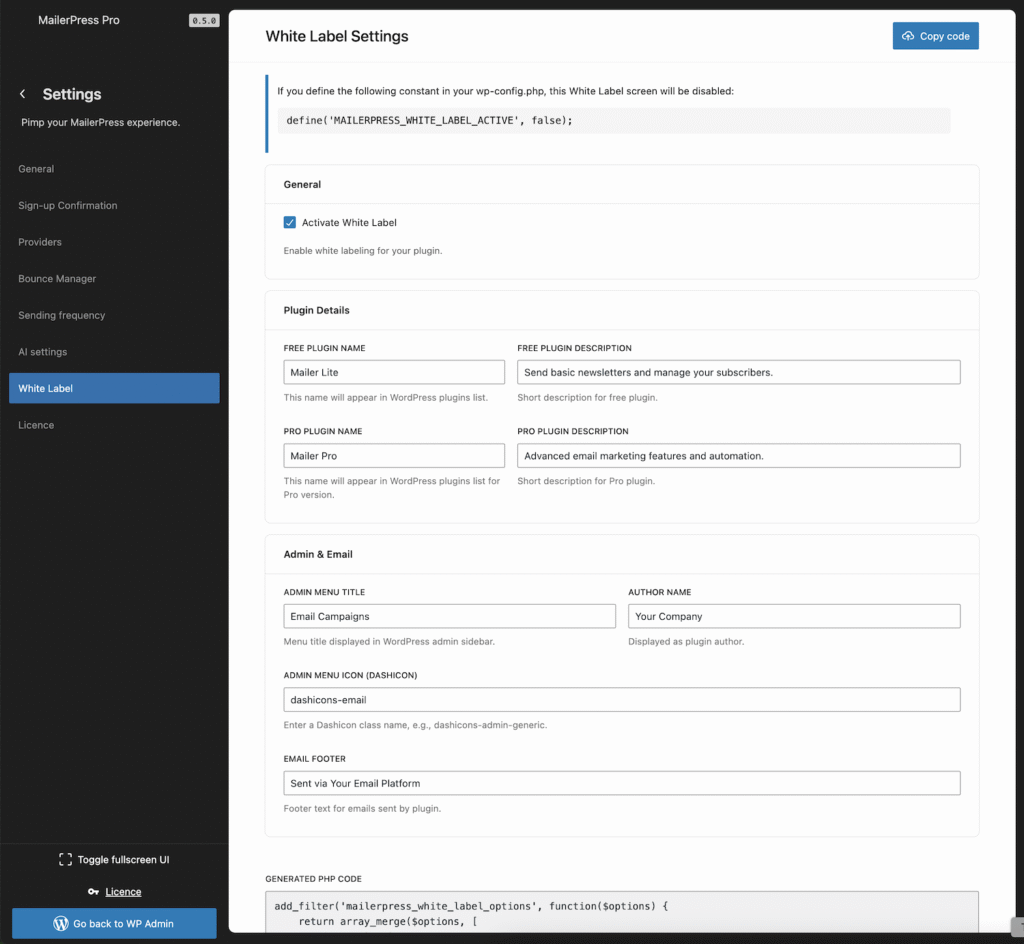
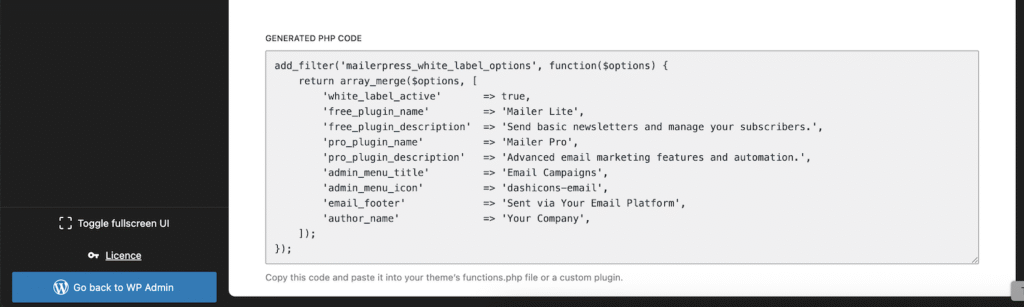
The screen has no save button: nothing changes until the snippet is active on your site. Once it is, the screen shows your current values, so you can adjust them and copy an updated snippet.
Available options
General
| Option | What it does |
|---|---|
| Activate White Label | Turns white labeling on. The other options only apply when it is checked. |
| Hide ESP badge | Hides the email service provider name and icon in the send screen. |
| Hide documentation link | Hides the documentation links in the plugin interface. |
| Custom documentation URL | Shown when Hide documentation link is unchecked. Replaces the MailerPress documentation URL with yours. Leave empty to keep the default. |
| Hide premium templates | Hides the built-in MailerPress templates, so your clients only see their own. |
Plugin Details
| Option | What it does |
|---|---|
| Free Plugin Name | Name of MailerPress in the WordPress Plugins list. Also shown in the header of the MailerPress screens, and replaces “MailerPress” in plugin texts generated by WordPress, such as admin notices. |
| Free Plugin Description | Description of MailerPress in the Plugins list. |
| Pro Plugin Name | Name of MailerPress Pro in the Plugins list. Also replaces “MailerPress Pro” in plugin texts generated by WordPress. |
| Pro Plugin Description | Description of MailerPress Pro in the Plugins list. |
Admin & Email
| Option | What it does |
|---|---|
| Admin Menu Title | Title of the main menu item in the WordPress admin sidebar. |
| Author Name | Author shown for both plugins in the Plugins list. |
| Author URL | Link on the author name in the Plugins list. |
| Admin Menu Icon (Dashicons) | A WordPress icon name, such as dashicons-admin-generic, shown instead of the MailerPress logo in the header of the MailerPress screens. See the Dashicons list. |
When white label is active, the Plugins list also hides the “View details” and version links, the MailerPress logo disappears from the plugin icons, the admin sidebar uses the generic envelope icon (dashicons-email), and the license activation reminder is no longer displayed.
Example of generated code
add_filter('mailerpress_white_label_options', function($options) {
    return array_merge($options, [
        'white_label_active'       => true,
        'free_plugin_name'         => 'Acme Mail',
        'free_plugin_description'  => 'Newsletters for Acme clients.',
        'pro_plugin_name'          => 'Acme Mail Pro',
        'pro_plugin_description'   => 'Advanced email marketing for Acme clients.',
        'admin_menu_title'         => 'Newsletters',
        'admin_menu_icon'          => 'dashicons-megaphone',
        'author_name'              => 'Acme Agency',
        'author_url'               => 'https://acme.example',
        'hide_esp_badge'           => true,
        'hide_documentation_link'  => false,
        'custom_documentation_url' => 'https://acme.example/help/',
        'hide_premium_templates'   => true,
    ]);
});
Rename the submenus (code only)
To rename the MailerPress submenus, add these keys to the same array: dashboard_name, campaigns_name, audience_name, templates_name, integrations_name, webhooks_name, tools_name and settings_name. For example: 'campaigns_name' => 'Newsletters',. These keys are not on the White Label screen.
Hide the White Label screen
Once your configuration is in place, you can hide the White Label tab from your clients. Add this constant to your wp-config.php file:
define( 'MAILERPRESS_WHITE_LABEL_ACTIVE', false );The constant only hides the screen. Your white label code keeps working.