MailerPress sends campaigns, runs automations, checks bounces and delivers webhooks in the background with Action Scheduler, which relies on WP-Cron (the WordPress task scheduler). By default, WP-Cron only runs when someone visits your site, so on a low-traffic or heavily cached site, emails can go out late. A cron job on your server runs on a fixed schedule, even without visitors.
When you need a server cron job
- Scheduled campaigns or automation emails go out late or stay pending.
- Your site gets little traffic, or a cache serves most pages without loading WordPress.
- WP-Cron is disabled in
wp-config.php. In this case, MailerPress displays the notification “WP-Cron is disabled on your site. MailerPress requires a working cron system to send scheduled emails.” with a View Documentation button that leads to this page. If you have already set up a server cron job, you can dismiss it.
Step 1: Disable WP-Cron in WordPress
Stop WordPress from running wp-cron.php on every page load.
- Open the
wp-config.phpfile at the root of your WordPress installation. - Add the following line above the line
/* That's all, stop editing! */:
define( 'DISABLE_WP_CRON', true );Save the file, then set up the server cron job right away: until it runs, scheduled tasks stop running.
Step 2: Set up the cron job on your server
MailerPress schedules some tasks every minute, such as processing the sending queue. Run the cron job every minute if your host allows it, and at least every 5 minutes. In the examples below, replace example.com with your domain.
With cPanel
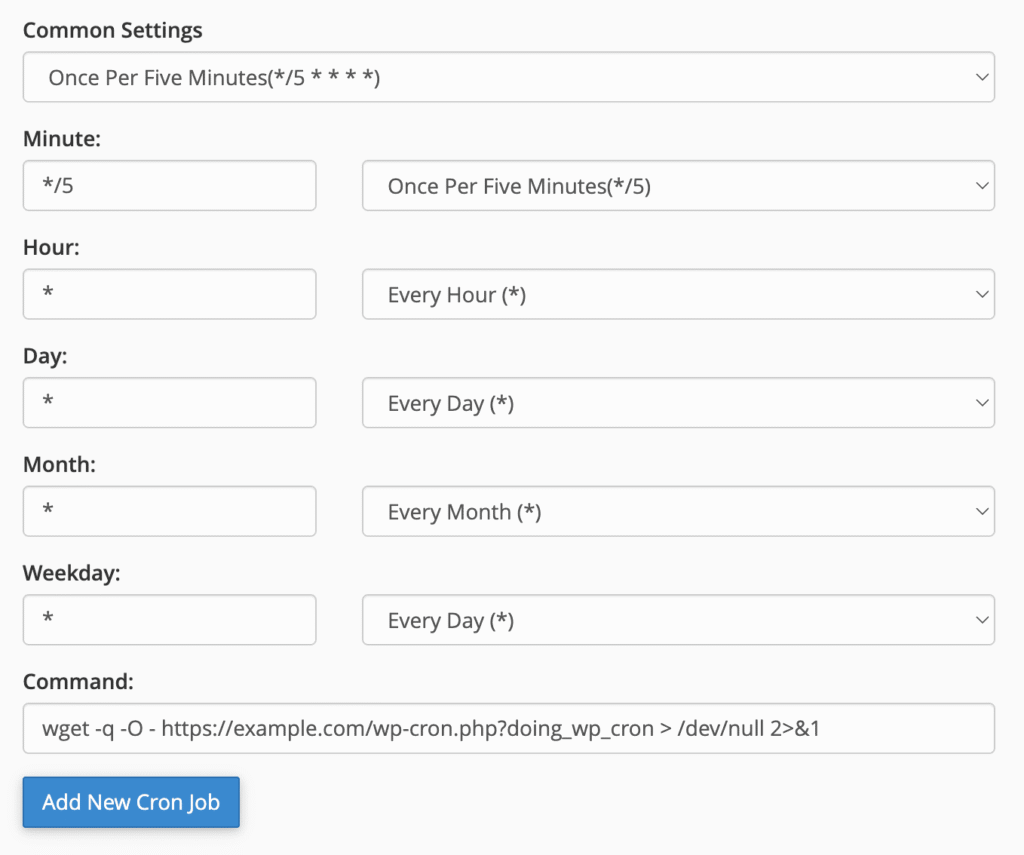
- Log in to your hosting control panel and open Cron Jobs (usually in the Advanced section).
- Choose the schedule, for example every minute:
* * * * *(or every 5 minutes:*/5 * * * *). - Enter this command:
wget -q -O - "https://example.com/wp-cron.php?doing_wp_cron" > /dev/null 2>&1
Then click Add New Cron Job.
With SSH on a VPS or dedicated server
Open your crontab with crontab -e and add one of these lines, then save and exit.
# With wget
* * * * * wget -q -O - "https://example.com/wp-cron.php?doing_wp_cron" > /dev/null 2>&1

# With curl, if wget is not available
* * * * * curl -s "https://example.com/wp-cron.php?doing_wp_cron" > /dev/null 2>&1

# With WP-CLI, without going through HTTP
* * * * * cd /path/to/wordpress && wp cron event run --due-now > /dev/null 2>&1
The WP-CLI line runs due tasks directly on the server. Use it if a firewall, a cache or a password (for example on a staging site) blocks access to your site.
Step 3: Check that MailerPress tasks run
- Go to Tools > Scheduled Actions in your WordPress admin (with WooCommerce, also available in WooCommerce > Status > Scheduled Actions).
- Search for
mailerpressand open the Pending tab. - If actions scheduled several minutes ago are still pending, the cron job is not running. Check its command and your site address.
With WP-CLI, you can also run pending MailerPress actions manually:
wp action-scheduler run --group=mailerpressTips
- Make sure your
.htaccessfile, firewall or security plugin does not block requests towp-cron.php. - The speed at which campaigns are sent also depends on your sending profile: see How to Change Your Sending Frequency in MailerPress.