Nano Banana is the name of Google’s Gemini image models. In MailerPress Pro, they appear as the Gemini Image provider and create visuals for your emails. To use them, you need an API key from Google AI Studio: a secret code that lets MailerPress use your Google account.
AI image generation requires MailerPress Pro.
Create your API key in Google AI Studio
- Sign in to Google AI Studio and open the API keys page (Get API key).
- Click Create API key, name the key, assign it to a Google Cloud project, and confirm.
- Copy your new key from the list.
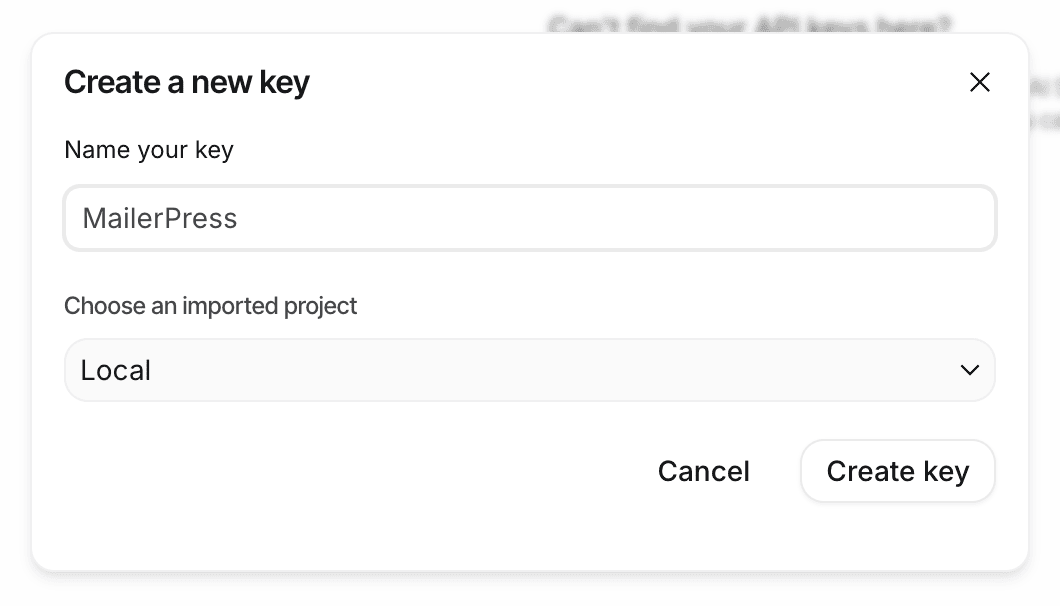
Images generated with this key count against your Google plan and quotas (visible in Google AI Studio).
Add the key to MailerPress
- Go to MailerPress > Settings and open the AI Settings tab.
- At the top, select Image AI.
- Under Choose a provider, click Gemini Image.
- In Gemini Image Configuration, choose the Model: Gemini 3 Pro Image or Gemini 2.5 Flash Image.
- Paste your key in API Key for Gemini Image.
- Click Save settings. The Gemini Image card now shows API key configured.
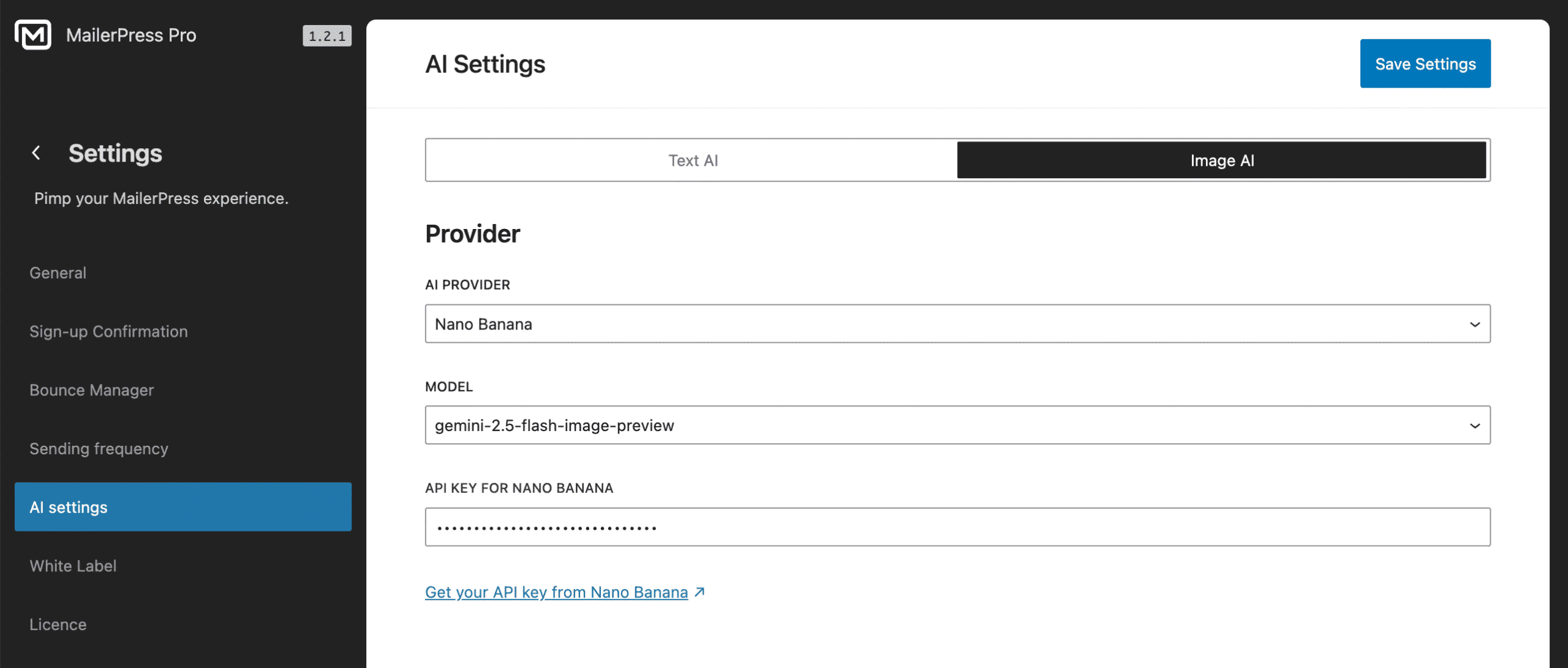
The Gemini Image key is stored separately from the Gemini text key. To also use Gemini for text, paste the same key in the Text AI view, on the Gemini card. See Configure AI providers in MailerPress Pro.
Generate your first image
Open an email in the editor, add an Image block and click AI generation. Describe your image, choose a format and click Generate image. For the full workflow, including variations, see Generate images with AI in the email editor.