MailerPress stores contacts, campaigns, statistics and automations in its own database tables, which are updated after each plugin update. If an update is interrupted, for example by a server timeout, parts of these tables can be missing. The Database Repair tool checks the tables and adds what is missing.
When to repair your database
- You can’t create or save campaigns, contacts or automations, or you get database errors.
- MailerPress displays the notification “Your database needs to be updated for optimal performance with this version of MailerPress. Please run the database repair tool.” Its Run Database Repair button opens the tool.
- Our support team asks you to.
The tool is always available. If you added the MAILERPRESS_DB_CHECK constant to wp-config.php for an older version, you can remove it.
Repair your database
- Back up your database. The repair changes the structure of the tables and can’t be undone.
- Go to MailerPress > Tools > Database Repair. You need the permission to manage MailerPress settings.
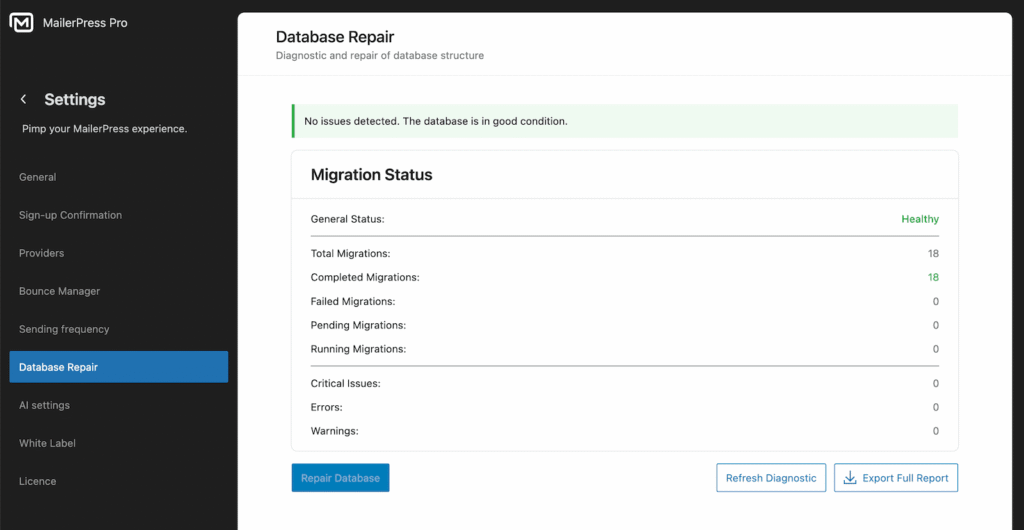
- MailerPress runs a diagnostic automatically. General Status shows Healthy or Issues Detected. Migration Status counts the database updates (migrations): total, completed, failed, pending and running. Detected Issues lists each critical issue, error or warning, with the part of the database concerned.
- If issues are detected, click Repair Database. The button is disabled when the database is healthy.
- In the Repair Database Structure? window, click Yes, Repair Database.
- When Repair successful! appears, review the issues fixed, then click Refresh Diagnostic to confirm that none remain.
- Try again the action that failed.
If the problem persists
- Click Export Full Report and attach the file to a support ticket opened from your customer area.
- Enable debug logging to record the errors: see How to Enable Debug Mode to Troubleshoot MailerPress.
- If you can’t access the WordPress admin, the migrations can be checked and run again from the command line with WP-CLI: see MailerPress WP-CLI commands.