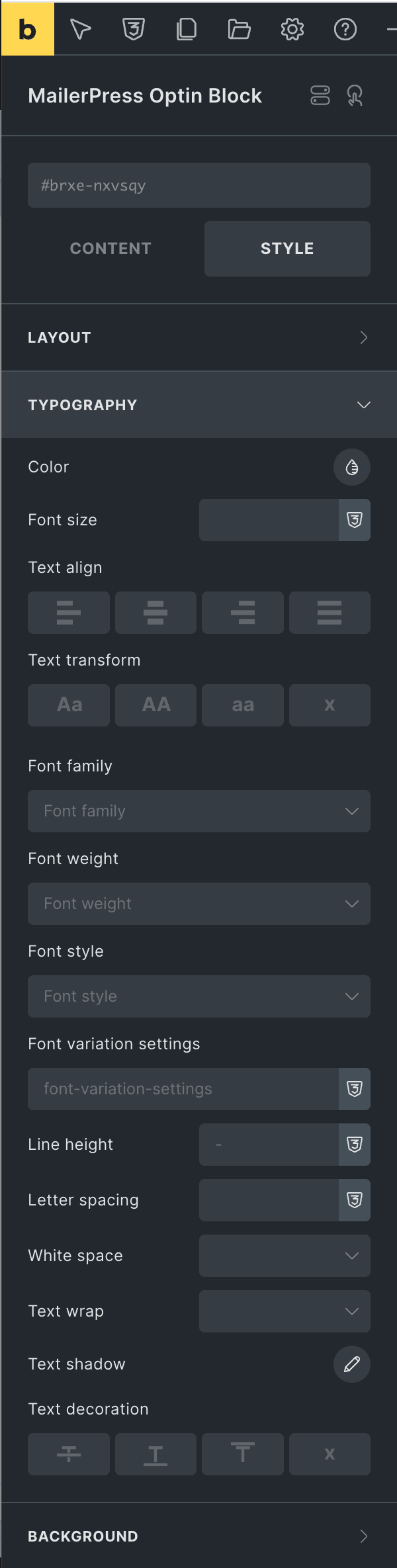
Thanks to our Bricks integration (MailerPress Pro 1.2 is required), you can easily embed a form to collect emails on your site.
To do that, edit for example a page with Bricks page builder.
Click the “+” icon to add a new block, search for “MailerPress form” and drag and drop it to your content.
Build your MailerPress form with Bricks Builder
Click on the MailerPress form block to start editing it.
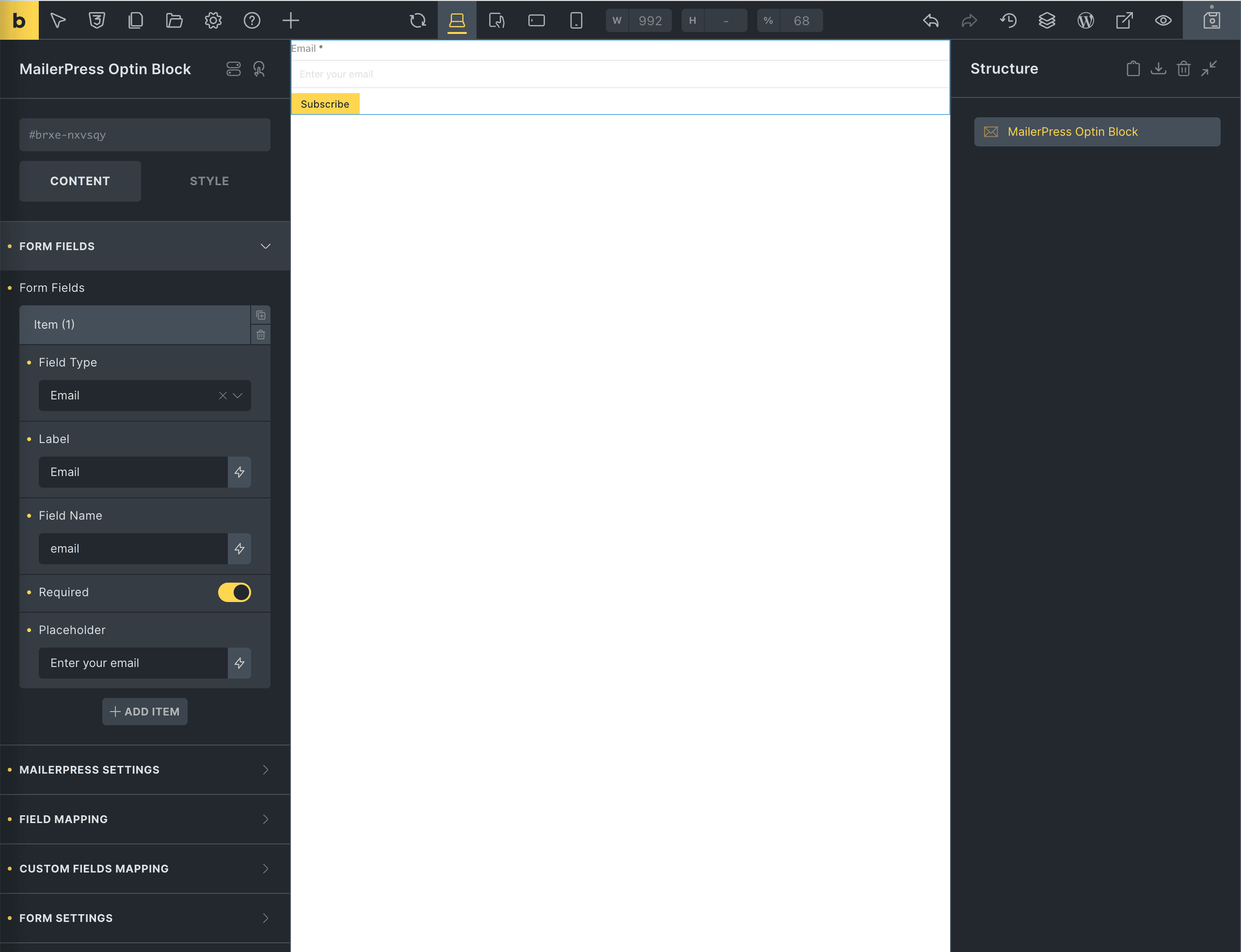
Add fields to the form
From the Content tab, Form fields section, you can add additional fields to fit your needs. Out of the box, we insert the mandatory “email” field.
Click Add item button, and select a field type:
- Text
- Textarea
- Phone
- Number
- Date
Enter a field name, a label, and a placeholder.
Check if it’s a mandatory field or not.
To change the fields order, just drag and drop them.
Map form fields to MailerPress database
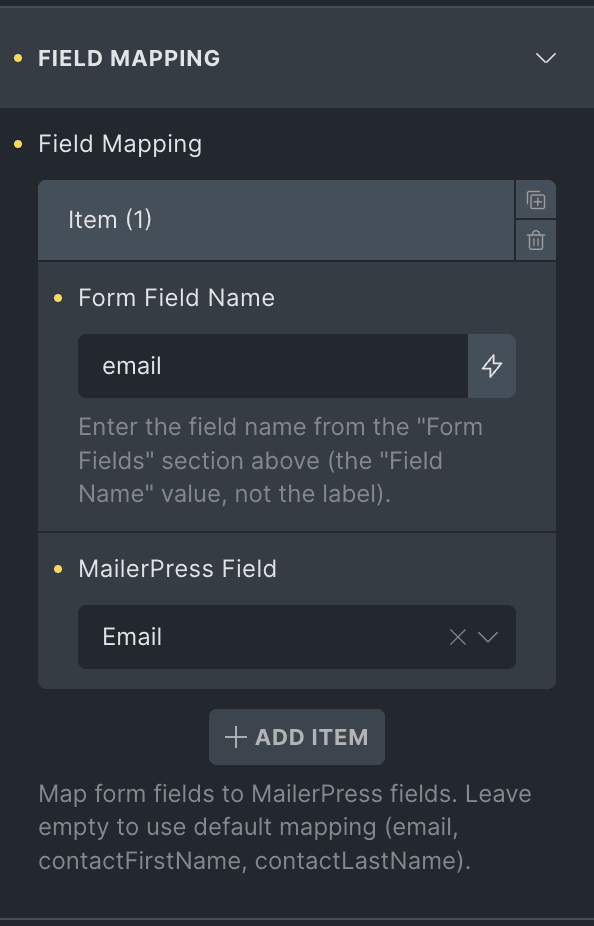
Once you have added all your fields, you must map them to the MailerPress default fields visible and/or custom fields created manually, so you can see these values when you edit a contact.
To do that, go to Field Mapping, and start mapping your fields.
Enter the field name set from the Form fields section and select which field to use (first name, last name or email).
If you have created custom fields for your contacts, you can also map them for more flexibility under Custom Fields Mapping section. The procedure is similar to the one mentioned above.
Assign lists and tags
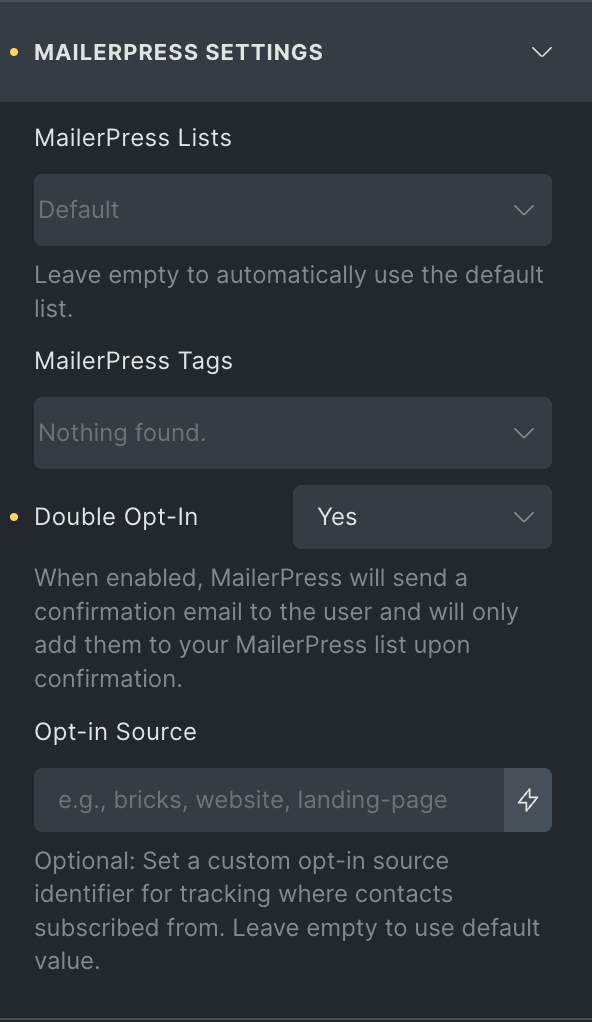
Under the MailerPress settings section, you can assign the desired contact lists, as well as tags.
It’s also possible to enable the double opt-in feature (recommended) and provide a source. This will be display in the dedicated column from MailerPress, Audience, Contacts.
Personalize the form messages
From MailerPress Form settings, you can:
- edit the Submit button text
- the success message
- the error message
It’s also possible to redirect user to a specific page on success.
Customize your MailerPress form with Bricks Builder
To change the width of your MailerPress form, go to Style tab, Layout accordion, Sizing section, then select the desired width.
Browse each section like Transform, Background, Typography and so on to customize everything about your form like any other Bricks blocks.