
What Are MailerPress Merge Tags?
Merge tags in MailerPress are dynamic placeholders you can insert into emails to automatically display personalized information, such as a subscriber’s first name, last name, or email address.
When the message is sent, MailerPress replaces each merge tag with real subscriber data.
This is useful because it allows you to create more engaging, personalized communication without manually editing each email, improving both user experience and email marketing performance.
How to insert merge tags using the MailerPress editor?
Go to your WordPress admin, MailerPress, Campaigns, create or edit a campaign.
Position your cursor where you want to insert your merge tag, for example, in a text block.
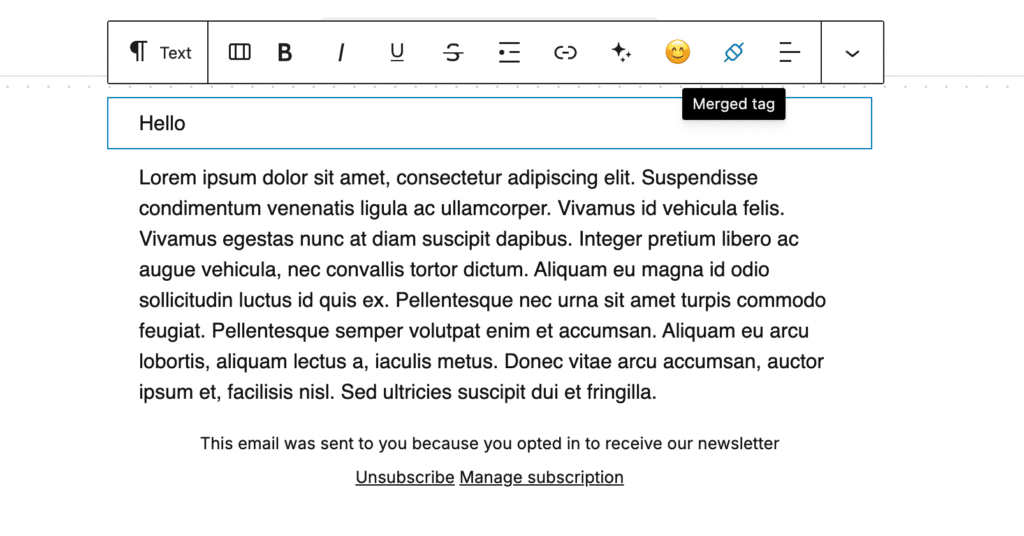
This will show the toolbar. Click on the Merge Tag icon to open the modal with the available tags.
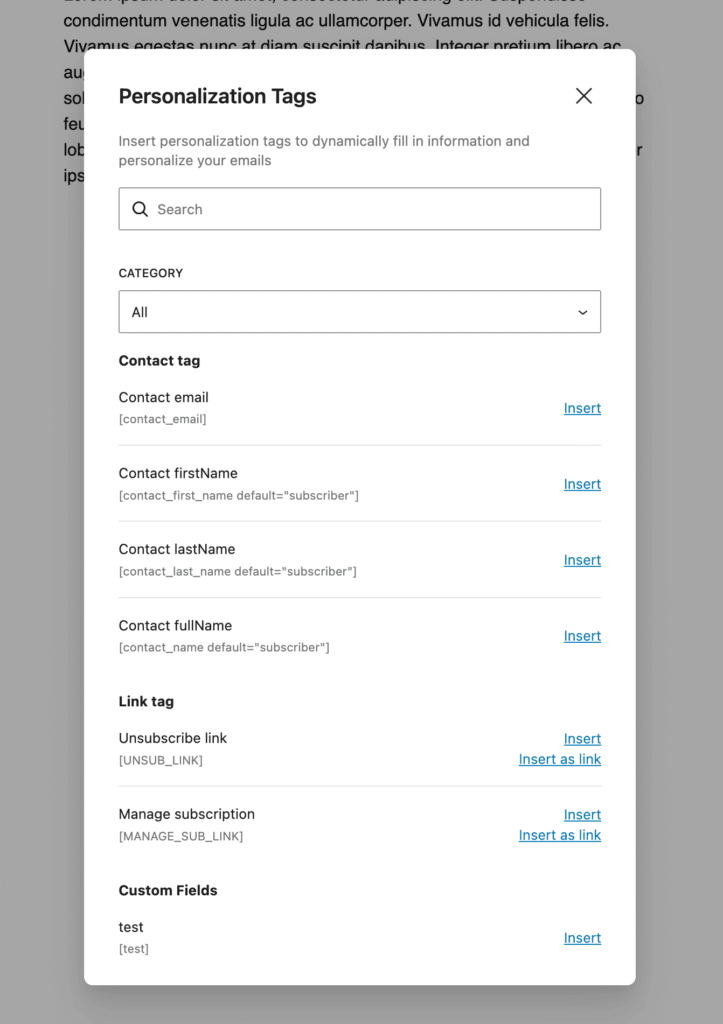
Choose the desired one by clicking Insert link.
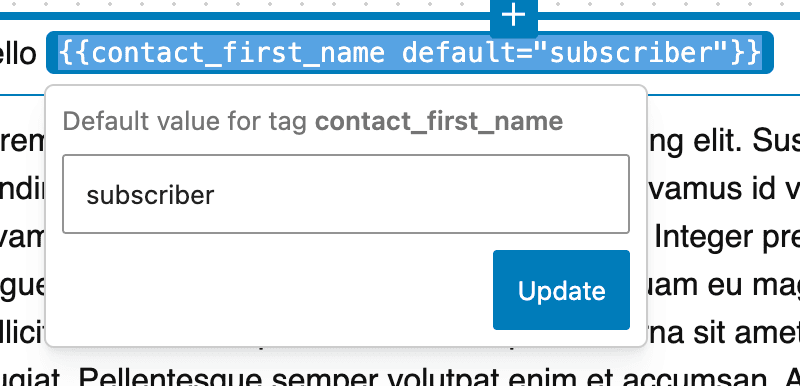
To set a default value to avoid empty merge tags, click on it, enter a default value, eg: “subscriber” and Update.
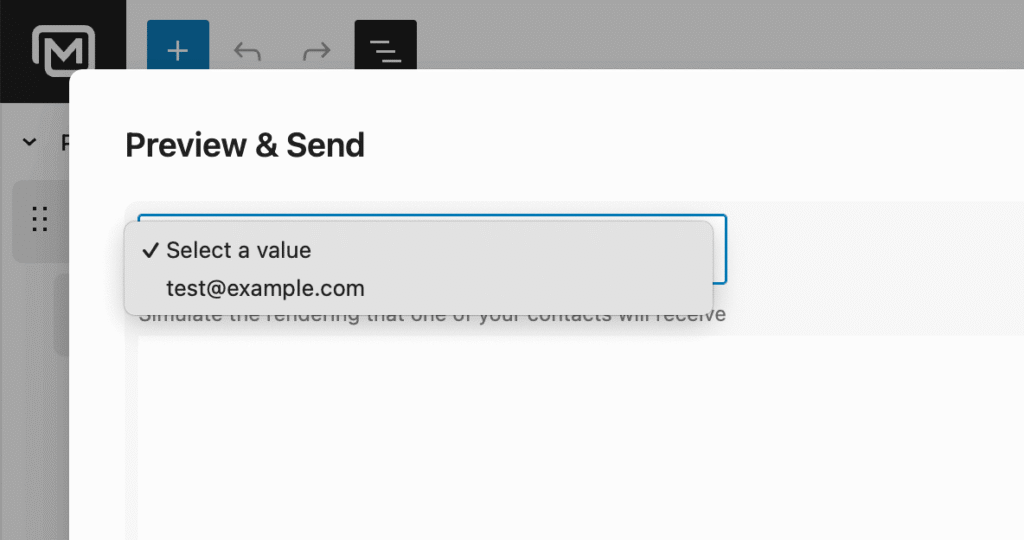
Preview your merge tags before sending your campaign
Click on the Preview & Send button.
From the preview modal, use the drop-down located in the top left corner, select a contact.
This will update all the merge tags used in the preview to simulate the associated values.
List of all available merge tags
- Contact email:
{{contact_email}} - Contact firstName:
{{contact_first_name default="subscriber"}} - Contact lastName:
{{contact_last_name default="subscriber"}} - Contact fullName:
{{contact_name default="subscriber"}}
Link tag
- Unsubscribe link:
{{UNSUB_LINK}} - Manage subscription:
{{MANAGE_SUB_LINK}}
Custom Fields
- Your custom field key:
{{your_custom_field_key}}