Create a campaign
From MailerPress, Campaigns, Your Campaigns page, click Create Campaign button and follow our complete guide to create your first email campaign with MailerPress.
Edit a campaign name
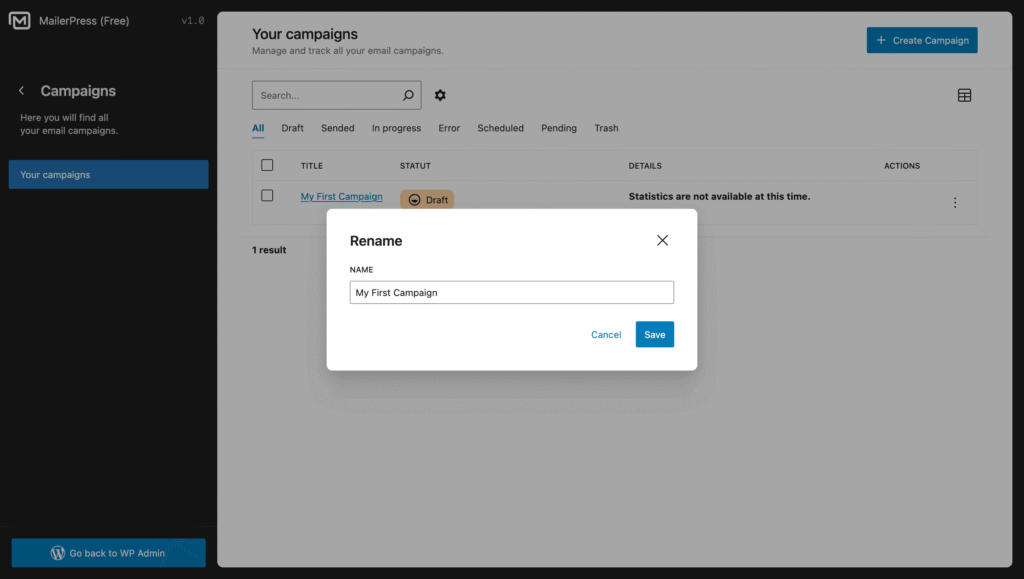
From MailerPress, Campaigns, Your Campaigns page, use the dropdown menu icon on the campaign of your choice (Actions column of the table), then click Rename.
A new modal appears to update the name of your campaign.
Confirm the changes by clicking the Save button.
Delete a campaign
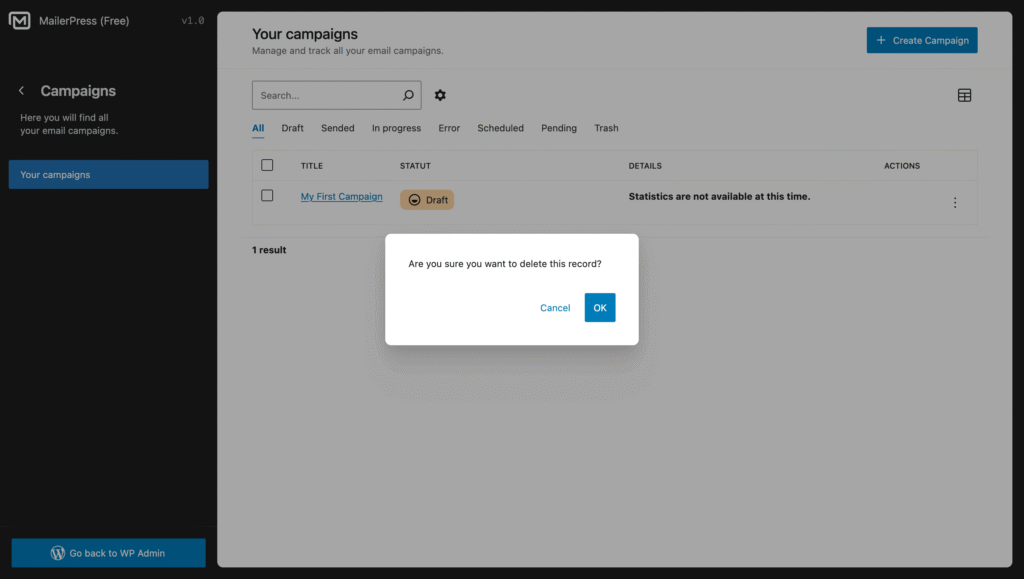
Use again the dropdown menu icon on a campaign, then choose Delete and click OK from the modal.
Or, simply hover a campaign from the table and click the trash icon, then confirm the deletion.
To delete multiple campaigns at once, make a selection and then click Delete from the list of bulk actions above the table.
Preview a campaign
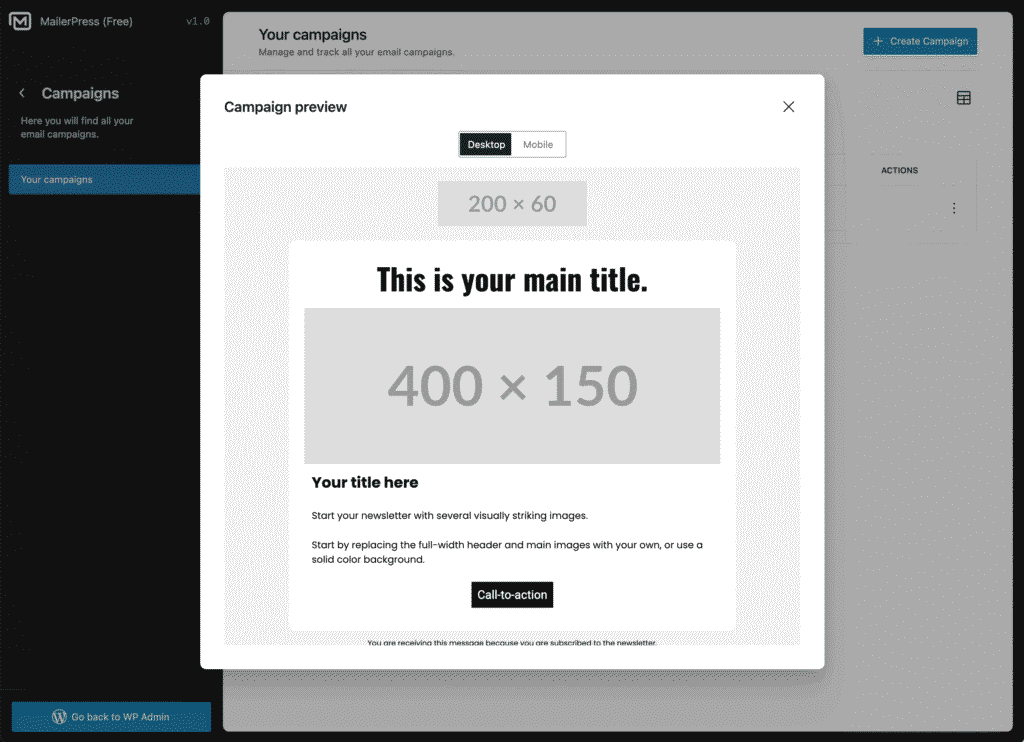
To preview your email content from the Your Campaigns page, hover over a campaign in the table and click the eye icon.
A preview modal will appear.
You can switch between desktop and mobile views to see how your email looks on different devices.