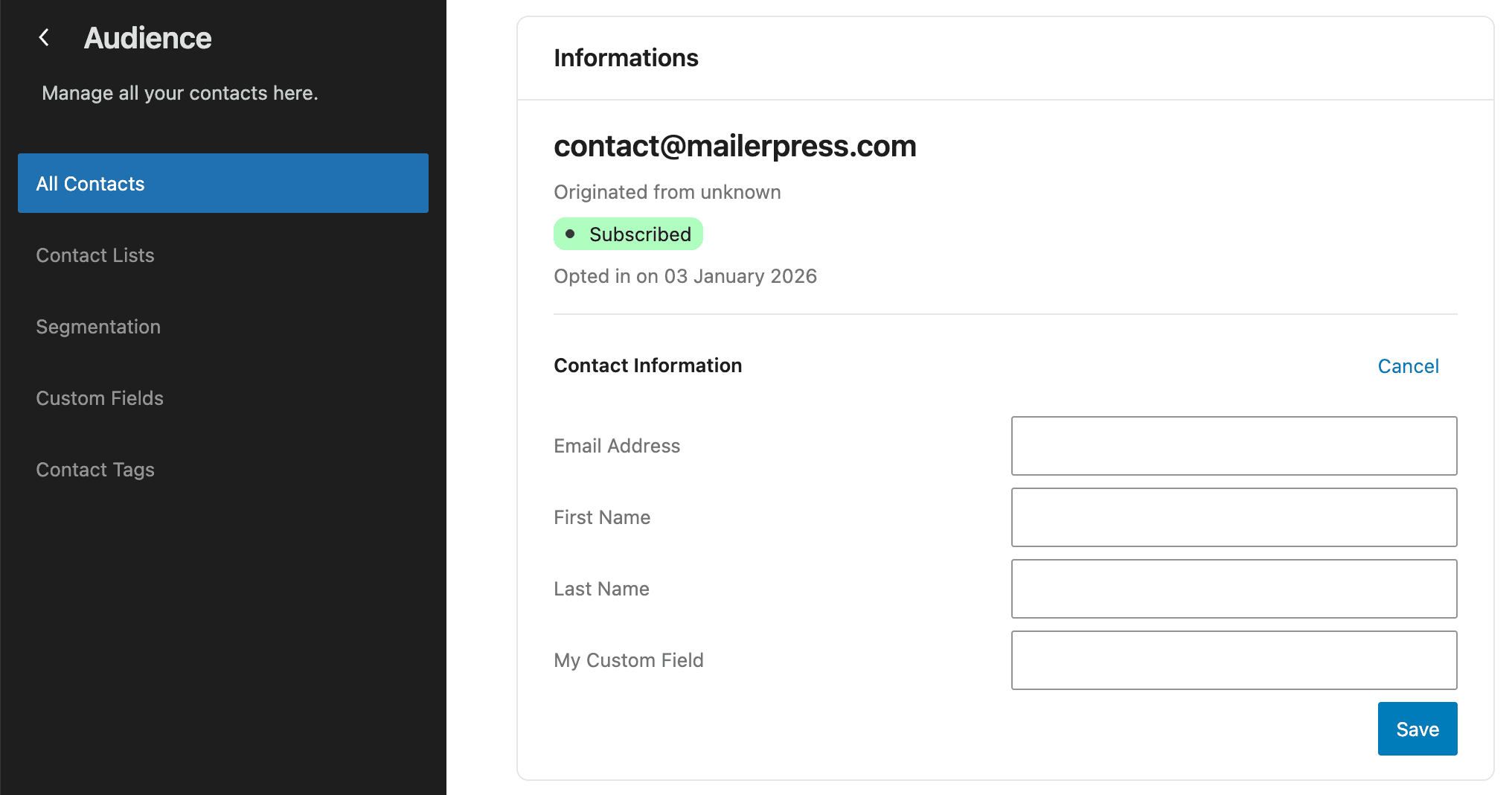
MailerPress allows you to manage custom fields so you can store and organize additional contact data beyond just email addresses. From the Custom Fields section, you can create, edit, or delete fields such as text, numbers or dates, and use them across forms, imports, and integrations.
These fields help you keep your contact data structured and enable more personalized segmentation and communication.
Create a custom field
Sign in to your WordPress admin, go to MailerPress, Audience, Custom fields.
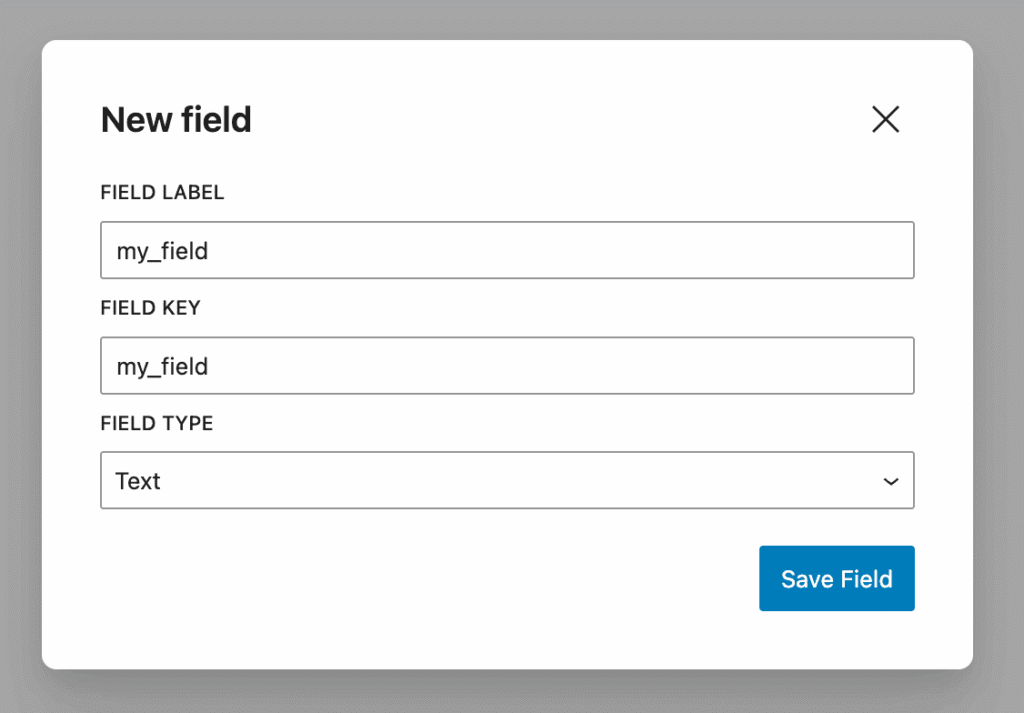
Click the New field button to open the modal.
Enter a field label.
The field key is automatically generated but you can edit if necessary.
Select a field type:
- text
- number
- date
Click Save field button.
Your new custom field will appear in the list.
Edit a custom field
To edit a custom field, just click on the three dots icon from the actions column, click Edit to show again the modal.
Make your changes and save.
Delete a custom field
To delete a custom field, follow the procedure mentioned above but choose Delete instead of Edit.
Edit the value of custom field for a contact
Now you have created your custom fields, you can enter some data for each of your contact.
Go to MailerPress, Audience, Contacts, and edit a contact.
From the modal, under Contact Information, your new custom fields will appear.
Click Edit link, enter some values for your custom fields and hit Save.