
Why Replace WordPress’s Built-In Cron (WP-Cron)?
By default, WordPress uses WP-Cron, a “virtual cron” that only runs when someone visits your site. This can lead to:
- Missed or delayed scheduled posts or emails.
- Inefficient performance on high-traffic sites.
A real server cron job is more reliable and runs on a fixed schedule, even when your site has no visitors.
Step 1: Disable WP-Cron in WordPress
You need to stop WordPress from running its default wp-cron.php on every page load.
- Open your site’s
wp-config.phpfile (located in the root of your WordPress installation). - Add the following line above the line that says
/* That's all, stop editing! */:
define('DISABLE_WP_CRON', true);Save the file.
Step 2: Set Up the Cron Job on Your Server
This depends on your hosting environment.
A. If You’re Using cPanel
- Log in to your hosting control panel (e.g., cPanel).
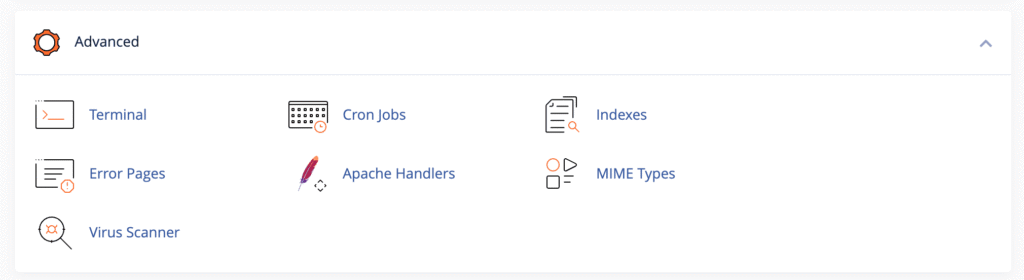
- Look for Cron Jobs (usually under the Advanced section).
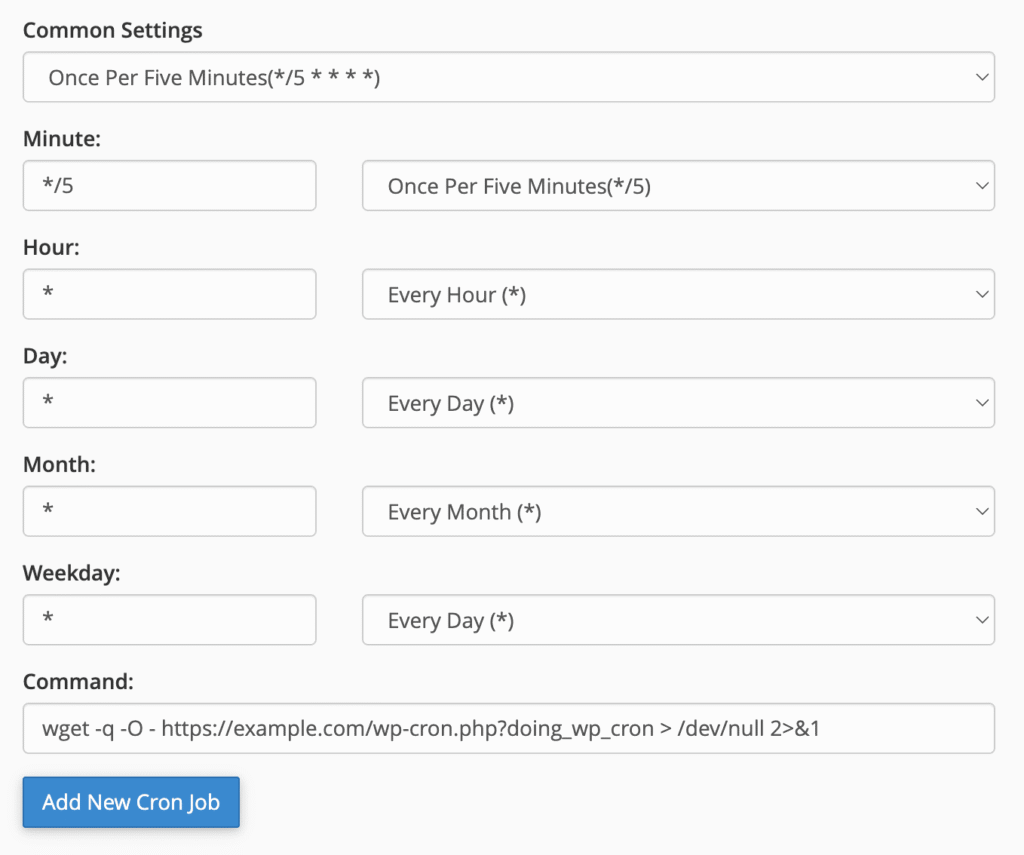
- Click Add New Cron Job.
Set the schedule (e.g., every 5 minutes):
*/5 * * * *Add this command (replace example.com with your actual domain):
wget -q -O - https://example.com/wp-cron.php?doing_wp_cron > /dev/null 2>&1This command tells the server to silently call the WP-Cron file every 5 minutes.
- Click Add New Cron Job.
B. If You’re Using SSH or a VPS (Advanced)
- SSH into your server.
- Open your crontab with:
crontab -e- Add this line to run WP-Cron every 5 minutes:
*/5 * * * * wget -q -O - https://example.com/wp-cron.php?doing_wp_cron > /dev/null 2>&1Save and exit.
Optional: Using curl Instead of wget
If wget is not available, you can use curl:
*/5 * * * * curl -s https://example.com/wp-cron.php?doing_wp_cron > /dev/null 2>&1Test your cron job by visiting the wp-cron.php URL in your browser to confirm it runs without errors.
For better reliability, avoid running it too frequently—every 5 or 10 minutes is a good balance.
Make sure your site’s .htaccess or firewall doesn’t block requests to wp-cron.php.
You’ve now disabled WP-Cron and replaced it with a real, server-based cron job. Your scheduled tasks in WordPress—like emails (including MailerPress), automatic updates, or plugin actions—will now run reliably and on time.