
Easily collect contact information—such as email addresses—using a Gravity Forms form, and automatically sync the data to MailerPress.
Requirements
- Gravity Forms version (premium plugin)
- MailerPress Pro version 1.0 or greater
Create a New MailerPress Feed
To get started, go to Forms, hover the form you want to sync, then Settings, MailerPress.
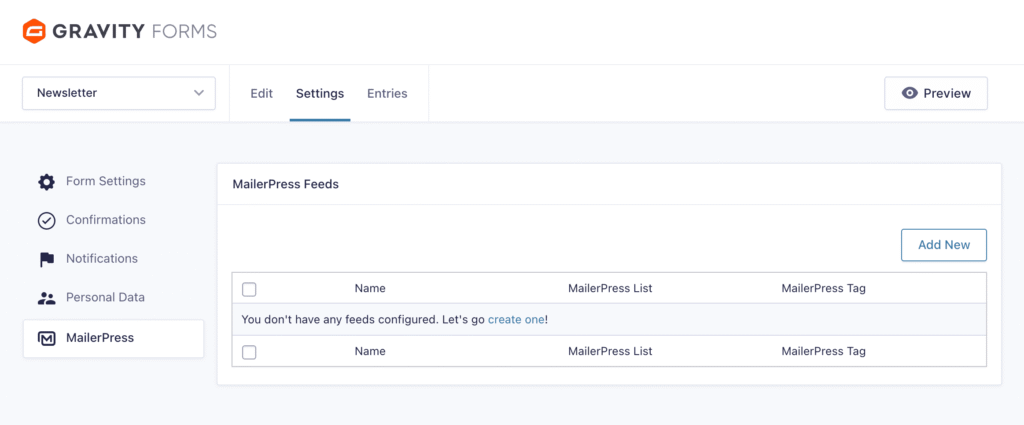
- Click the Add New button to create a new feed.
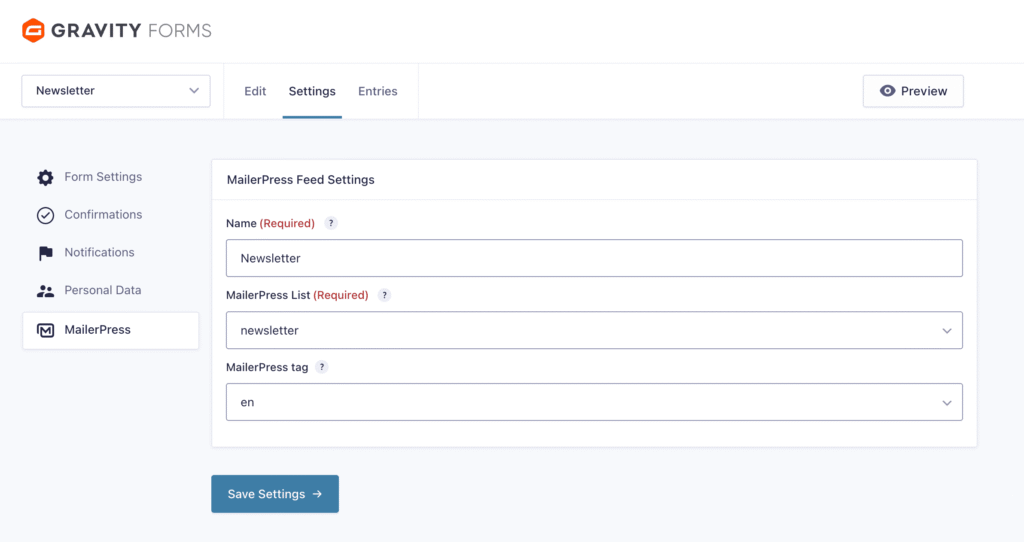
- Enter a name for your feed (e.g., Newsletter).
- Choose the MailerPress list where you want to add your contacts.
- Select the MailerPress tag you’d like to apply to those contacts.
- Click Save Settings.
The page will reload.
Map Contact Fields
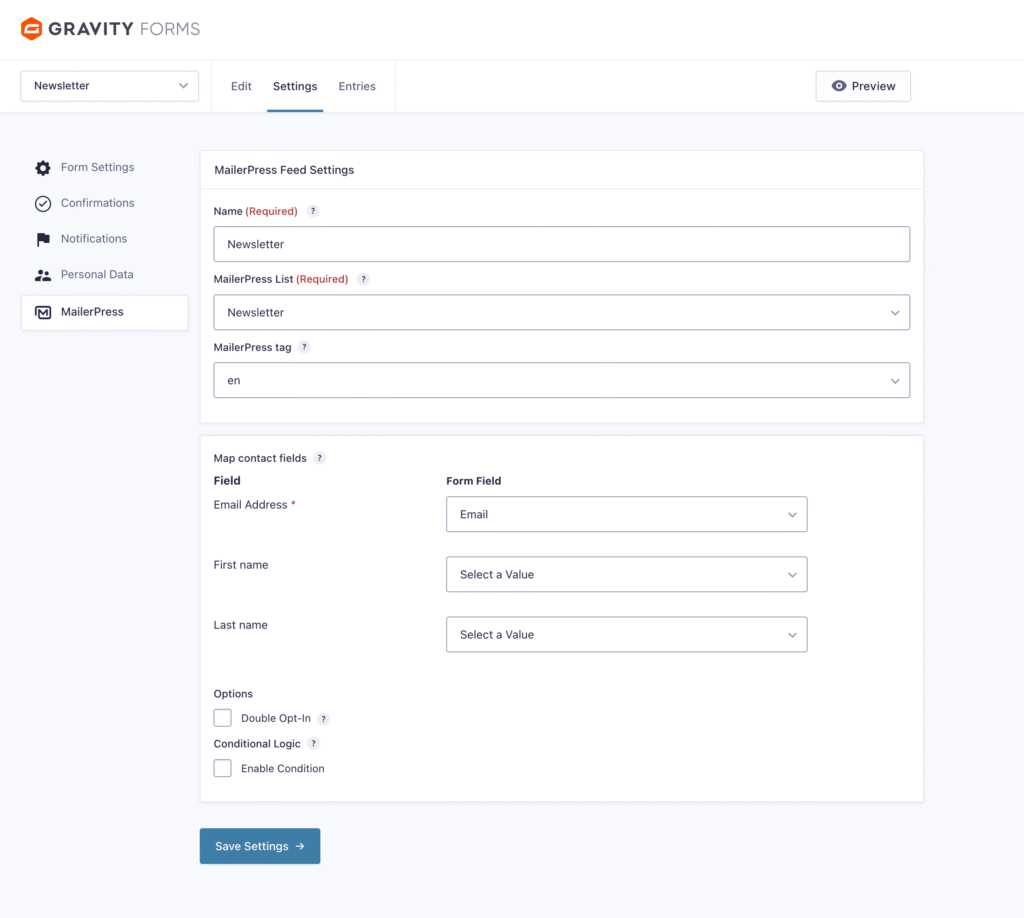
Next, map the contact fields to their corresponding form fields:
- First Name
- Last Name
You can also choose to enable the double opt-in option.
When enabled, MailerPress will send a confirmation email to the user. The contact will only be added to your MailerPress list after they confirm their subscription.
Once you’re finished, click Save Settings again.
Now, each time a visitor submits the form, their information will be automatically added to your selected MailerPress list.