
By default, emails can only rely on a limited set of web-safe fonts that are universally supported across most email clients. These include:
- Arial (sans-serif)
- Helvetica (sans-serif, falls back to Arial on Windows)
- Verdana (sans-serif)
- Tahoma (sans-serif)
- Trebuchet MS (sans-serif)
- Georgia (serif)
- Times New Roman (serif)
- Courier New (monospace)
- Courier (monospace)
- Impact (display)
Because these fonts are pre-installed on most devices, they ensure your email text displays consistently without requiring additional downloads. While you can use Google Fonts or other custom typefaces for branding, web-safe fonts remain the most reliable choice for maximum compatibility.
Install new Google Fonts locally for MailerPress
Google Fonts can be used in emails to bring more personality and align your design with your brand identity. However, support for custom fonts in email clients is limited — while services like Apple Mail, iOS Mail, and some versions of Outlook support them, many others (like Gmail and older Outlook versions) will fall back to a default web-safe font.
From the right-hand sidebar, open the Styles tab and click on Typography.
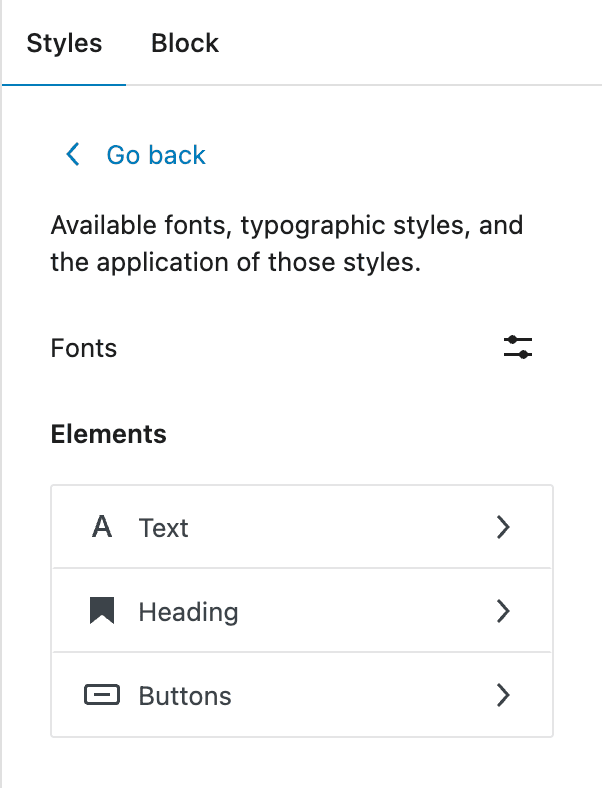
Next, click the Font Manager icon located to the right of the Fonts label.
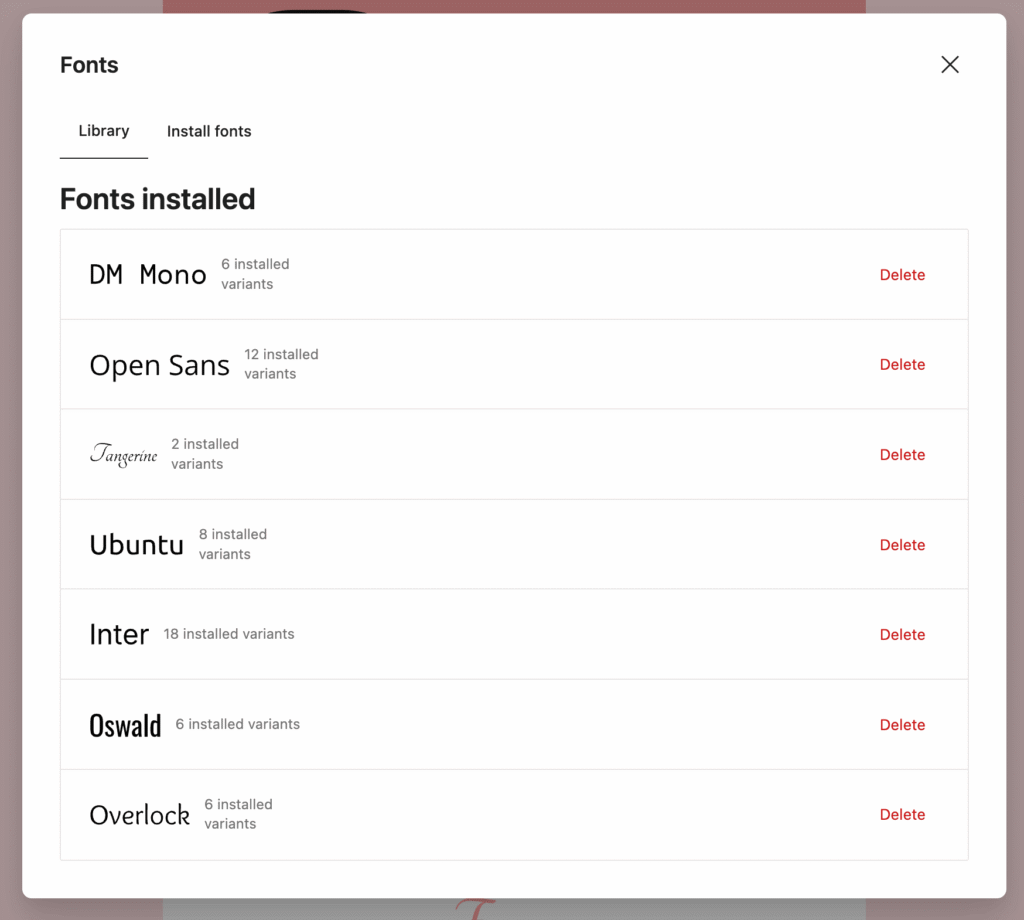
A modal window will appear showing the fonts already installed in MailerPress.
To install a new font:
- Go to the Install Fonts tab.
- Use the search bar or category filter to find the Google Font you want.
- Click on the font to view its available variations.
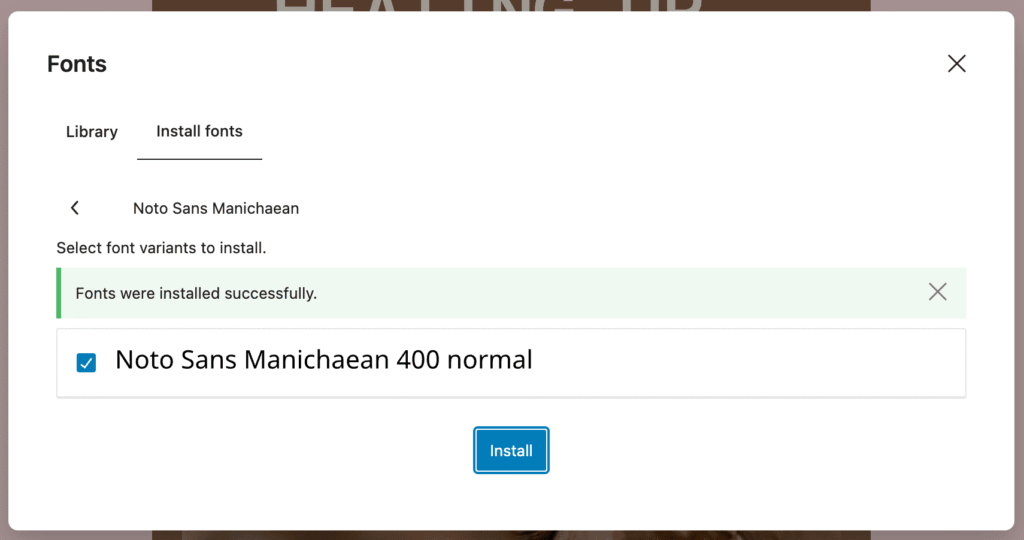
- Select the variations you need, then click Install.
- The message “Fonts were installed successfully.” appears.
- Go back to the list by clicking on the Library tab.
Google Fonts are automatically downloaded to your server in the wp-content/mailerpress-fonts folder to ensure GDPR compliance.
Apply a Google font to your email campaign
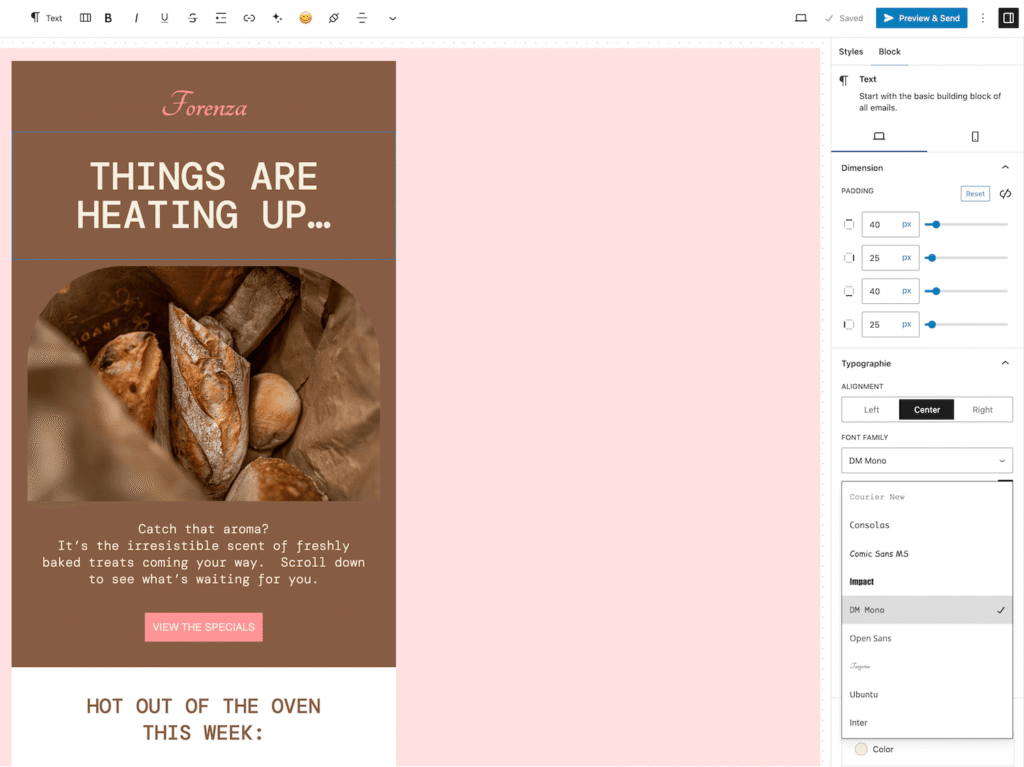
Go to MailerPress, Campaign and edit the desired campaign.
Select a block with a text like a paragraph or a heading.
From the right panel, under Typography section, use the Font Family dropdown and choose your newly installed Google font.
Delete a Google font
From the Font Manager, go to the Library tab to show all the installed fonts.
Click the Delete link to remove a Web font.