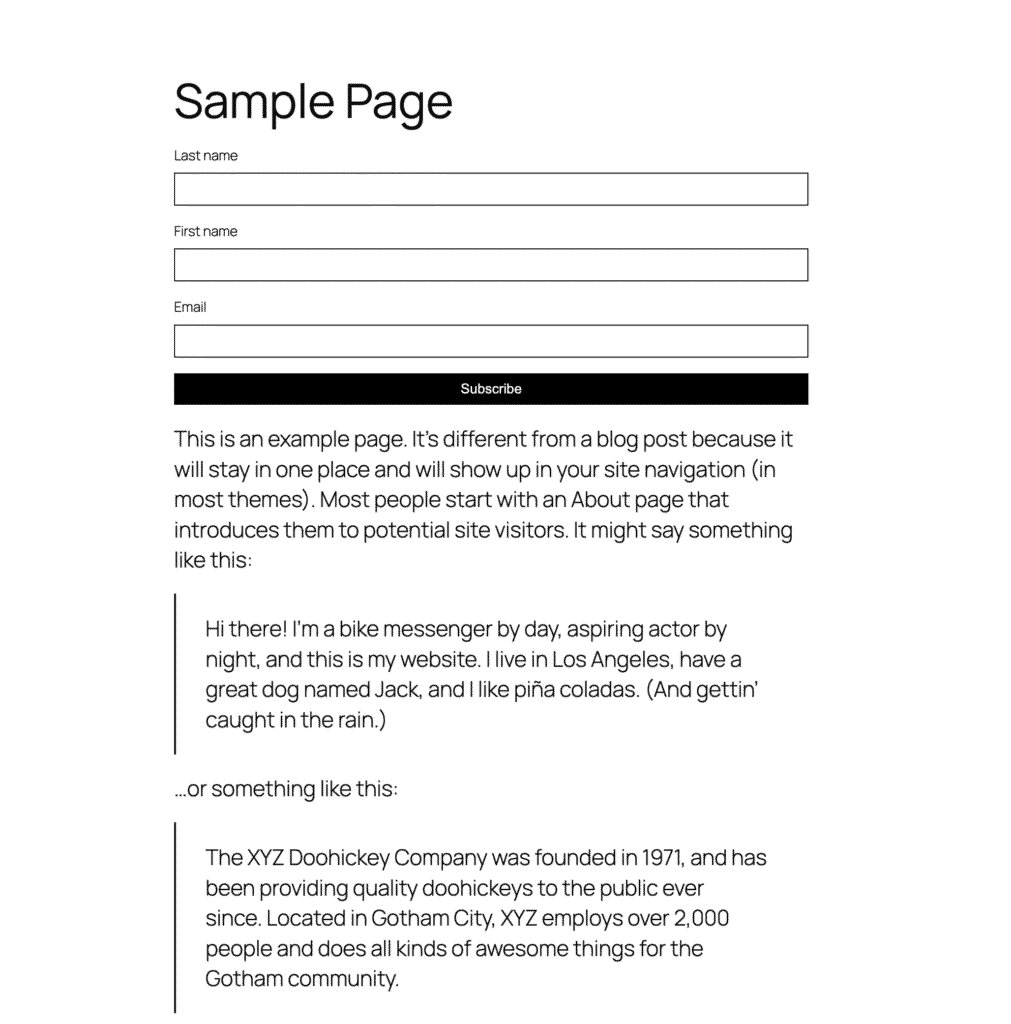
This guide shows you how to add a MailerPress subscription form in the WordPress Block Editor to collect a visitor’s first name, last name, and email address.
Insert the form to capture emails
The first step is to edit a post, page or post type with the Block Editor.
You can also edit a template, for example, the footer using the Full Site Editing (Appearance, Editor, Patterns/Templates) to create a section “Subscribe to our newsletter“.
Add the “Subscription form” block where you want to show it on your site.
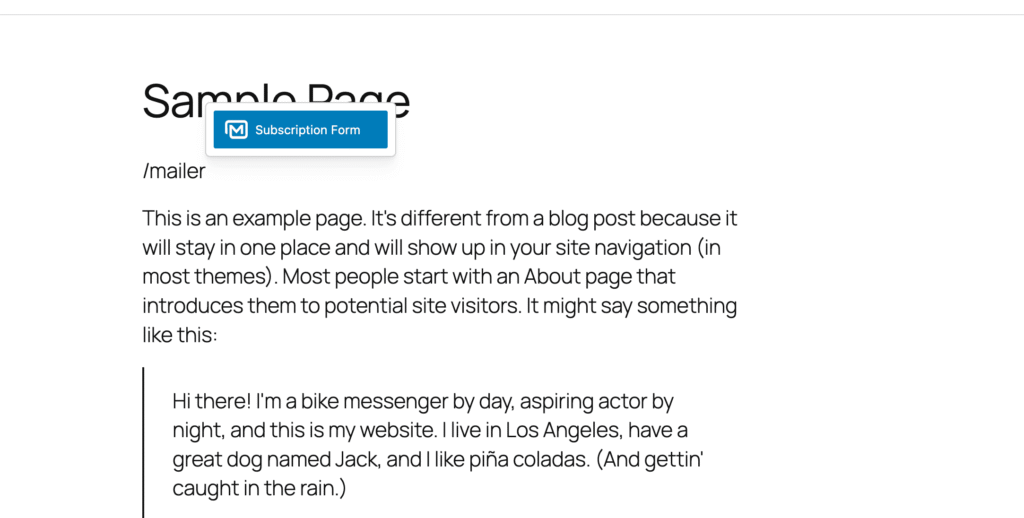
Edit the form settings
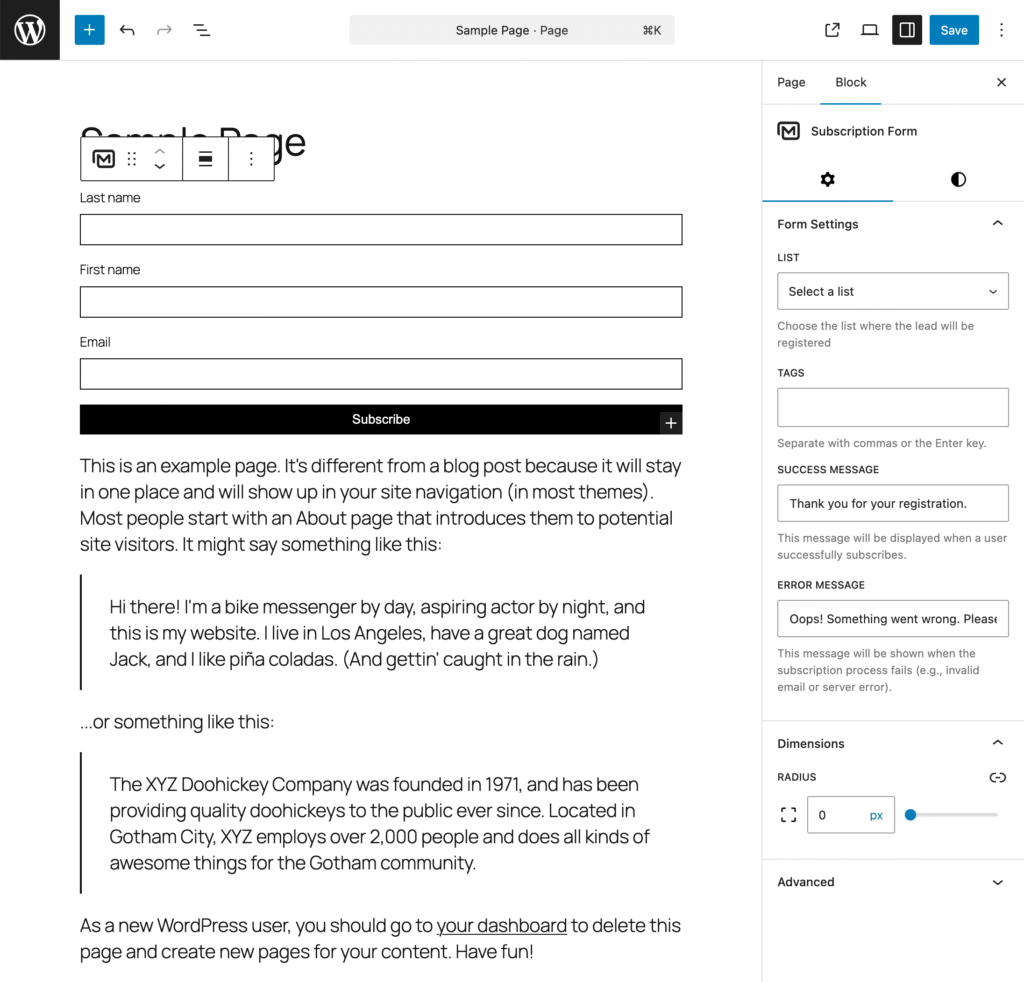
By using the list view, click the Subscription form container to edit the general settings from the right panel such as:
- Email List
- Tags to apply
- Success message
- Error message
Design the subscription form
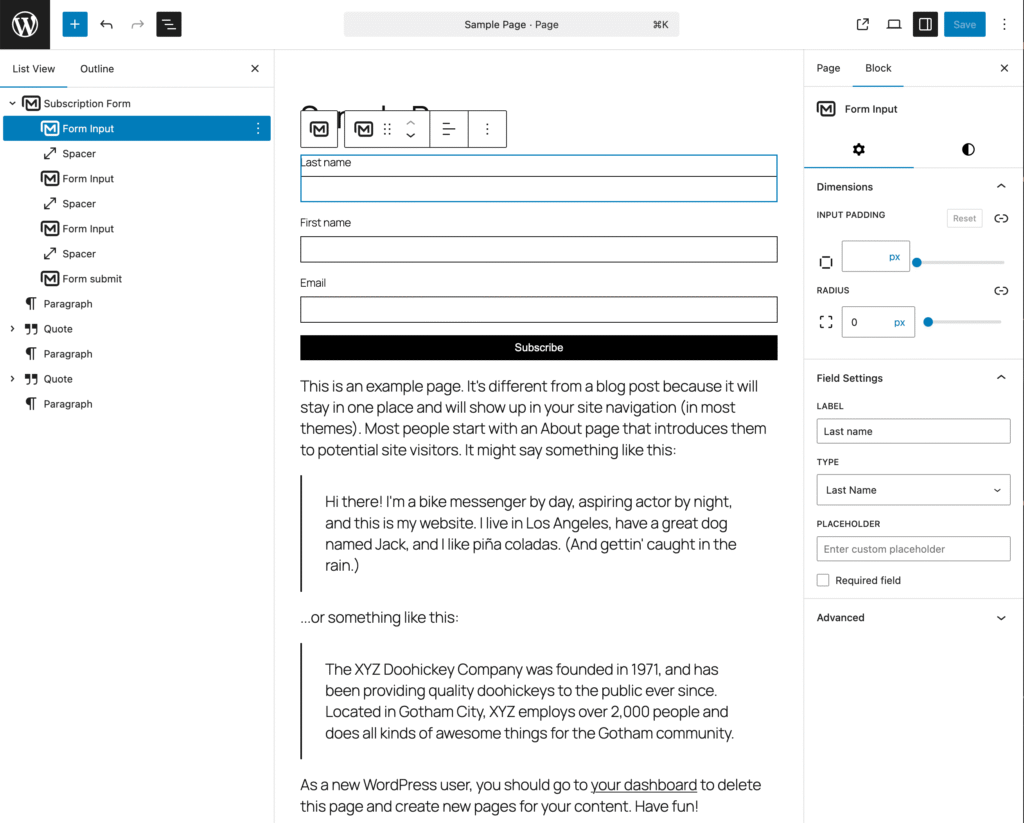
Edit each input field by clicking on it from the list view to update:
- the label
- the placeholder
- the type
Everything is fully customizable using the Styles tab.
Do not forget to click the Save button and check the design on frontend.